As an Amazon Associate we earn from qualifying purchases
Best Wireless RGB Gaming Mouse Picks for Lighted Play
A wireless mouse removes cable drag, but adding bright RGB lighting changes the buying decision in ways a plain wireless mouse never raises. Lighting drains the battery, adds a small amount of weight, ties you to a specific software ecosystem, and can look either clean or distracting depending on how many zones a shell exposes. Finding the best wireless rgb gaming mouse is therefore not just about picking the brightest model. It is about balancing visible lighting against runtime, sensor accuracy, switch feel, shape, and how you plan to charge the mouse between sessions.
This guide is for players building a lit desk setup who still want competitive tracking and a cable-free connection. It covers five wireless gaming mice that all include RGB lighting, explains what the lighting costs in battery life, and shows which charging and sync ecosystems each brand uses. Every model here connects over a low-latency 2.4 GHz link and carries a modern optical sensor.
Our Top Picks
 Logitech G502 X Plus Wireless RGB Gaming MouseWireless7.1 x 4.6 x 2.7 inches0.84 poundsCheck on Amazon
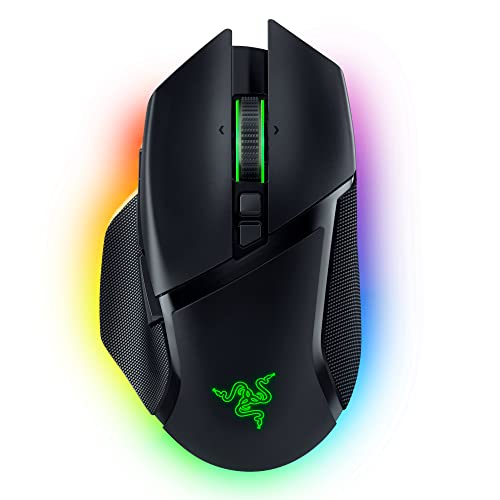
Top 3 picks at a glance

Quick Picks
| Product | Best for | Key spec |
|---|---|---|
| Logitech G502 X Plus | Feature-rich right-handed play | 8-zone LIGHTSYNC RGB, HERO 25K sensor |
| Razer Basilisk V3 Pro | Scroll wheel and deep Chroma zones | 13-zone Chroma RGB, Focus Pro 30K sensor |
| SteelSeries Aerox 5 Wireless | Lightweight multi-genre play | 74 g shell, TrueMove Air 18K sensor |
| Corsair Dark Core RGB Pro SE | Qi wireless charging | PixArt PAW3392 18,000 DPI sensor, Slipstream wireless |
| Razer Cobra Pro | Compact shape with underglow | 11-zone Chroma RGB, 77 g, Focus Pro 30K sensor |
How to Choose the Best Wireless RGB Gaming Mouse
Lighting zones and placement
Zone count sounds like a simple score, but placement matters more than the number. A logo-only light disappears under your palm during play, while a light strip along the base or an underglow ring stays visible on the desk. Mice with lighting spread across the scroll wheel, logo, and side strips let you build layered effects, but they also expose more LEDs to drain the battery. Decide whether you want lighting you can see while playing, lighting an audience or camera can see, or simply a soft accent that matches the rest of your setup. If the light sits under your hand most of the time, a higher zone count adds little.
The battery cost of RGB
Manufacturers usually quote two battery figures: a long headline number with lighting off or dimmed, and a much shorter number with RGB running at full brightness. The gap is large. On the Logitech G502 X Plus, for example, the rating drops from around 120 hours of constant motion to roughly 37 hours with RGB on. That pattern repeats across brands. If you play daily with bright effects, expect to charge weekly rather than monthly, and treat the lighting-off figure as a travel or tournament setting rather than your normal runtime. Lowering brightness, choosing a static colour instead of a cycling effect, and shortening the sleep timer all extend runtime without turning the lighting off completely.
Charging cables, docks, and wireless charging
How a mouse recharges shapes your routine. USB-C cables are now standard on most of these models, and all of them can be used wired while charging. Beyond that, the ecosystems split. Logitech offers POWERPLAY compatibility on the G502 X Plus, which charges the mouse continuously from a compatible mat. Razer sells a separate Mouse Dock Pro and wireless charging puck for the Basilisk V3 Pro and Cobra Pro, adding a magnetic dock that also houses lighting of its own. Corsair takes a different route with Qi charging on the Dark Core RGB Pro SE, so any Qi pad can top it up. SteelSeries keeps things simple with cable charging on the Aerox 5 Wireless. None of these systems cross over, so a dock or mat you already own is a real reason to stay within one brand.
Sync ecosystems and software
RGB sync only works inside one brand’s software. Logitech uses LIGHTSYNC inside G HUB, Razer uses Chroma inside Synapse, SteelSeries uses Prism lighting inside GG and Engine, and Corsair uses iCUE. If your keyboard, headset, and case lighting already live in one of those programs, matching the mouse to it gives you one-click scene changes and game-reactive effects across the whole desk. If your gear is mixed, the mouse lighting will always be a separate profile to manage. Check that the software lets you store profiles on the mouse itself if you move between computers, because onboard memory keeps your DPI and lighting choices when the program is not installed.
Sensor, switches, and polling
Lighting should never be the reason to accept a weaker sensor. Every mouse in this guide uses an optical sensor rated at 18,000 DPI or higher, with tracking speeds intended for fast flicks, and none of them rely on laser sensors. Main-button switches matter just as much: optical and hybrid optical-mechanical switches from Logitech and Razer are designed to avoid the double-click faults that worn mechanical contacts can develop, while SteelSeries and Corsair use their own rated mechanical and optical designs. Standard polling is 1,000 Hz over the 2.4 GHz link on these models, and some Razer mice can go higher with a separate high-polling receiver or dock. For most players, a stable 1,000 Hz link matters more than chasing higher rates that shorten battery life further.
Shape, weight, and grip
RGB models tend to be feature mice rather than stripped-down esports shells, so weights here run from the mid-70 g range up to well over 100 g. Right-handed ergonomic shapes like the G502 X Plus and Basilisk V3 Pro suit palm and relaxed claw grips and carry extra buttons, while the symmetrical Cobra Pro and the holey Aerox 5 Wireless suit fingertip and claw grips and smaller hands. Match the shape to your grip first; lighting zones cannot fix a shell that cramps your hand in the third hour of a session.
The Picks in Detail
Logitech G502 X Plus
The G502 X Plus is Logitech’s lighting-equipped update of its long-running right-handed design. Its 8-zone LIGHTSYNC RGB runs in a strip along the rear of the shell, so the glow stays visible behind your hand instead of hiding under it, and the software can dim or reshape the effect based on whether the mouse is actively moving. The HERO 25K sensor covers 100 to 25,600 DPI, and the LIGHTFORCE hybrid optical-mechanical switches pair optical actuation speed with a mechanical click feel. Thirteen programmable controls, a dual-mode scroll wheel with a free-spin option, and a removable DPI shift button round out a layout aimed at players who bind a lot of commands.
- Strength: The battery story is the clearest in this class, with up to 120 hours of constant motion rated with lighting off, POWERPLAY wireless charging support for uninterrupted play on a compatible mat, and USB-C charging when you do plug in.
- Trade-off: At 106 g it is one of the heavier wireless mice here, and the roughly 37-hour rating with RGB on means bright lighting turns it into a weekly charging habit.
- Skip it if… you want an ultralight mouse for fast fingertip aim, or you dislike managing a larger, button-dense shell.
Razer Basilisk V3 Pro
The Basilisk V3 Pro is the pick for players who treat lighting and the scroll wheel as headline features. Its Chroma RGB covers 13 zones, including an underglow strip that throws light onto the desk surface, and each zone can be set independently in Synapse or synced with other Chroma gear. The Focus Pro 30K optical sensor, Razer Optical Mouse Switches Gen-3, and thirteen programmable controls sit inside a right-handed ergonomic shell with a pronounced thumb rest. The HyperScroll tilt wheel switches between tactile notched scrolling, free-spin mode, and a smart mode that changes behaviour by scroll speed, and it also tilts side to side for extra inputs.
- Strength: Three connection modes — HyperSpeed 2.4 GHz wireless, Bluetooth, and wired USB-C — plus support for Razer’s Mouse Dock Pro and wireless charging puck, sold separately, for magnetic dock charging and higher polling options.
- Trade-off: The dock and puck that unlock its best charging setup are separate purchases, and at about 112 g the shell is built for comfort and features rather than low weight.
- Skip it if… you prefer a symmetrical shape, or you want wireless charging included without buying an accessory dock.
SteelSeries Aerox 5 Wireless
The Aerox 5 Wireless takes the opposite approach to the feature mice above: it keeps RGB but cuts weight with a perforated shell. At 74 g it is the lightest model in this guide, and the holes let its Prism RGB glow through the top of the shell in a pattern no solid mouse can copy. The TrueMove Air optical sensor is rated up to 18,000 DPI, nine programmable buttons include a dedicated sniper button and an up-down flick switch on the side, and the AquaBarrier design carries an IP54 rating for resistance to water and dust entering through the shell openings. Connectivity covers both 2.4 GHz wireless and Bluetooth.
- Strength: Battery life is rated at more than 180 hours on the 2.4 GHz connection with lighting settings managed in software, which is the longest claim here, and the light shell suits fast, low-sensitivity arm aiming.
- Trade-off: The open shell shows dust and debris inside over time, the side button layout takes practice to use without mis-clicks, and there is no dock or wireless charging option.
- Skip it if… you dislike perforated shells, or your play space is dusty enough that an open design would need constant cleaning.
Corsair Dark Core RGB Pro SE
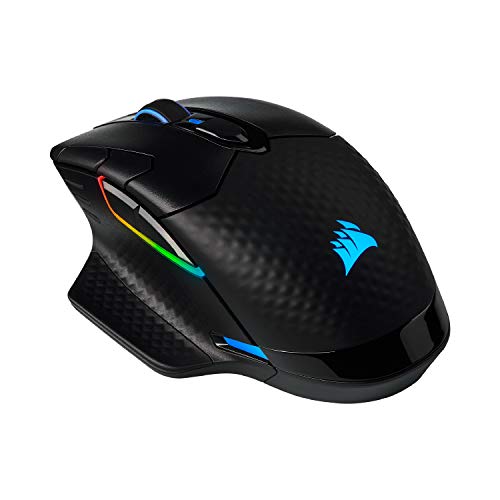
The Dark Core RGB Pro SE is built around charging convenience and a contoured, grip-focused shape. Its custom PixArt PAW3392 optical sensor is rated at 18,000 DPI and tuned for low power draw on wireless, and Corsair’s Slipstream technology provides the sub-1 ms 2.4 GHz link, with Bluetooth and wired USB as fallbacks. Eight programmable buttons, dynamic RGB backlighting controlled through iCUE, and an interchangeable magnetic side grip let you switch between a smooth side and a wider winged rest. The SE model adds Qi wireless charging, so it can recharge on a Qi pad as well as over its cable.
- Strength: Qi charging is the most flexible option in this guide because it works with generic pads rather than a brand-specific dock or mat, and iCUE syncs its lighting with Corsair keyboards, headsets, and fans in one program.
- Trade-off: At roughly 142 g it is by far the heaviest mouse here, the sensor ceiling is lower than the Razer and Logitech flagships, and the shape is firmly right-handed and palm-oriented.
- Skip it if… weight matters to your aim style, or you play claw or fingertip grip and need a smaller, flatter shell.
Razer Cobra Pro

The Cobra Pro packs Razer’s full lighting treatment into a compact symmetrical shell. Eleven Chroma RGB zones include a strong underglow that rings the base of the mouse, which makes it the most visibly lit model here relative to its size. Inside, the Focus Pro 30K optical sensor and Gen-3 optical switches match the Basilisk V3 Pro, while ten customizable controls keep the layout simpler. At 77 g it stays light for a feature mouse, and it connects over HyperSpeed wireless, Bluetooth, or USB-C wired, with a rated battery life of up to 170 hours depending on connection and lighting settings. It also supports the same Razer wireless charging puck and Mouse Dock Pro ecosystem as its larger sibling.
- Strength: It is the natural choice for smaller hands or fingertip and claw grips that still want multi-zone RGB, onboard profiles, and access to dock charging, without moving to a large ergonomic shell.
- Trade-off: There is no tilt or free-spin scroll wheel, the symmetrical shape offers no thumb rest for relaxed palm play, and full-brightness underglow shortens the headline battery figure considerably.
- Skip it if… you want a sculpted right-handed shape with a thumb wing, or extra buttons for MMO-style bindings.
Which One Fits Your Situation
You are building a fully synced RGB desk
Stay inside one ecosystem. Choose the Basilisk V3 Pro or Cobra Pro if your keyboard and headset are already Razer Chroma devices, the G502 X Plus if your setup runs on Logitech LIGHTSYNC, or the Dark Core RGB Pro SE if your rig is built around Corsair iCUE. Matching the mouse to the software you already use is worth more than any single zone-count advantage.
You play long sessions and hate charging
Turn the lighting question into a battery question. The Aerox 5 Wireless carries the longest rated runtime here, and the G502 X Plus pairs a long lighting-off rating with POWERPLAY charging that removes charging breaks entirely on a compatible mat. Whichever mouse you pick, running RGB at moderate brightness instead of maximum can add many hours between charges.
You play competitive shooters but still want lighting
Pick the Cobra Pro or the Aerox 5 Wireless. Both stay under 80 g, both use proven optical sensors, and both keep their RGB in zones that do not interfere with grip. Set a static, dim profile for ranked sessions and save the animated effects for casual play to protect battery life.
You use a palm grip and lots of bindings
The G502 X Plus and Basilisk V3 Pro are the two genuine options, with thirteen controls each, thumb rests, and advanced scroll wheels. The Logitech suits players who want POWERPLAY charging and hybrid switches; the Razer suits players who want the tilt wheel and the deeper 13-zone Chroma layout.
Common Mistakes
- Judging battery life by the headline number. The long figure on the box assumes lighting is off or minimal. Compare the RGB-on rating when one is published, and plan your charging routine around it.
- Buying a dock-dependent mouse without the dock. Razer’s wireless charging and high-polling features need the separate puck or Mouse Dock Pro, and Logitech POWERPLAY needs its own mat. Factor the accessory into the decision from the start.
- Mixing sync ecosystems by accident. A Chroma mouse will not sync with LIGHTSYNC or iCUE gear. Check which program already runs your keyboard and headset lighting before choosing.
- Choosing by zone count alone. A light hidden under your palm adds nothing while you play. Look at where the zones sit, especially base strips and underglow, not just how many there are.
- Ignoring shape for features. Extra buttons and lighting cannot compensate for a shell that does not fit your grip. Weight and shape decide comfort long before RGB does.
- Leaving polling and brightness at maximum everywhere. High polling rates and full-brightness animated effects are the two biggest battery drains. Save them for the games that benefit and use calmer profiles elsewhere.
FAQ
Does RGB lighting affect gaming performance?
The lighting itself does not change sensor tracking or click latency. Its real cost is battery life, and on some models a small amount of added weight compared with a non-RGB sibling. If runtime matters mid-session, lowering brightness or switching to a static colour keeps the look while reducing the drain.
How often will a wireless RGB mouse need charging?
It depends on brightness and effect type. Ratings in this guide range from roughly 37 hours with RGB fully on for the G502 X Plus to far longer figures with lighting off or dimmed, and the Aerox 5 Wireless claims more than 180 hours under its rated conditions. For daily play with bright effects, a weekly top-up is a realistic routine for most models here.
Can these mice be used while charging?
Yes. Every model in this guide works as a wired mouse over its USB-C cable while the battery charges, so a low battery never has to end a session. The dock, mat, and Qi options from Razer, Logitech, and Corsair simply make charging something that happens between sessions instead of during them.
Is a separate charging dock worth it?
A dock is worth it if you like the mouse to live in one spot, stay topped up, and show its lighting as part of the desk display, which is exactly how Razer’s Mouse Dock Pro is designed to work. It is harder to justify if you are comfortable plugging in a cable once a week, because the gaming performance of the mouse itself does not change.
Which software controls the lighting on each mouse?
Logitech uses G HUB for LIGHTSYNC, Razer uses Synapse for Chroma, SteelSeries uses GG with Engine for Prism effects, and Corsair uses iCUE. All four let you set per-zone colours, effects, brightness, and sleep behaviour, and all four are free downloads from the manufacturer. Onboard memory on most of these mice stores at least your core settings for use on another computer.
Does higher polling rate matter with a wireless RGB mouse?
At the standard 1,000 Hz rate, the mouse reports its position every millisecond, which already suits fast-paced play. Higher rates available through certain Razer receivers and docks can smooth cursor motion on high-refresh monitors, but they increase power draw and shorten battery life. Most players will notice shape, weight, and sensor consistency far more than the step above 1,000 Hz.
Related guides
More from Amazon
Programs that pair well with the guide above. Offers and eligibility are set by Amazon and may change.
Free shipping on eligible items, Prime Video and more. Eligible new members can start with a free trial.
Start a Prime free trialAd-free music streaming. Eligible new subscribers can start with a free trial.
Try Music Unlimited freeA Prime membership for ages 18-24 with a trial period. Eligibility is set by Amazon.
See Prime for Young AdultsAudiobooks and podcasts to listen to on the go. Eligible new members can start with a free trial.
Try Audible freeAs an Amazon Associate we earn from qualifying purchases.