
As an Amazon Associate we earn from qualifying purchases at no extra cost to you. Product prices and availability are accurate as of the date shown and are subject to change.
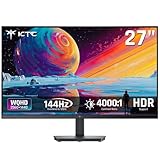


Buying a 1440p monitor no longer requires a premium budget. A solid 27-inch QHD panel that would have cost $400 a few years ago now sits in the $150–$250 range, which is great news for buyers — and also the source of most mistakes. When everything claims “1440p 144Hz,” it’s easy to fixate on headline specs and ignore the details that determine whether a monitor feels good to use for the next five years.
The most common mistakes look like this:
– **Chasing refresh rate above all else.** A 180Hz panel with poor contrast and mediocre response times will feel worse day-to-day than a well-tuned 144Hz display. Panel quality matters more than the last 36Hz.
– **Buying a size your desk and graphics card can’t support.** A 32-inch 1440p monitor pushes pixel density below the comfort threshold for desk work, and many budget GPUs can’t drive high frame rates at that resolution anyway.
– **Ignoring stand ergonomics.** Plenty of budget monitors ship with tilt-only stands, then cost $40–$70 to fix with an aftermarket arm or mount.
– **Confusing curved marketing with real immersion.** Curvature at 1000R on a 27-inch screen is a design choice, not an upgrade. Some love it; many find it distracting for productivity work.
– **Skipping the port check.** A monitor with only HDMI 1.4 ports may cap your 1440p refresh rate at 100Hz or lower, no matter what the box promises.
This guide walks through what actually separates a good budget 1440p monitor from a disappointing one, using real, currently available models as reference points.
Top 3 picks at a glance
Decide These 3 Things First
Before comparing specs, answer three questions. Everything else follows from them.
**1. What will you use it for, in percentages?** A 70% gaming / 30% office split points toward high refresh rate and adaptive sync. A 70% productivity / 30% gaming split favors a flat panel with strong text clarity, an ergonomic stand, and comfortable brightness — and refresh rate becomes a nice-to-have. Mixed-use buyers should prioritize the flat 27-inch form factor, which handles both well.
**2. What can your graphics card actually deliver?** A 1440p high-refresh monitor only pays off if your GPU can push 100+ frames per second in your games. A mid-range card might manage 80–120 fps in demanding titles at 1440p. If your realistic target is 60–80 fps, paying extra for 180Hz over 144Hz is wasted money — put it toward panel quality instead. Console gamers should check that the monitor accepts 1440p input at 120Hz over HDMI 2.0 or better, since some budget panels limit console modes.
**3. How much desk depth do you have?** A 27-inch monitor wants roughly 30 inches (76 cm) of viewing distance for the whole screen to sit comfortably in your field of view. A 32-inch wants 34–36 inches. If your desk is a standard 24–30 inches deep and sits against a wall, a 32-inch monitor — especially a strongly curved one — may feel overwhelming and cause eye strain during long sessions.
With those three answers, the factor-by-factor breakdown below becomes much simpler.
Size and Pixel Density: Why 27 Inches Is the Sweet Spot
At 1440p (2560 × 1440), screen size directly determines pixel density, and pixel density determines text clarity.
– **24–25 inches:** ~117–123 pixels per inch (PPI). Extremely sharp text, but screen real estate feels tight for multitasking. Good for competitive gamers who sit close.
– **27 inches:** ~109 PPI. The universally recommended sweet spot — sharp enough for extended reading and coding, large enough for two windows side by side. Nearly every monitor worth considering in this category, like the KTC H27T27S or ASUS TUF VG27AQ3A, is 27 inches for this reason.
– **31.5–32 inches:** ~93 PPI. Noticeably softer text at typical desk distances. Workable for gaming and media, but many people who buy 32-inch 1440p monitors for office work end up scaling the display up, which defeats the purpose of the extra resolution.
Practical sizing rules: measure your desk depth before buying, confirm the monitor’s dimensions with its stand (a typical 27-inch model runs about 24 inches / 61 cm wide and 16–20 inches / 41–51 cm tall depending on stand design), and check VESA compatibility if a 32-inch panel needs to live on an arm.
Panel Type and Image Quality: The Specs That Change What You See
Nearly all budget 1440p monitors use VA or Fast IPS panels. Neither is universally better — they trade differently.
**VA panels** deliver high static contrast, typically 3000:1 to 4000:1. The KTC H27T27S, for example, advertises a 4000:1 contrast ratio, which means genuinely deep blacks in dark rooms and punchy movie viewing. The tradeoffs: slower pixel response in dark transitions (visible as smearing in fast-paced games), and viewing angles that shift color when you lean to one side.
**IPS panels** offer wider viewing angles and faster, more consistent response times — better for competitive gaming and for anyone who shares a screen or works with accurate color. The tradeoff: contrast usually sits around 1000:1, so blacks look grayish in a dark room. Budget IPS panels can also show “IPS glow” in the corners.
Numbers to check regardless of panel type:
– **Brightness: 250–350 nits.** Anything above 300 nits handles a bright room; 250 nits is fine for dim spaces. Don’t pay extra for HDR on a budget monitor — panels at this price lack the brightness (real HDR wants 600+ nits) and local dimming to deliver it.
– **Color coverage: 90%+ sRGB** is the realistic floor. Claims of 90%+ DCI-P3 on budget panels are a bonus for content viewing, not a guarantee of color accuracy for professional work.
– **Static contrast ratio:** listed honestly on the spec sheet. Beware of enormous figures like “100,000,000:1” — that’s dynamic contrast marketing, not the panel’s real performance.
Curvature, if you’re considering models like the 32-inch Samsung Odyssey G55C with its 1000R curve: 1000R means the panel matches a 1-meter viewing radius, which is fairly aggressive. It can enhance immersion in games on a 32-inch screen, but a flat panel is the safer all-around choice, especially at 27 inches where the curve offers little benefit.
Refresh Rate, Response Time, and Adaptive Sync: Performance You Can Feel
**Refresh rate:** 144Hz to 180Hz is the budget sweet spot in 2026, and it’s now standard rather than premium. The difference between 60Hz and 144Hz is transformative; the difference between 144Hz and 180Hz is subtle. Unless the price gap is under $30, don’t pay meaningfully more for the higher number. Models like the ASUS TUF VG27AQ3A (180Hz) and Samsung Odyssey G5 (144Hz-class) both deliver fluid motion — the ASUS just gives you extra headroom.
**Response time:** Manufacturers quote 1ms (GtG) or 1ms (MPRT), but these figures are measured under ideal conditions and are not comparable across brands. Don’t treat them as a differentiator. What matters more: whether the monitor offers overdrive (response time) presets, and whether reviewers note that the fastest setting avoids inverse ghosting. IPS panels at this price generally handle motion more consistently than VA.
**Adaptive sync:** Non-negotiable at this point. Look for AMD FreeSync certification (FreeSync Premium requires a 120Hz minimum refresh rate at 1080p or low FHD resolutions and low-lagency support) and/or NVIDIA G-SYNC Compatible status. The ASUS VG27AQ3A carries G-SYNC compatibility; the Samsung and KTC models support FreeSync. Either eliminates screen tearing without a performance cost, and almost every modern GPU plays nicely with both standards.
**Ports — where budget monitors quietly cut corners.** To run 1440p at 144Hz or higher, you need DisplayPort 1.2 at minimum, ideally DP 1.4, or HDMI 2.0/2.1. HDMI 1.4 caps 1440p around 75–100Hz. Check the spec sheet explicitly: a good budget monitor includes at least one DisplayPort 1.4 and two HDMI 2.0 ports. A headphone jack is worth having since many budget panels lack built-in speakers entirely, or include ones you won’t want to use.
Ergonomics, Build, and Stand Quality
The stand is where the cheapest monitors save their cheapest dollars, and it matters more than most first-time buyers expect.
**What to demand:**
– **Height adjustment:** raises and lowers the screen by roughly 4–5 inches (100–130 mm). The top of your screen should sit at or slightly below eye level; a tilt-only stand forces you to adapt your posture to the monitor instead of the reverse.
– **Swivel and pivot:** swivel (±15–30°) helps for shared screens; pivot (90° rotation) is a bonus for coding and reading long documents.
– **VESA mount: 100 × 100 mm** is the standard pattern and should be present on any 27-inch monitor you consider. All four reference models above include it. A $25–$40 aftermarket arm transforms a tilt-only monitor, but only if the VESA holes exist.
**Build quality signals:** a metal rather than all-plastic stand base (a typical 27-inch monitor weighs 9–13 lb / 4–6 kg with stand, and a wobbly base is maddening), minimal flex when you tap the screen, and cable management routing through the stand neck. Expect some plastic-heavy construction in the $150 range — that’s acceptable — but the panel itself should have no dead pixels on arrival, and the bezels should be tight and even on all four sides. Excessive “screen bleed” or backlight unevenness is a defect, not a budget trait, and is grounds for exchange.
**On-screen display (OSD):** you’ll use this more than you think. A physical joystick or button cluster that’s easy to reach beats a row of tiny recessed buttons on the back panel. Check for presets (sRGB mode, gaming modes) and a black stabilizer or shadow boost setting, which helps in dark game scenes.
Price Tiers: What Your Budget Actually Buys
Budget 1440p monitors cluster into three clear tiers:
– **$130–$170 — Value tier.** Here you’ll find models like the KTC H27T27S at $144.99: a 27-inch QHD panel, 144Hz, 4000:1 VA contrast, adaptive sync, and VESA mounting. Expect a basic tilt-only or limited-height stand, modest brightness (~250–300 nits), and minimal extras. This tier is genuinely good now — the core viewing experience is 85–90% of what a $400 monitor offered a few years ago. Best for: first-time buyers, secondary monitors, and anyone pairing with a mid-range GPU.
– **$170–$230 — Mainstream tier.** The ASUS TUF VG27AQ3A at $199 exemplifies it: 180Hz, G-SYNC compatibility, a proper ergonomic stand, and better build quality from an established brand with stronger warranty support. The Samsung Odyssey G5 (G51F) at $217 sits here too, adding brand-tuned VA image quality. Best for: most buyers — this is where the value-per-dollar peaks.
– **$230–$300 — Upper budget tier.** The 32-inch curved Samsung Odyssey G55C at $249.49 fits here, along with monitors adding USB hubs, better HDR marketing, or larger panels. The gains over the mainstream tier are real but incremental. Best for: buyers who specifically want a 32-inch or curved panel, or extra connectivity.
If your total budget is $200, spend $180 on the monitor and keep $20 for a quality DisplayPort cable rather than maxing out on the panel itself.
Warranty and Support
Warranty terms vary more than most buyers realize, and at this price they’re part of the value equation.
– **Standard coverage:** three years is the norm from major brands like ASUS and Samsung on their gaming monitor lines. Some smaller brands offer one year — check before buying, because panel defects often surface in year two.
– **Dead pixel policy:** ask whether the manufacturer’s policy guarantees replacement for even a small number of dead or stuck pixels, or only above an ISO threshold (which can permit several defective pixels before you qualify for an exchange). Stricter brands will swap a panel with a single bright dead pixel.
– **Bright/dark spot and backlight bleed coverage:** confirm whether the retailer or manufacturer handles exchanges. Buying from a retailer with a painless 30-day return window matters as much as the manufacturer’s warranty.
– **Panel-vs-parts:** some budget brands service monitors by shipping replacement parts rather than exchanging units. Understand which you’re getting.
Delivery and Setup: What to Check on Day One
A monitor is one of the few PC components you should inspect like furniture on arrival.
– **Packaging:** the box should be intact and the panel should ship flat, screen-face protected, ideally standing upright rather than lying flat. Refuse visibly crushed boxes.
– **First-hour inspection:** with the screen showing a pure white image, then a pure black image, check for dead pixels, backlight bleed in the corners, and uneven brightness bands. Use a full-screen color test image — five minutes now saves a return-window scramble later.
– **Setup effort:** budget monitors typically require attaching a two-piece stand with a thumbscrew or clip — five minutes, no tools beyond what’s included. Confirm the stand clicks in securely; a loose stand causes wobble that no amount of tightening later fully fixes.
– **Cables in the box:** most budget monitors include a DisplayPort or HDMI cable, but some include only power. Factor $10–$15 for a certified DisplayPort 1.4 cable if one isn’t included — an under-spec cable is a common cause of flickering or capped refresh rates.
Spec Checklist
| Spec | Budget ($130–$170) | Mid ($170–$230) | Premium ($230–$300) |
|---|---|---|---|
| Size / resolution | 27″ 2560 × 1440 | 27″ 2560 × 1440 | 27–32″ 2560 × 1440 |
| Panel type | VA or Fast IPS | Fast IPS or VA | Fast IPS or VA |
| Refresh rate | 144–165Hz | 170–180Hz | 165–180Hz |
| Static contrast | 1000:1 (IPS) / 3000:1+ (VA) | 1000:1 / 3000:1+ | 1000:1 / 3000:1+ |
| Brightness | 250–300 nits | 300–350 nits | 300–400 nits |
| Adaptive sync | FreeSync | FreeSync Premium / G-SYNC Compatible | Both standards |
| Ports | DP 1.2, 2× HDMI 1.4/2.0 | DP 1.4, 2× HDMI 2.0 | DP 1.4, 2× HDMI 2.0, USB hub |
| Stand | Tilt only, VESA 100×100 | Height/tilt/swivel, VESA | Full ergonomic, VESA |
| Warranty | 1–3 years | 3 years | 3 years |
Red Flags
Walk away from any budget 1440p monitor with these warning signs:
– **HDMI 1.4 only.** It can’t carry 1440p at high refresh rates. You need DisplayPort 1.2+ or HDMI 2.0+ to get the refresh rate on the label.
– **No VESA mounting holes.** Even if you plan to use the stock stand, a monitor you can’t ever mount limits your options for years.
– **”Dynamic contrast” figures used in place of static contrast.** If the spec sheet touts 100,000,000:1 and doesn’t list a static ratio, assume a mediocre panel.
– **Aggressive curvature on a 27-inch screen.** A tight curve on a smaller panel distorts lines in spreadsheets, code, and design work for no real immersion benefit.
– **Built-in speakers advertised as a headline feature.** At this price they’re always an afterthought; treat their presence as neutral and their absence as expected.
– **Refresh rates over 200Hz at bargain prices.** Achievable, but at 1440p in the sub-$250 range it usually signals compromised panel quality or aggressive overdrive artifacts elsewhere.
– **No height-adjustable stand and no VESA pattern together.** That combination locks you into fixed, likely poor ergonomics.
– **Warranty under one year.** Panel degradation and defects often appear in years two and three.
FAQ
Is 1440p worth it over 1080p on a budget?
Yes, if you’re buying a 27-inch or larger screen and your GPU can handle it. At 27 inches, 1080p looks soft (~82 PPI versus ~109 PPI at 1440p), and the price gap between budget 1080p and budget 1440p monitors has collapsed to $30–$60. The exception: competitive gamers prioritizing maximum frame rates on a 24–25 inch screen, where 1080p at 240Hz+ remains the standard.
Is a curved 1440p monitor better for gaming?
It depends on size and preference. On a 32-inch panel like the Samsung Odyssey G55C, the 1000R curve wraps the screen edges into your field of view and can feel more immersive in racing and first-person games. On a 27-inch panel, the curve adds little and can distort straight lines. Flat is the safer default; curved is a taste preference best tested in person if possible.
Do I need G-SYNC or FreeSync?
You need one of them — which one barely matters. Both synchronize the monitor’s refresh rate with your GPU’s frame output, eliminating tearing and stutter for free. G-SYNC Compatible and FreeSync are largely interchangeable in practice, and most modern graphics cards support both. Just confirm the monitor lists adaptive sync support explicitly.
Can a budget GPU handle 1440p gaming?
For esports titles (Valorant, CS2, Rocket League), even entry-level modern GPUs push well over 144 fps at 1440p. For demanding AAA games, expect 60–90 fps on mid-range hardware, sometimes with adjusted settings. If your card struggles, adaptive sync plus a 144Hz panel still makes 70–90 fps feel smooth — which is precisely why a budget 1440p high-refresh monitor is a smart long-term purchase even if your current GPU is modest.


