
CamelCamelCamel and Keepa are the best price trackers specifically for Amazon-listed PC parts, both showing historical price charts so you can tell whether a “deal” price is actually a meaningful drop or just the normal price with a sale badge attached. PCPartPicker is the better tool if you’re comparing current prices across multiple retailers at once and want compatibility checking built in, though it doesn’t provide the same depth of historical price charting. Pick the tool that matches your specific comparison need rather than assuming one covers everything.
All three have genuinely useful free tiers. Keepa’s paid tier adds extended history depth and some convenience features, but isn’t required for basic price tracking. Start with the free tiers before considering any upgrade.
As an Amazon Associate we earn from qualifying purchases at no extra cost to you. Product prices and availability are accurate as of the date shown and are subject to change.





Top 3 picks at a glance
Quick answer
Use CamelCamelCamel (free) or Keepa (free tier, optional paid upgrade) for Amazon price history on a specific PC part. Use PCPartPicker (free) when you’re comparing prices across multiple retailers for a whole build or want compatibility checking alongside pricing. Neither replaces the other — many buyers use both together.
| Tool | Cost | Best for | Retailer coverage |
|---|---|---|---|
| CamelCamelCamel | Free | Amazon price history charts | Amazon only |
| Keepa | Free + paid tier | Amazon price history, deeper detail | Amazon, some regional marketplaces |
| PCPartPicker | Free | Cross-retailer price comparison + compatibility | Multiple major retailers |
Why price history matters more than the sale badge
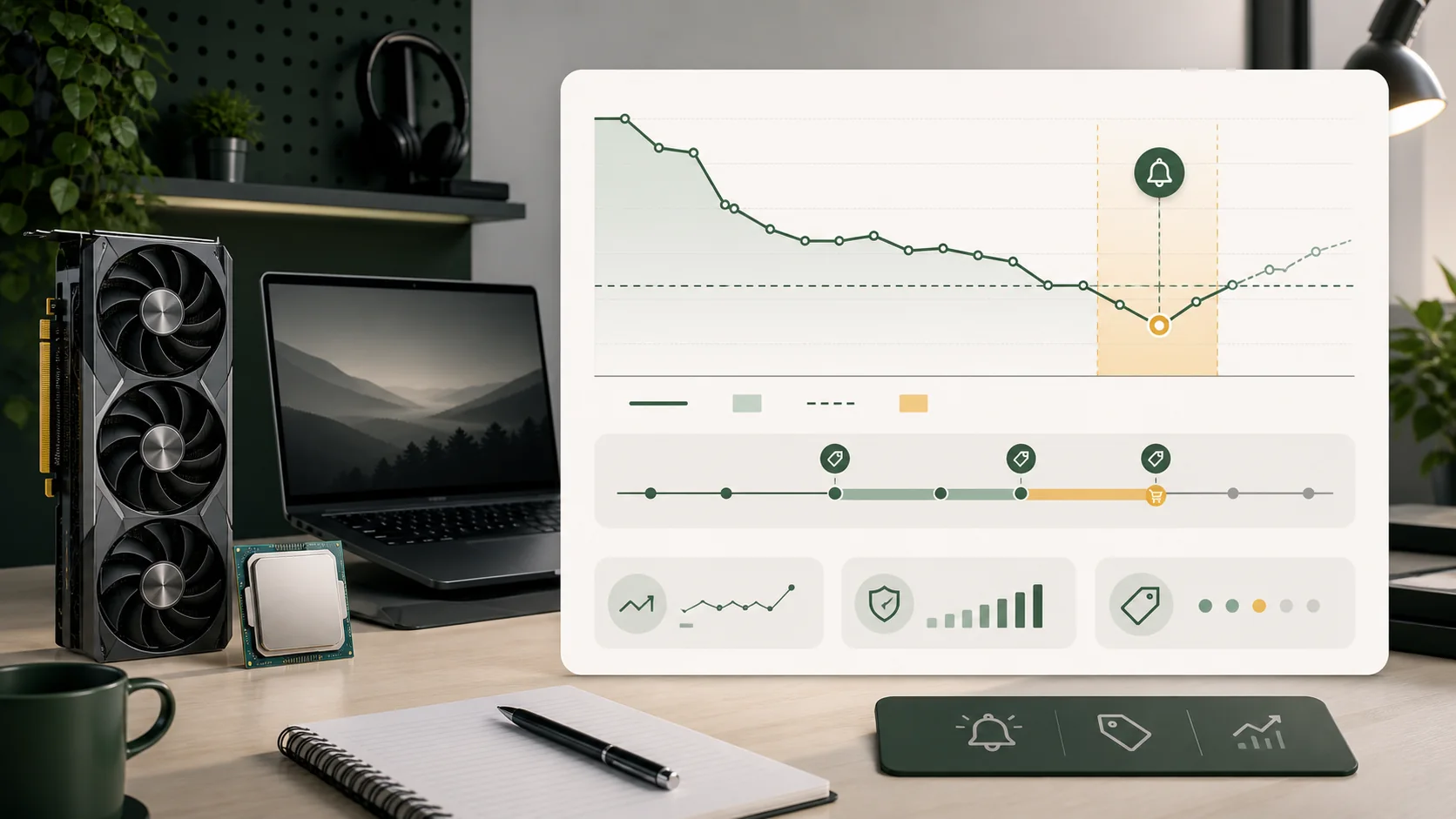
Retailers can apply a “was” price that reflects a brief, rarely-hit list price rather than what the item typically sells for, making a discount look bigger than it actually is relative to normal pricing. A price history chart cuts through this by showing the actual price trend over weeks or months, letting you see whether today’s number is genuinely near a historical low or just a modest dip from an inflated comparison price.
This matters most for GPUs, which have historically seen some of the most volatile and manipulated pricing in PC hardware, but it applies to any component where demand spikes (a new game release driving up storage or RAM prices, for example) can distort what counts as a “normal” price at any given moment. Keep this in mind for any component category prone to sudden demand shifts, not just GPUs.
Checking price history before buying takes under a minute once you know where to look, and it’s the single most reliable way to avoid buying into a fake or exaggerated discount. Make it a standard step before every meaningful purchase, not just the ones that already look suspicious.
Typical discount depth varies noticeably by component category, which is worth knowing before deciding whether a specific percentage-off figure is actually impressive. Storage (SSDs and hard drives) tends to see some of the deepest and most frequent discounting of any PC part category, since it’s a commodity product with thin margins and heavy competition between brands. GPUs, by contrast, historically see shallower and less frequent discounting relative to their list price, particularly for recently released models still in high demand, meaning a modest single-digit percentage discount on a current-generation GPU can be a genuinely meaningful drop, while the same percentage on an SSD might be an unremarkable, easily-repeated occurrence. Motherboards and RAM tend to sit somewhere in between, with RAM pricing in particular swinging more dramatically based on broader memory-market supply conditions than on any individual retailer’s promotional calendar.
CamelCamelCamel for free Amazon tracking
CamelCamelCamel is a free browser extension and website that overlays Amazon product pages with a price history chart, showing the item’s price trend over time alongside the current listing. You can set a price-drop alert for a specific target price and get notified by email when the listing hits it, without any account cost.
Its coverage is limited to Amazon specifically — it doesn’t track other retailers at all — but for Amazon-heavy PC part shopping, that focus is exactly what most people need, and the free tier covers the core functionality without artificial limits pushing you toward a paid upgrade.
Reading the chart correctly matters as much as having access to it. Look specifically at the lowest point the line has reached over the full tracked history, not just the last few weeks — a component’s absolute historical low, even if it happened many months ago during an unrelated promotional event, is a more useful reference for “is this actually a good price” than a recent, narrower window that might not include the item’s true best price. CamelCamelCamel’s chart typically lets you expand the time range shown for exactly this reason.
Keepa for deeper Amazon history and extra detail
Keepa covers similar ground to CamelCamelCamel with a more detailed charting interface, additional data points (like Buy Box price history separately from the listed price, useful when multiple sellers compete for the same listing), and support for some additional regional Amazon marketplaces beyond the core one. The free tier covers standard price history and alerts; the paid tier extends historical data depth and adds some convenience features like more granular alert customization.
For most PC part shoppers, the free tier is sufficient. The paid tier becomes more valuable if you’re tracking prices professionally, doing frequent bulk purchasing, or specifically want the deepest possible historical data for negotiation or resale purposes.
The specific limits worth knowing before assuming you need the paid tier: Keepa’s free tier typically restricts the length of price history visible on the chart and the number of active price-drop alerts (referred to as “trackings”) you can maintain at once, along with a slower alert-checking frequency compared to the paid tier’s more frequent scans. For someone tracking a handful of components for a single upcoming build, the free tier’s limits rarely become a practical obstacle; the paid tier earns its cost mainly for people running many simultaneous long-term watches or wanting the fastest possible alert to a very short flash sale.
PCPartPicker for cross-retailer comparison
PCPartPicker’s core strength is comparing current prices for the same part across multiple major retailers simultaneously, alongside a compatibility checker that flags issues if you’re assembling a full build list. It’s less focused on historical price charting and more focused on “where can I buy this for the least money right now,” which is a genuinely different and complementary use case to CamelCamelCamel or Keepa’s historical approach.
Because it isn’t Amazon-specific, PCPartPicker is the better starting point if you’re not committed to any particular retailer and want to see the full competitive landscape for a part before deciding where to buy.
Free vs limited: what each tool actually restricts
CamelCamelCamel’s free tier has no meaningful feature restriction for typical personal use — price history charts, alerts, and browser extension functionality are all available without payment. Keepa’s free tier covers the same core functions but caps historical data depth and some advanced chart options behind its paid tier, which matters more for power users than casual shoppers. PCPartPicker’s core comparison and compatibility tools are entirely free, with the site’s revenue coming from affiliate links on purchases rather than subscription tiers.
None of these tools charge for basic price-drop alerts, which is the single most useful feature for casual buyers waiting for a specific part to hit a target price.
Privacy considerations for browser extensions
Price tracking browser extensions, including CamelCamelCamel’s and Keepa’s, typically request permission to read and change data on the websites you visit, since they need to detect product pages and overlay pricing information directly on retailer sites. This is a broad permission, and it’s worth understanding what you’re granting before installing any extension, price-tracking or otherwise.
Review an extension’s requested permissions during installation, and prefer ones from developers with an established reputation and a clear, specific description of what data they access and why, rather than installing broad-permission extensions casually. If an extension’s stated purpose is Amazon price tracking but it requests access to every website you visit rather than just Amazon domains, that’s worth a closer look before installing.
The practical difference between a well-scoped and an overly broad permission request is worth understanding concretely. CamelCamelCamel’s extension, since it only needs to function on Amazon product pages, can reasonably request access limited to Amazon’s own domains specifically. A tool that instead requests unrestricted access to every site you visit, even though its stated purpose is narrower than that, is asking for meaningfully more than its function requires — and every website you visit after installing it becomes a site that extension technically has the permission to read, whether or not it actually does anything with that access on unrelated sites. This is exactly the kind of gap worth checking during installation rather than assuming broad permissions are simply how all extensions work.
Setting up price tracking across tools
- Install the CamelCamelCamel browser extension, or visit the site directly and search for your Amazon product.
- Review the price history chart to see whether current pricing is near a historical low.
- Set a price-drop alert at your target price if it isn’t there yet.
- Cross-check the same part on PCPartPicker to compare pricing across other retailers, not just Amazon.
- If you want deeper historical detail, check the same listing on Keepa as a second data point.
- Repeat for each component if you’re tracking a full build’s worth of parts.
When price trackers don’t cover what you need
None of these tools track every retailer — regional or smaller retailers, direct manufacturer stores, and some international marketplaces fall outside their coverage entirely, meaning a genuinely good deal at an uncovered retailer won’t show up in any of these tools’ history or comparison data.
Extremely short flash sales, particularly ones lasting only a few hours, can come and go faster than some tracking tools update their data, so a price tracker showing “no recent drop” doesn’t guarantee a flash sale isn’t happening on the retailer’s site right now — it just means the tracker hasn’t logged it yet.
Bundle deals, where a discount only applies when buying multiple items together, generally aren’t reflected in single-item price history charts at all, since the tools are built around tracking individual listings rather than combined bundle pricing.
Cross-checking a tracker’s numbers occasionally
It’s worth periodically spot-checking a price tracker’s reported data against the retailer’s actual live page, particularly for a component you’re seriously considering buying soon, since a tool’s scheduled data refresh can occasionally lag behind a very recent price change by a day or more. This isn’t a common failure, but it’s an easy, low-effort check before committing to a purchase decision based purely on a tracker’s chart without a final glance at the live listing.
This is also a reasonable moment to double check that the currency, region, and exact product variant shown in the tracker match what you’re actually about to buy, since a tracker occasionally surfaces a similarly named but distinct listing (a different color, a bundle with slightly different included accessories) alongside the specific one you intended to track, and the two can have meaningfully different price histories despite looking similar at a glance.
Troubleshooting
Symptom: CamelCamelCamel shows no price history for a specific listing. Cause: the product may be too new, or the specific listing variant (a different color or bundle) is tracked separately from the main product page. Fix: check if there’s a more established listing for the same core product, or wait for more history to accumulate on a newer listing.
Symptom: Price alert email never arrives even after the price drops. Cause: the alert may have been set against a different listing variant than the one that actually dropped, or the email landed in a spam folder. Fix: double check the alert is on the correct exact listing, and check spam/junk folders for the notification.
Symptom: PCPartPicker shows a price that doesn’t match the retailer’s actual current price. Cause: retailer pricing can change between PCPartPicker’s data refresh and your visit, especially during high-demand periods. Fix: always confirm the final price on the retailer’s own site before completing a purchase, treating PCPartPicker’s listed price as a starting comparison point rather than guaranteed current pricing.
Symptom: Keepa’s free tier only shows a limited stretch of price history, not the item’s full lifetime chart. Cause: extended historical depth is one of the specific features reserved for Keepa’s paid tier. Fix: cross-check with CamelCamelCamel for the same listing, which may show a longer free history window, before deciding whether the paid tier is worth it for your use case.
A note on affiliate revenue
All three tools covered here earn commission through affiliate links when you complete a purchase, which is worth understanding as their funding model rather than treating it as a reason for suspicion — the publicly displayed price stays the same regardless of which link brought you to the retailer, since retailers set one public price rather than a special inflated rate for affiliate traffic.
Frequently asked questions
Is Keepa or CamelCamelCamel better for tracking PC parts?
Both cover Amazon pricing history well; CamelCamelCamel is free with a simpler interface, while Keepa has a free tier plus a paid tier that unlocks more detailed charts, more frequent data, and additional tracked marketplaces.
Does PCPartPicker track price history the same way CamelCamelCamel does?
Not quite. PCPartPicker focuses on comparing current prices across multiple retailers simultaneously and checking build compatibility, while CamelCamelCamel and Keepa specialize in historical price charts specifically for Amazon listings over time.
Are price trackers free to use?
The core price-history and alert features of CamelCamelCamel and PCPartPicker are free. Keepa’s basic tracking is free too, with optional paid tiers for extended history depth and additional features.
Can a price tracker guarantee I’m getting the lowest possible price?
No. Price trackers show historical data and current listings across the retailers they cover, but they can’t account for retailers outside their coverage, regional pricing differences, or extremely short-lived flash promotions that come and go faster than the tracker updates.
Do price tracking browser extensions require access to every website I visit?
Many do, since they need to detect product pages across different retailer sites to function. Review the permissions requested before installing, and prefer extensions that clearly limit their access to specific supported retail domains rather than requesting blanket access to all sites.
Rachel Osei cross-checked pricing data from these tools against her own price-history database covering multiple retailers and years of sale cycles. For related tracking context, see how to price track gaming hardware and how GPU pricing works. If you’re timing a purchase around a broader sale event, seasonal sale calendar for PC gamers and when is the best time to buy a gaming PC are useful next reads.


