Our Top Picks




Top 3 picks at a glance
Best USB-C Laptop Docks for Multi-Monitor Setups
The best USB-C laptop dock for most multi-monitor setups is the Plugable USB-C Triple Monitor Docking Station (13-in-1, 100W charging) — it is the safest pick if you need three independent displays plus single-cable charging and you are willing to pay a premium for it. If you only need two external monitors at 1080p or 1440p and you are on a Windows laptop, the Acer USB-C Docking Station Dual Monitor (9-in-1, 2 HDMI) does the job for a fraction of the money and is our value pick. If you are on a Mac, or on an older USB-A-only laptop, the rules change completely: you need a dock built around USB graphics rather than DisplayPort Alt Mode, and the OREI SplitXtend 12-in-1 and the Plugable Dual DisplayPort & HDMI dock are the two entries here built for that reality. The sections below explain display counts, resolutions, host bandwidth, power delivery and the operating-system limits that quietly break most multi-monitor plans.
Quick Comparison
| Product | Best for | Displays & resolution class | Host link & power delivery | Price tier |
|---|---|---|---|---|
| Acer USB-C Docking Station Dual Monitor (9-in-1, 2 HDMI) | Cheapest reliable dual-HDMI setup on a Windows laptop | 2 displays; typically 2× 1080p60 or 2× 1440p60; 2× 4K60 only with DSC-capable host | USB-C DP Alt Mode; PD pass-through in the 85–100W class | Budget |
| Plugable USB-C Triple Monitor Docking Station (13-in-1, 100W) | Three displays plus one-cable charging on a modern laptop | 3 displays; commonly dual 4K60 plus a third panel at lower refresh | USB-C / Thunderbolt host; 100W-class charging | Premium |
| Anker Nano Laptop Docking Station (13-in-1 with detachable 6-in-1 hub) | Two desks or home-plus-office with one purchase | 2 displays; 4K60 class on the main dock | USB-C DP Alt Mode; 100W-class PD input | Mid-range |
| HP USB-C Dock (Discontinued) | Matching an existing HP fleet or spare-parts shelf | 2 displays; HDMI/DP combination, resolution depends on generation | USB-C DP Alt Mode with MST; ~65–90W class PD | Mid-range |
| UANTIN Laptop Docking Station 3 Monitors (8-in-1, 2 HDMI + DP) | Three displays on the tightest budget | 3 outputs; usually 2× 1080p60 + 1× 4K30 on a 2-lane host link | USB-C DP Alt Mode with MST; PD pass-through class | Budget |
| Plugable Dual DisplayPort & HDMI Docking Station (USB 3.0 & USB-C) | Mixed fleets: USB-A and USB-C laptops sharing one desk | 2 displays; DisplayPort and HDMI outputs, 4K30/1440p60 class | USB 3.0 (USB-A) or USB-C; USB graphics, no DP Alt Mode required | Premium |
| UANTIN USB-C Docking Station Dual Monitor (10-in-1 HDMI hub) | Budget dual-monitor desk with a few extra USB ports | 2 displays; 2× 1080p60 typical, 4K30 on the primary | USB-C DP Alt Mode; PD pass-through class | Budget |
| UGREEN USB-C Docking Station Dual Monitor (10-in-1, 2 HDMI) | Brand-name dual HDMI at a budget price | 2 displays; 2× 1080p60, 4K60 class on a single output with a good host | USB-C DP Alt Mode with MST; PD pass-through class | Budget |
| OREI USB-C Docking Station Triple Monitor (SplitXtend 12-in-1) | Mac users and anyone needing a third display the hard way | 3 displays via USB graphics; 1080p/1440p class per output | USB-C host; USB graphics (DisplayLink-class) driver required | Mid-range |
| Dynabook Universal USB-C Mini Dock (dual DisplayPort, Ethernet, 5 USB) | Travel and hot-desk use where desk space is the constraint | 2 displays; dual DisplayPort outputs, 4K30/1440p60 class | USB-C DP Alt Mode; compact hub-style power delivery | Premium |
| Umaniy M91 Laptop Docking Station Dual Monitor Stand (9-in-1, 2 HDMI) | Laptop-on-a-stand setups that reclaim desk space | 2 displays; listing states 4K@60Hz support on the HDMI outputs | USB-C DP Alt Mode; PD pass-through class | Budget |
| Dell Pro Smart Dock SD25 Bundle (130W charging + cables) | Dell business laptops that need high-wattage single-cable charging | 2–3 displays depending on host and connector mix | USB-C with 130W-class charging on compatible Dell systems | Premium |
How We Chose
We selected these twelve docks by reading published specifications, port configurations and vendor documentation, then cross-checking each one against the display limits of Windows, macOS, ChromeOS and Linux. The first filter was display count and how that count is actually achieved — natively through DisplayPort Alt Mode and MST, or through USB graphics that compress frames and send them over the USB data link. The second was host bandwidth: a dock advertising three 4K60 outputs is meaningless if your laptop’s USB-C port only exposes two DisplayPort lanes. The third was power delivery, because a dock that charges a 13-inch ultrabook well will slowly drain a mobile workstation under load. The fourth was category fit and upgrade path: connector mix, Ethernet, detachable or stand-mounted designs, and whether the dock works with the laptop you own now or the one you plan to buy. Where a listing does not state an exact figure, we describe the spec class rather than inventing a number, and we flag what you should verify before buying.
1. Acer USB-C Docking Station Dual Monitor – Best for Budget Dual-HDMI Desks
As an Amazon Associate we earn from qualifying purchases at no extra cost to you.

The Acer 9-in-1 is the dock to buy when your requirement is simple: two external monitors, a handful of USB peripherals, and a price that does not hurt. It suits Windows laptop owners running two 1080p or 1440p panels who want a single cable for video, data and charging, and who do not need Thunderbolt-grade bandwidth. Acer’s brand presence in monitors and laptops also means the port labelling and documentation tend to be clearer than the generic competition at this price.
Key specs and what the listing tells you
- 9-in-1 form factor with two HDMI video outputs
- USB-C host connection using DisplayPort Alt Mode
- USB-A data ports plus the usual card-reader or audio functions typical of a 9-in-1 layout
- USB-C power delivery pass-through in the 85–100W class — verify the exact wattage on the listing, because budget docks sometimes pass less than they accept
- Windows, macOS and ChromeOS compatibility for the USB functions; display behaviour is the part that varies by operating system
Strengths
The appeal here is the absence of complexity. Two HDMI outputs mean you can use the cables that came in the box with most monitors, with no DisplayPort-to-HDMI adapters to buy or troubleshoot. Because it relies on DisplayPort Alt Mode rather than USB graphics, there is no driver installation on Windows and no measurable CPU overhead from compressing video frames — the GPU drives the panels directly through the dock. That makes it a reasonable choice even for light gaming on the secondary screens, provided you keep expectations at 60Hz.
The bandwidth ceiling is where you should think carefully. A USB-C port running video and USB data simultaneously usually exposes two DisplayPort high-bit-rate lanes rather than four. Two 1080p60 outputs need roughly 3 Gbps each, so they fit comfortably. Two 1440p60 outputs need about 5.3 Gbps each and still fit. Two 4K60 outputs need roughly 11.9 Gbps each, and that only works if the host GPU, the dock and the displays all support Display Stream Compression, or if the dock falls back to 4:2:2 chroma subsampling. On a budget dock, plan for two 4K panels at 30Hz unless the listing explicitly promises 4K60 on both.
Pros
- Two native HDMI outputs, so no adapters are needed for the most common monitors
- Driver-free on Windows because it uses DisplayPort Alt Mode, not USB graphics
- Charges the laptop through the same cable, in the 85W class
- Lowest-risk entry point if you are unsure whether your setup will work at all
Cons
- Two displays only — no path to a third screen
- Bandwidth-limited: dual 4K60 is not realistic without compression support
- No Thunderbolt or USB4 headroom for fast external storage
- Port mix is fixed, so you may still need a separate USB hub for peripherals
How it compares
Against the UGREEN 10-in-1 dual-HDMI dock and the UANTIN 10-in-1 dual-monitor dock, the Acer is the same category of product with one more function and a stronger brand name behind the firmware. The real decision between the three is port mix and which one currently offers the wattage you need, not display capability — all three are two-display docks bounded by the same two-lane Alt Mode ceiling. If you think you might want a third monitor within a year, skip this tier entirely and look at the UANTIN 8-in-1 triple-output dock or the OREI SplitXtend instead.
2. Plugable USB-C Triple Monitor Docking Station – Best for Three Displays and One-Cable Charging

This is the dock for the person who has already decided they want three screens, wants them to keep working after a laptop swap, and does not want to think about compression artefacts or driver quirks. It suits Windows users on modern USB-C or Thunderbolt laptops who need 100W-class charging and a genuinely large port count — 13 functions in the listing — on a permanent desk. It is the premium pick here, and the price reflects the engineering that goes into driving a third display reliably.
Key specs and what the listing tells you
- 13-in-1 layout with triple-monitor output
- 100W charging, which in practice means roughly 85–90W delivered to the laptop after the dock takes its own share
- USB-C host connection with backward compatibility to Thunderbolt 3 hosts
- Gigabit-class Ethernet, multiple USB-A ports, audio and card-reader functions typical of a 13-in-1
- Triple-display output in this class is usually hybrid: two screens over native DisplayPort Alt Mode or MST, plus a third driven by USB graphics — check the vendor’s display matrix for your exact laptop
Strengths
Triple display on a laptop is a bandwidth problem before it is a port problem. Two 4K60 panels consume about 23.9 Gbps of payload between them, which already exceeds what a two-lane USB-C Alt Mode link can carry uncompressed, let alone with a third panel added. Docks that solve this cleanly do it by splitting the work: native video for the panels the host can drive directly, and a compressed USB graphics channel for the extra output. That hybrid approach is why a premium triple-display dock works where a cheap three-port hub produces a black screen or a mirrored desktop.
The practical consequence is that the third display usually runs at a lower refresh rate or resolution than the first two. That is fine for chat, email, terminals or reference material, and annoying if you were hoping for three identical 4K60 gaming panels. Set your expectations as “two good screens plus one useful screen” and this dock delivers exactly that, with the reassurance of 100W charging so the laptop stays topped up during a full working day.
Pros
- Three independent displays from a single host cable
- 100W-class charging keeps most 14- and 15-inch laptops at full battery
- Large port count means no secondary hub on the desk
- Works across USB-C and Thunderbolt 3/4 hosts, which protects the investment through a laptop upgrade
Cons
- Premium price tier for what is still a two-lane Alt Mode ceiling on many hosts
- The third output may be limited in refresh or resolution depending on the laptop
- USB graphics components add a driver dependency on some configurations
- Physically larger than a travel dock and needs its own power brick
How it compares
Its closest rival in this list is the OREI SplitXtend 12-in-1, which also targets three displays but sits a tier lower and leans more heavily on USB graphics for the third screen. Choose the Plugable if you want the widest host compatibility and the strongest charging, and the OREI if three screens matter more than Thunderbolt-class throughput. Against the Plugable Dual DisplayPort & HDMI dock, this one is the newer, faster, more expensive sibling; the older dock wins only when you must support USB-A-only laptops.
3. Anker Nano Laptop Docking Station – Best for Two Desks with One Purchase

The Anker Nano is the mid-range answer for a specific modern problem: you work at a desk at home and a desk at the office, and you do not want to buy two docks or unplug a nest of cables twice a day. Its distinguishing feature is a detachable 6-in-1 USB-C hub, so the main 13-in-1 dock stays wired to your primary monitors while the small hub travels in your bag for meetings, hotel desks and secondary setups.
Key specs and what the listing tells you
- 13-in-1 main dock with a detachable 6-in-1 USB-C hub
- Dual-display output, 4K60-class on the main dock with a capable host
- USB-C host connection using DisplayPort Alt Mode
- 100W-class power delivery input, with the usual 10–15W reserved for dock internals
- USB-A and USB-C data ports split between the dock and the detachable hub
Strengths
The detachable hub is not a gimmick if you actually travel. A single 13-in-1 dock is a poor travel companion — it is heavy, it needs its own power supply, and hotel desks rarely have room. The 6-in-1 section gives you HDMI out, a couple of USB ports and pass-through charging in a package that fits a laptop sleeve. Anker’s reputation for compact power electronics also means the charging behaviour tends to be predictable, which matters more than raw wattage when you are running a laptop at the edge of its power budget.
For the desk itself, two displays is the limit, and you should treat 4K60 as a single-output promise rather than a dual-output one. If you are driving two 1440p60 panels, you are using about 10.6 Gbps of the roughly 13 Gbps payload a two-lane HBR3 link can carry, which leaves very little headroom — expect USB data throughput to drop, and expect the dock to fall back to lower refresh rates if you push resolution higher. This is a normal trade-off at this tier, not a defect, but it explains why the same dock feels instant on two 1080p screens and slightly sluggish on two 4K ones.
Pros
- Two products in one: a full desk dock and a travel hub
- 100W-class charging through the main dock
- Compact, well-finished design consistent with the Anker product line
- Mid-range price for a 13-in-1 feature set
Cons
- Still a two-display ceiling, so no path to a third monitor
- The detachable hub’s port count is small, so it is a travel convenience rather than a second workstation
- USB data throughput drops when two high-resolution displays are active
- No Thunderbolt or USB4 data speeds for external NVMe storage
How it compares
Compared with the UGREEN 10-in-1, the Anker costs more and delivers the same display capability — you are paying for the detachable hub and the finish, not for more pixels. Compared with the Dynabook Universal Mini Dock, the Anker is the better dual-purpose buy if you need charging and HDMI; the Dynabook is the better buy if your monitors only accept DisplayPort and you value an Ethernet port in a genuinely small chassis.
4. HP USB-C Dock (Discontinued) – Best for Existing HP Fleets
This entry needs a straight answer up front: the listing is a discontinued HP USB-C dock, which means you should only consider it if you already own HP laptops of the matching generation, you need a spare or a like-for-like replacement, or you find it at a price that makes the warranty risk acceptable. It is a mid-range dock in capability, but its value proposition is compatibility and availability rather than features.
Key specs and what the listing tells you
- Discontinued HP USB-C dock; the specific generation is not stated in the listing
- Dual-display output typical of this class, usually one HDMI and one DisplayPort, sometimes two DisplayPorts
- USB-C host connection using DisplayPort Alt Mode with MST for the second screen
- Power delivery in the roughly 65–90W class, depending on generation — verify before buying if you need to charge a large laptop
- Gigabit Ethernet, several USB-A ports and a security slot, which is the standard business-dock layout
Strengths
Business docks are built for a different set of priorities than consumer hubs: they are designed to be mounted under a desk, secured with a cable lock, managed alongside a fleet, and to survive being docked and undocked twice a day for years. If your organisation standardised on HP USB-C laptops, a matching dock means the display outputs, wake-from-dock behaviour and firmware updates are all known quantities rather than a support experiment.
The critical caveat is firmware and driver availability. Discontinued docks often stop receiving updates, which is usually fine — until a new operating system release changes how MST or power delivery is negotiated. Before buying, confirm that the dock’s firmware and driver package is still published for your operating system, and confirm the exact wattage it delivers, because a 65W dock paired with a 15-inch mobile workstation will leave the battery draining under sustained load. Do the arithmetic: if your laptop draws 90W under load and the dock delivers 65W, the missing 25W comes from the battery, and an 80Wh pack empties in a little over three hours of continuous heavy work.
Pros
- Designed for enterprise deployment, mounting and cable-locking
- Reliable dual-display output on HP systems of the matching generation
- Ethernet plus a healthy number of USB-A ports
- Often available cheaply as fleet hardware is retired
Cons
- Discontinued: no new firmware, limited support, uncertain long-term OS compatibility
- Wattage may be lower than a modern laptop needs
- Display behaviour is tuned for HP hosts and can be inconsistent elsewhere
- Two displays only, and no USB4 or Thunderbolt data speeds
How it compares
Its natural alternative in this list is the Dell Pro Smart Dock SD25 Bundle. Both are business docks with high-wattage charging ambitions, but the Dell is current hardware with 130W-class charging on compatible Dell systems, while the HP is end-of-life. Unless you specifically need an HP part number, the Dell is the better mid-to-long-term purchase; the HP only wins on price and on fleet-matching.
5. UANTIN Laptop Docking Station 3 Monitors – Best for Triple Displays on a Tight Budget

Three monitors for the price of a mid-range two-monitor dock is the entire pitch here. The UANTIN 8-in-1 pairs two HDMI outputs with a DisplayPort output, which is the cheapest legitimate route to a three-screen desk on Windows. It suits students, home-office users and anyone whose three displays are modest — typically 1080p panels, or two 1080p plus one 1440p.
Key specs and what the listing tells you
- 8-in-1 layout with 2× HDMI and 1× DisplayPort video outputs
- USB-C host connection with DisplayPort Alt Mode and MST
- Power delivery pass-through in the standard budget class; check the listed wattage
- USB-A data ports and the usual card-reader or audio functions
- Triple output works on Windows with MST support; macOS will typically see only one extended display over Alt Mode
Strengths
On Windows, MST lets one DisplayPort stream carry multiple monitors, so three outputs from one host port is technically achievable — it is a bandwidth question, not a port-count question. With a two-lane Alt Mode link, three 1080p60 panels need roughly 9 Gbps of payload, which fits inside the ~13 Gbps ceiling with room for USB traffic. Two 1080p60 plus one 1440p60 lands around 11.3 Gbps, which is tight but usually workable. Push any of those to 4K60 and the arithmetic stops working: a single 4K60 output consumes about 11.9 Gbps, which is most of the pipe before the other two screens are counted.
That gives you a clear rule for this dock: three panels at 1080p60, or two at 1080p60 plus one at 1440p60, and no higher. Within that envelope it is a genuinely useful product at a budget price, and the DisplayPort output gives you flexibility that dual-HDMI budget docks cannot match, since many older monitors and almost all gaming monitors prefer DisplayPort for higher refresh rates.
Pros
- Three video outputs at a budget price point
- DisplayPort output supports higher refresh rates than HDMI on many monitors
- Native Alt Mode operation means no driver install on Windows
- Compact enough to move between desks
Cons
- Three displays at 1080p60 only; higher resolutions break the bandwidth budget
- MST does not give extended desktop on macOS
- Power delivery wattage is typically modest — not enough for a large laptop under load
- Port count is limited, so you may still need a USB hub
How it compares
Against the OREI SplitXtend 12-in-1, the UANTIN is the budget route to the same headline feature. The OREI costs more, adds ports, and is the safer choice if you are on a Mac or need the third display to be independent of MST. Against the UANTIN 10-in-1 dual-monitor dock, this 8-in-1 model trades a couple of USB ports for a third video output — for most buyers that is the better trade.
6. Plugable Dual DisplayPort & HDMI Docking Station – Best for Mixed USB-A and USB-C Fleets

This is the dock for the awkward case: a desk shared by a modern USB-C laptop and an older USB-A machine, or a small office where machines of different vintages rotate through the same spot. Because it accepts both USB 3.0 (USB-A) and USB-C hosts, it does not depend on your laptop’s USB-C port supporting DisplayPort Alt Mode at all. That single fact makes it the most broadly compatible dock in this list.
Key specs and what the listing tells you
- Dual-display output with DisplayPort and HDMI connectors
- Host connection via USB 3.0 (USB-A) or USB-C
- USB graphics (DisplayLink-class) video transport, which is what makes USB-A host support possible
- Multiple USB-A ports, audio and Ethernet typical of this business-class form factor
- Requires a driver install on the host for video; charging capability varies by model and host
Strengths
The technical reason this dock exists is simple: a USB-A port carries no DisplayPort signal. There is no Alt Mode on a rectangular USB-A connector, so the only way to get video out of an older laptop is to compress frames on the CPU and send them as USB data. That is what USB graphics does, and it is why this dock works on hardware that no Alt Mode dock can touch. The trade-off is measurable: video compression consumes CPU cycles, adds a small amount of latency, and produces slightly softer output on fast-moving content. For documents, code, dashboards and video calls, none of that matters.
It is also the honest answer for Mac users in many cases. macOS has not supported MST for extended desktop for years, so a native-Alt-Mode dock typically gives a Mac only one extended display. A USB graphics dock bypasses that entirely, because each screen is presented to the operating system as a separate virtual display adapter rather than as a branch of an MST tree. If you have a Mac and you want two or three extended displays, this is the mechanism you need.
Pros
- Works with USB-A-only laptops, which no Alt Mode dock can do
- Also works on macOS for multiple extended displays, where MST docks fail
- Dual video outputs on one dock, in a sturdy business form factor
- Broad operating-system support via the vendor driver
Cons
- USB graphics adds CPU overhead and slight latency — not ideal for competitive gaming
- Requires a driver installation, unlike native Alt Mode docks
- Charging support depends on the model and host; do not assume 100W
- USB 3.0 host link limits total data bandwidth to 5 Gbps on older laptops
How it compares
Compared with the Plugable USB-C Triple Monitor dock, this one is older, slower and cheaper, and it wins on exactly one axis: host compatibility. The triple-monitor model needs a USB-C or Thunderbolt host and is a better long-term buy for a modern Windows laptop. This dock is the right answer when the laptop on the desk is five years old, or when the same desk must serve machines with completely different ports.
7. UANTIN USB-C Docking Station Dual Monitor – Best for a Simple Budget Dual-Screen Desk

The 10-in-1 UANTIN is the plain-vanilla option: two monitors, a few USB ports, one cable. It suits buyers who want the cheapest thing that reliably works on a Windows laptop with two 1080p screens, and who would rather spend the savings on a better monitor. There is nothing exotic here, and that is the point.
Key specs and what the listing tells you
- 10-in-1 layout with dual HDMI video output
- USB-C host connection using DisplayPort Alt Mode with MST
- Power delivery pass-through in the budget class; check the listed wattage before assuming laptop charging at full speed
- Multiple USB-A ports, card reader and audio functions
- Dual display over Alt Mode; single extended display on macOS
Strengths
Two 1080p60 outputs consume about 6 Gbps of payload, comfortably inside a two-lane link, which is why docks in this tier feel solid at that resolution and start misbehaving at 4K. If you match the dock to the displays it was designed for, you get a setup that just works: no drivers, no compression artefacts, and enough spare bandwidth for a webcam and a couple of USB drives. The 10-in-1 port count is also enough that most people will not need a separate hub, which is more than can be said for 5-in-1 travel pucks.
The practical limit to plan around is 4K. A single 4K60 output uses roughly 11.9 Gbps of the ~13 Gbps available on a two-lane link, leaving almost nothing for the second screen or for USB data. Some docks handle this with chroma subsampling, which keeps the resolution but softens fine text; others simply drop the second output to 30Hz. Either is acceptable for a reference monitor showing logs or dashboards, and neither is acceptable for photo editing on the secondary screen.
Pros
- Two HDMI outputs with no adapters required
- Driver-free operation on Windows
- Ten functions, so peripheral coverage is decent without a second hub
- Lowest-cost way to get a dual-screen desk running
Cons
- No third display output
- High-wattage laptop charging is unlikely at this tier
- 4K60 on both outputs simultaneously is not realistic
- No Ethernet on many budget configurations — verify before buying
How it compares
This is the direct competitor to the UGREEN 10-in-1 and the Acer 9-in-1. All three do two displays over Alt Mode; the differences are port mix, build quality and which one currently offers the wattage you need. Pick on those details rather than on display capability, because the ceiling is identical. If three screens are on your roadmap, the UANTIN 8-in-1 triple-output model is the better use of the same money.
8. UGREEN USB-C Docking Station Dual Monitor – Best for Brand-Name Dual HDMI on a Budget
UGREEN has built a reputation on cables, chargers and adapters, and this 10-in-1 dual-HDMI dock brings that same accessory-brand reliability to the budget tier. It suits Windows laptop owners who want two HDMI monitors, a few USB-A devices and pass-through charging, and who prefer to buy from a company with a long track record in the category rather than an unfamiliar badge.
Key specs and what the listing tells you
- 10-in-1 layout with 2× HDMI video outputs
- USB-C host connection using DisplayPort Alt Mode with MST
- Power delivery pass-through in the budget class
- USB-A data ports plus card reader and audio functions
- Dual display on Windows; single extended display on macOS over Alt Mode
Strengths
The value proposition is straightforward: two native HDMI outputs, no driver, and enough ports that a keyboard, mouse, webcam and headset all plug in at once. Because it uses Alt Mode rather than USB graphics, the CPU cost of driving the monitors is essentially zero, which matters on thin-and-light laptops with 15W processors — the last thing a low-power CPU needs is to spend cycles compressing display frames.
Where UGREEN tends to differentiate is in the details buyers do not read about: cable quality, connector retention, and firmware that handles hot-plugging without dropping the second display. Those details are exactly what makes a budget dock feel reliable or flaky over a two-year period. The bandwidth envelope is unchanged from every other two-output Alt Mode dock in this list: two 1080p60 or two 1440p60 outputs are comfortable, one 4K60 output plus a second screen is tight, and two 4K60 outputs need Display Stream Compression that budget docks rarely guarantee.
Pros
- Two HDMI outputs, driver-free on Windows
- Established accessory brand with a broad product ecosystem
- Ten functions including card reader and audio
- Good balance of price and port coverage
Cons
- Two displays maximum, so no upgrade path to a third
- Power delivery is pass-through class, not a full charging dock
- No Thunderbolt or USB4 data speeds
- MST-based second display does not work as extended desktop on macOS
How it compares
Against the Acer 9-in-1, the UGREEN offers one more function and a comparable price; against the UANTIN 10-in-1, it is the same specification with a stronger brand behind it. The honest advice is to pick whichever of the three currently lists the highest power delivery, because that is the only specification that materially changes day-to-day experience at this tier.
9. OREI USB-C Docking Station Triple Monitor – Best for Mac Users and USB-Graphics Triple Displays
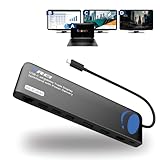
The OREI SplitXtend 12-in-1 sits in the mid-range and targets the specific buyer who needs three displays and cannot get them from MST. That means macOS users, USB-A laptop owners, and Windows users whose third monitor refuses to appear no matter which Alt Mode dock they try. It is the practical alternative to a premium triple-display dock, at a lower price and with fewer guarantees.
Key specs and what the listing tells you
- 12-in-1 layout with triple-monitor output
- USB-C host connection; the “SplitXtend” branding and triple output imply USB graphics (DisplayLink-class) transport for at least one display
- Requires a driver installation for video output on the host
- Ethernet and multiple USB-A ports typical of a 12-in-1 business layout
- Charging capability varies by configuration — verify the listed wattage
Strengths
The reason USB graphics matters is operating-system policy, not hardware. Windows supports MST, so an Alt Mode dock can split one DisplayPort stream into two or three monitors. macOS has not supported MST extended desktop for years, which means a MacBook connected to an Alt Mode dock typically drives exactly one external screen regardless of how many ports the dock has. USB graphics sidesteps this by presenting each monitor as its own display adapter, and that is the only mainstream way to run three extended displays from a Mac without buying multiple dongles.
Three panels at 1080p60 need about 9 Gbps of compressed video traffic, and USB graphics compresses before sending, so a USB 3.0-class 5 Gbps link is workable — which is exactly why this approach works on laptops with slow ports. The costs are real but predictable: more CPU load, slightly higher latency, and output that is fractionally softer than native video. On three office panels showing email, chat, terminals and a browser, you will not notice. On a fast-paced shooter, you will.
Pros
- Three extended displays including on macOS, where MST docks fail
- Works with USB-C laptops whose ports do not support Alt Mode for multiple streams
- Twelve functions, so peripheral and network needs are covered
- Mid-range price for a triple-display capability
Cons
- Driver installation required, and driver quality determines your experience
- Compression overhead raises CPU usage and adds latency
- Refresh rate and resolution per output are constrained by the compressed link
- Charging wattage may be lower than the premium alternatives
How it compares
Against the Plugable USB-C Triple Monitor dock, the OREI is the value option: same headline display count, less host bandwidth, lower price. Choose the OREI when the third display is the non-negotiable requirement and your laptop is a Mac or a mid-range Windows machine. Choose the Plugable when you also want 100W-class charging and Thunderbolt-class data.
10. Dynabook Universal USB-C Mini Dock – Best for Travel and Hot-Desk Setups

This is the dock for people whose constraint is physical space, not port count. The Dynabook Universal USB-C Mini Dock offers dual DisplayPort output, Ethernet and five USB ports in a chassis small enough to live in a laptop bag. It suits consultants, hot-desk workers and anyone whose monitors accept DisplayPort, which covers most business and professional panels.
Key specs and what the listing tells you
- Compact mini-dock form factor
- Dual DisplayPort video outputs
- Ethernet plus five USB ports
- USB-C host connection using DisplayPort Alt Mode
- Premium price tier despite the small size, reflecting the business-channel positioning
Strengths
Dual DisplayPort is a genuinely useful configuration that most budget docks skip. DisplayPort carries higher refresh rates than HDMI at the same resolution, supports daisy-chaining on compatible monitors, and is the native input on a large share of professional displays. If your monitors have both HDMI and DisplayPort, using DisplayPort frees the HDMI ports for other devices and usually gives you a better experience at 1440p and above.
The size is the other half of the argument. A mini dock that lives in a bag means you can carry a proper dual-monitor setup between an office hot desk and a home office without carrying a power brick the size of a paperback. The trade-offs are the usual ones for compact designs: fewer ports than a full-size 13-in-1, power delivery that may be lower than a desk dock’s, and heat management in a smaller enclosure. Two 1440p60 outputs consume about 10.6 Gbps, which fits inside a two-lane link but leaves little headroom, so expect this dock to behave best with two 1080p or two 1440p panels rather than two 4K ones.
Pros
- Dual DisplayPort outputs, which many budget docks lack
- Genuinely portable, so one dock can serve several desks
- Ethernet plus five USB ports in a small chassis
- Business-grade build and support channel
Cons
- Premium price for a compact feature set
- No HDMI output, so HDMI-only monitors need adapters
- Charging wattage may be lower than a full-size desk dock
- Two displays only
How it compares
Against the Anker Nano, the Dynabook is smaller and gives you DisplayPort and Ethernet rather than a detachable hub. If your travel kit needs HDMI and charging, the Anker wins; if your monitors are DisplayPort and you need wired networking on the road, the Dynabook is the more purposeful tool. Against the Plugable Dual DisplayPort & HDMI dock, it trades USB-A host support for portability.
11. Umaniy M91 Laptop Docking Station – Best for Laptop-Stand Setups

The M91 combines two things that usually live separately: a nine