
The fastest fix for headset static is to move the headset to a different USB port on the back of the PC, then set its Windows audio format to 24-bit, 48000 Hz and switch off exclusive mode and audio enhancements. Those three steps cover most cases, because static usually comes from either a software format problem or electrical interference. This guide ranks the likely causes and walks through fixes from easiest to hardest.
As an Amazon Associate we earn from qualifying purchases at no extra cost to you.



Our Top Picks


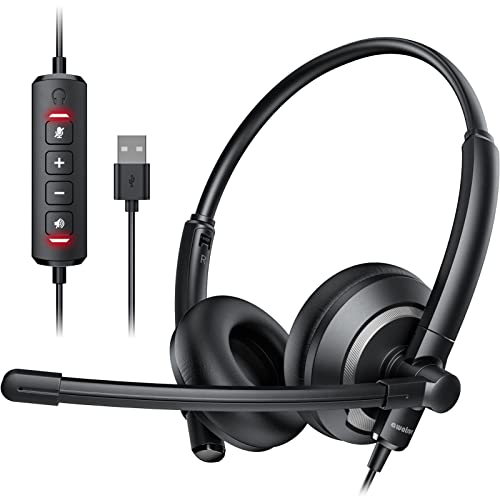

Top 3 picks at a glance
First, Identify the Kind of Noise
Different noises point to different causes, so listen before changing anything.
- Constant low hum or buzz: often a ground loop or noisy power, especially with a headset plugged into a hub or a DAC.
- Crackle or pops that change with load: commonly a sample-rate mismatch, a driver issue, or a USB port sharing bandwidth with other devices.
- Hiss that rises when you touch the cable: a worn cable or a loose 3.5 mm plug.
- Static only on the microphone: a noise-gate or gain problem, or interference picked up by the mic.
- Static in a wireless headset that comes and goes: radio interference or distance from the dongle.
Likely Causes, Ranked
- Audio format or exclusive-mode conflict. Several guides list a mismatched sample rate between playback and recording as a top software cause of crackle.
- USB port interference. Ports near the motherboard, fans and other internal components can pick up noise, so a different port often helps.
- Ground loop or noisy power. This usually shows up as a steady hum or buzz rather than crackle.
- Outdated or generic audio driver.
- Too many devices on one USB hub or controller.
- Damaged cable, connector or headset.
Quick-Reference Table
| Symptom | Likely cause | Fix |
|---|---|---|
| Crackle or robotic sound | Sample-rate or format mismatch | Set both playback and recording to the same format, such as 24-bit 48000 Hz |
| Crackle only under heavy load | Exclusive mode or driver conflict | Disable exclusive control, update the audio driver |
| Steady hum or buzz | Ground loop or power noise | Use a different outlet, a powered hub, or a USB isolator |
| Static after plugging in a new device | USB interference | Unplug other devices, try another port |
| Static when cable moves | Damaged cable or jack | Test with another cable or device, contact the maker |
| Wireless static, comes and goes | Radio interference or range | Move the dongle closer using a short USB extension, away from other wireless gear |
Step-by-Step Fixes, Easiest to Hardest
- Restart and reseat. Unplug the headset, wait a few seconds, and plug it back in. Restart the PC if the static began after a driver or Windows update.
- Try a different USB port. Use a rear motherboard port rather than a front-panel header or a hub. Reviewers and support pages commonly note that ports close to noisy internal parts can add interference, and that separating the audio device from busy USB devices can remove crackle.
- Unplug other USB devices. Disconnect everything non-essential, then reconnect one device at a time. If the static returns when a specific item is connected, move that item to another port or controller.
- Set the audio format. Open Sound settings, choose the headset under Output, open its properties and pick a default format. A 24-bit, 48000 Hz setting is a common starting point. Some headsets behave better at another format, so try one or two alternatives such as 16-bit 44100 Hz.
- Match the microphone format. Do the same for the headset microphone under Input so playback and recording use the same sample rate.
- Turn off exclusive mode. In the device properties, open the Advanced tab and clear the option that lets applications take exclusive control of the device.
- Disable enhancements and spatial sound. Turn off any equalizer, loudness or spatial audio effects. A poor implementation of these effects can introduce crackle. Re-enable them one at a time later if you want them.
- Update or reinstall the audio driver. Install the latest driver from the headset maker or from the motherboard maker for onboard audio. If a new driver made things worse, use Device Manager to roll back to the previous version.
- Test another PC or console. If the static follows the headset, the problem is the headset or its cable. If it stays with the PC, focus on ports, drivers and power.
- Address a ground loop. For a hum, try a different wall outlet, plug the PC and monitor into the same grounded power strip, or use a powered USB hub or a USB ground-loop isolator. Do not defeat a ground pin on any plug.
- Check the cable and connector. For wired 3.5 mm headsets, wiggle the plug gently while listening. Static that changes with movement points to a failing cable or jack.
Wireless Headset Notes
Wireless headsets can pick up static from interference on the 2.4 GHz band, which is shared with Wi-Fi routers, Bluetooth devices and some USB 3.0 hardware. Many makers suggest moving the dongle to a USB extension cable so it sits away from the back of the case, keeping a clear line of sight to the headset, and charging the battery fully, since a low battery can cause dropouts and noise. Check the maker’s support page for firmware updates for the headset and dongle.
Onboard Audio Versus USB Headsets
A headset using the 3.5 mm jacks on the motherboard relies on the board’s audio codec and its shielding. Static that rises with GPU load or fan speed can indicate electrical noise inside the case. Front-panel audio headers are often noisier than the rear jacks, so try the rear port. A USB headset has its own sound card inside, which usually avoids that noise, but it can still suffer from USB port interference. If a USB sound card or DAC is placed between the PC and headset, try connecting the headset directly to remove one variable.
When to Stop and Contact the Maker or a Technician
- The static follows the headset to every PC and console you try. Contact the maker, especially if the headset is under warranty.
- The cable is frayed, the jack is loose, or an earcup crackles when touched. Stop using a visibly damaged cable.
- Static appears in every audio device on the PC. This points to the motherboard audio or power delivery. Unplug the PC from the wall before touching anything inside, and never open the power supply. If you suspect the PSU, contact the PSU maker or a qualified technician.
- You smell burning or see damage on a cable or connector. Stop using the device and unplug it.
Keep any BIOS changes conservative. Updating the BIOS or changing USB settings there can affect stability and, depending on the maker, may void a warranty if done incorrectly. Read the motherboard manual first.
Prevention Tips
- Avoid sharp bends in the headset cable and do not wrap it tightly around the headset.
- Use a rear USB port that is not shared with high-bandwidth devices such as capture cards or external drives.
- Keep audio and chipset drivers current, but update one thing at a time so you can tell what changed.
- Keep wireless dongles away from the back of the case and from routers.
- Leave exclusive mode and extra effects off unless you need them.
Frequently Asked Questions
Why does my headset have static only while gaming?
Games raise CPU, GPU and USB activity, which can expose a driver conflict or electrical noise that stays hidden at idle. Exclusive mode and mismatched sample rates are common triggers under load. Try matching the formats and moving the headset to a different rear USB port.
Is static a sign that my headset is broken?
Not necessarily. Many cases come from settings, ports or interference rather than hardware failure. Testing the headset on a second device is the quickest way to find out. If it is noisy everywhere, the headset or cable is the likely culprit.
Will a USB hub cause static?
It can. Unpowered or crowded hubs share bandwidth and power, and some add noise. Plug the headset straight into a rear motherboard port to test. If a hub is necessary, a powered one is generally the better choice.
Does a ground loop sound like crackle or hum?
A ground loop typically produces a constant hum or buzz rather than crackle. Crackle more often points to a format mismatch, a driver issue or a failing cable. A powered hub, a different outlet or a USB isolator are the usual remedies for a hum.
Can Windows spatial audio or enhancements create static?
Yes, a poorly handled effect can add crackle or distortion. Turning off enhancements and spatial sound in the device properties is a harmless test. If the noise disappears, you can enable effects again one at a time.
Related guides
More from Amazon
Programs that pair well with the guide above. Offers and eligibility are set by Amazon and may change.
Free shipping on eligible items, Prime Video and more. Eligible new members can start with a free trial.
Start a Prime free trialAd-free music streaming. Eligible new subscribers can start with a free trial.
Try Music Unlimited freeA Prime membership for ages 18-24 with a trial period. Eligibility is set by Amazon.
See Prime for Young AdultsAudiobooks and podcasts to listen to on the go. Eligible new members can start with a free trial.
Try Audible freeAs an Amazon Associate we earn from qualifying purchases.


