The cost of building a gaming PC depends far more on how you split the budget than on the total. As a planning rule, the graphics card takes the largest share (roughly a third to 40 percent of a gaming build), the processor, memory and storage take most of the rest, and the case, power supply, cooler and motherboard fill out the remainder. In 2026 there is an extra factor: memory and SSD prices have risen sharply because of AI-driven demand for memory chips, so those two categories take a bigger slice than they did a couple of years ago. This guide explains the structure of the cost, how building compares with buying a prebuilt, the hidden extras, and when parts tend to be cheapest. It gives percentages and ranges rather than exact prices, because component prices change week to week.
As an Amazon Associate we earn from qualifying purchases at no extra cost to you.


Our Top Picks
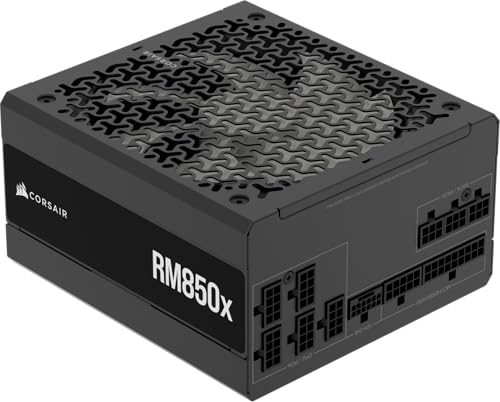


Top 3 picks at a glance
Quick answer
| Question | Short answer |
|---|---|
| Where does most of the money go? | The graphics card, then the CPU, then memory and storage |
| What is the average cost of a PC build? | It depends on the tier: entry builds target 1080p, mid-range 1440p, high end 4K. Check current guides from Tom’s Hardware or PC Gamer, which update their tier totals often |
| Is building cheaper than a prebuilt? | Often by a modest amount, but sales and part shortages can flip it |
| What costs people extra? | Windows licence, monitor, keyboard, mouse, headset, tax, shipping and cooling or cable upgrades |
| When are parts cheapest? | Seasonal sales, new-generation launches (older models drop), and clearance periods; memory is currently the exception |
| How to cut cost safely? | Buy less RAM and upgrade later, reuse peripherals, choose a previous-generation GPU, but never skimp on the power supply |
How a gaming PC budget is structured
A gaming PC is a stack of decisions, and each part has a typical share of the budget. The percentages below are illustrative planning allocations drawn from the patterns visible in published tier guides, not fixed rules or quotes from one source. They shift with the market, so treat them as a starting point.
| Part | Entry tier (1080p) | Mid tier (1440p) | High tier (4K / high refresh) |
|---|---|---|---|
| Graphics card | 30 to 35 percent | 33 to 40 percent | 38 to 45 percent |
| CPU | 14 to 18 percent | 14 to 18 percent | 12 to 16 percent |
| Memory | 8 to 14 percent | 8 to 12 percent | 6 to 10 percent |
| Storage (SSD) | 6 to 10 percent | 6 to 9 percent | 5 to 8 percent |
| Motherboard | 8 to 11 percent | 8 to 11 percent | 8 to 11 percent |
| Power supply | 6 to 9 percent | 6 to 9 percent | 5 to 8 percent |
| Case | 5 to 8 percent | 5 to 8 percent | 4 to 7 percent |
| CPU cooler and fans | 3 to 6 percent | 3 to 6 percent | 3 to 7 percent |
The rows do not sum to a single column because each range reflects the variation seen across published builds. Use the middle of each range for a sensible plan, then adjust.
What the memory shortage changes
The traditional advice put memory and storage near the bottom of the list. In 2026, trade press such as Tom’s Hardware has described sharp increases in DRAM and SSD prices as memory makers shift production toward chips for AI servers. Builder guides now suggest cutting back on capacity, for example starting with a single 16 GB kit and a smaller SSD, then adding more when prices ease. Memory and storage can therefore take double their usual share of an entry build. If you are planning a budget, check live prices for those two categories first, since they are the most volatile.
Cost by tier: what you get at each level
| Tier | Target | Typical parts class | Sensible trade-off |
|---|---|---|---|
| Entry | 1080p at medium to high settings | Six-core CPU, mid-range or previous-generation GPU with 8 to 12 GB VRAM, 16 GB DDR5, 500 GB to 1 TB SSD | Fewer storage and RAM upgrades now; leave an open upgrade path |
| Mid-range | 1440p at high settings | Six- to eight-core CPU, upper mid-range GPU with 12 to 16 GB VRAM, 32 GB DDR5, 1 TB SSD | Best balance of price and performance for most gamers |
| High end | 1440p high refresh or 4K | Eight- to sixteen-core CPU, high-end GPU with 16 GB or more VRAM, 32 GB or more DDR5, 2 TB SSD, stronger power supply | Costs rise faster than performance; check your monitor can use it |
| Enthusiast | 4K maximum settings, ray tracing, content creation | Top GPU and CPU, high-end board, large power supply, premium cooling | Diminishing returns; reserve for people who need the extra capability |
These are part classes, not specific products, and the VRAM sizes are typical ranges from current graphics card families. Review the manufacturer specification pages for exact figures before buying.
A worked example: splitting a budget
Assume you set a total budget of 100 units, where a unit is whatever currency amount you choose. A mid-range plan using the middle of each range might look like this.
| Part | Share of budget (units) | Reasoning |
|---|---|---|
| Graphics card | 36 | Frame rate depends most on this part |
| CPU | 16 | Enough to avoid limiting the GPU at 1440p |
| Memory | 10 | 32 GB for comfortable multitasking; 16 GB if prices are high |
| Storage | 8 | 1 TB covers the operating system and several large games |
| Motherboard | 10 | A mid-range board with the features you need, such as extra M.2 slots |
| Power supply | 8 | Quality unit with headroom for upgrades |
| Case | 7 | Good airflow, room for the GPU and cooler |
| Cooler and fans | 5 | Enough to keep the CPU quiet and cool |
The total is 100. If memory prices spike, you can move four to six units from memory and storage into the graphics card for now and plan a later upgrade of RAM or an extra SSD. This is more efficient than lowering the quality of the power supply or case, because a poor power supply puts every other part at risk.
Parts you should not cut
- Power supply. Choose a reputable brand with protection features and the wattage recommended by your graphics card maker. A cheap unit saves little and risks the whole build.
- Motherboard basics. You can save on extra features, but make sure it has the right socket, enough memory slots, and at least one fast M.2 slot.
- Cooler. A modest tower cooler is inexpensive and often better than bundled coolers on high-power CPUs. Check that your CPU includes a cooler or buy one.
- SSD. Avoid hard drives as your main drive; a decent NVMe SSD makes the whole system feel faster.
Where you can save
- RAM capacity now, more later. Start with a single matched pair of the capacity you need today and add more when prices fall.
- Previous-generation GPU. When a new graphics generation launches, older cards often fall in price while still performing well.
- Fewer RGB extras. Lighting and premium case designs add cost but not performance.
- Reuse parts. Reuse your monitor, keyboard, mouse, case or SSD if they are still good.
- Used parts, carefully. A used graphics card can save money, but buy with a return window, test it on arrival, and avoid cards that show signs of mining wear or damage.
High-end builds: how cost scales
Cost increases faster than speed as you climb the tiers. A top graphics card may cost several times as much as a mid-range one while delivering a smaller percentage gain in frame rate. A high-end build also needs a larger power supply, a bigger case, stronger cooling and often a premium motherboard, so each upgrade in the GPU tier adds supporting costs. Before aiming for the top, check that your monitor can use it. A 1080p 60 Hz display will not show the benefit of a 4K-class graphics card.
| Upgrade step | Extra costs it triggers |
|---|---|
| Moving to a larger GPU | Higher-wattage power supply, bigger case, better airflow |
| Moving to a high-core-count CPU | Stronger cooler, a more capable motherboard, faster memory |
| Moving to 4K gaming | A 4K monitor, more VRAM, and typically a higher-tier GPU |
| Adding content creation or streaming | More RAM, more storage, possibly a capture device |
Build versus prebuilt: the economics
| Factor | Building yourself | Buying a prebuilt |
|---|---|---|
| Parts cost | You pay retail for each part and choose each one | Manufacturers buy in bulk, which can offset the assembly margin |
| Labour | Your own time, three to five hours for a first build | Included |
| Operating system | Bought separately | Often included |
| Warranty | Separate warranty for each part | One support contact, but sometimes with limited parts access |
| Quality of components | You decide | Can include proprietary or lower-grade power supplies and boards |
| Upgradeability | Standard parts | Depends on the model; check the power supply and motherboard type |
| Price swings | Exposed to part-by-part changes | Sales can undercut a DIY build, especially when memory or GPUs are scarce |
Building is usually a little cheaper and gives better components for the money. However, in periods of tight supply, a prebuilt bought during a sale can beat the sum of its parts. A good method is to price your intended parts list and compare it with two or three prebuilts with similar specifications. Check what the prebuilt contains: the power supply brand and wattage, the motherboard type and the RAM configuration. If a prebuilt has a proprietary power supply or board, upgrades will cost more later.
Hidden costs people forget
| Item | Why it matters | How to manage it |
|---|---|---|
| Windows licence | A DIY build ships without an operating system | Budget for a Windows 11 licence, or choose a free OS if your games support it |
| Monitor | A new GPU is wasted on a low-resolution or low-refresh display | Decide on a monitor before you pick the GPU |
| Keyboard, mouse, headset | You might not have gaming-quality peripherals | Reuse good ones, buy basic ones first |
| Cables and adapters | DisplayPort or HDMI cable, power extensions, SATA cables | Check what is in the box before ordering |
| Sales tax and shipping | Can add a noticeable percentage across many orders | Compare totals at checkout, not just list prices |
| Tools | Screwdriver, ties, thermal paste | Often small, but add them to your list |
| Extra fans and cooling | Some cases ship with few fans | Check the fan count and airflow design in the specification |
| Anti-theft and surge protection | A surge protector or UPS can protect the investment | A basic surge protector is a low-cost safety item |
| Game library | Games themselves cost money | Include the first games you want in the budget |
| Time | Researching, assembling and troubleshooting takes hours | Value your time when comparing with a prebuilt |
| Electricity | High-power builds use more energy | Efficient parts and sensible power limits reduce running cost |
When to buy: timing the market
Part prices follow patterns, though no timing is guaranteed.
- Seasonal sales. Major retail events in November, back-to-school periods and the post-holiday clearance often bring discounts on cases, power supplies, coolers and storage. Graphics cards and CPUs see smaller cuts.
- New-generation launches. When a new CPU or GPU family arrives, the previous one is often cut in price as stock clears. If you can accept a last-generation part, this is a good time to buy.
- Manufacturer rebates and bundles. Some motherboards, CPUs and games come in bundles that reduce the combined price.
- Price history. Use a price-tracking tool or the price history on parts-list sites to see whether a discount is real or just a return to normal.
- Supply shocks. The memory shortage described above is an example of a market where waiting may not help soon. Analysts have described the pressure as continuing into next year, so decide based on need, not just hope of a quick drop.
A simple buying strategy
- Write the parts list and mark each item as essential now, or can wait.
- Buy the volatile parts (memory, GPU) when you find a fair price, not at the very first listing.
- Buy stable parts (case, power supply, cooler) during sales.
- Keep receipts and check return windows, because a return can protect you against a price drop or defect.
- Do not wait for a perfect price indefinitely. If you need the machine now, buying a sensible build is better than waiting for a bargain that may not arrive.
Budget by use case
| Use case | Where to put the money | Where to save |
|---|---|---|
| Esports at 1080p, high refresh | CPU and a fast monitor | GPU can be mid-range |
| Story games at 1440p | GPU first | CPU can be mid-range |
| 4K gaming | GPU and monitor | Case and RGB |
| Streaming or editing | CPU cores, RAM, storage | Premium case |
| Compact living-room PC | Case, power supply and cooling suited to a small form factor | Extra storage |
Common budgeting mistakes
- Spending on the GPU and leaving too little for the power supply and cooling.
- Forgetting the operating system and peripherals.
- Buying a CPU or GPU that outstrips the monitor.
- Choosing a dead-end platform that cannot be upgraded.
- Counting on mail-in rebates, which can be delayed or declined.
- Ignoring return policies when buying used or open-box parts.
Safety and troubleshooting for budget builds
Saving money should never compromise safety. Do not buy unbranded power supplies or cables from unknown sellers, and avoid modified or counterfeit graphics cards. If the system will not start after assembly, check the usual causes: RAM fully seated, the CPU 8-pin power connected, graphics card power connected, and the monitor cable plugged into the graphics card rather than the motherboard. Static discipline also matters; touch bare metal on the case, handle components by their edges, and unplug the power supply when changing parts. Standoffs must match the board holes to avoid short circuits.
How we compared
We compared manufacturer manuals, specifications and independent guides named below. We did not build or benchmark these systems ourselves.
Sources
- Tom’s Hardware best PC builds guides and RAM price index
- PC Gamer and PCWorld budget build guides
- Gartner commentary on memory and storage pricing outlook
- Graphics card, CPU and motherboard manufacturer specification pages (AMD, Intel, NVIDIA, board partners)
- Microsoft Windows 11 licensing and system requirements pages
- Retailer price-history and parts-list tools
Frequently Asked Questions
What is the biggest cost in a gaming PC?
The graphics card is usually the largest single expense, followed by the CPU. Memory and storage have grown in importance in 2026 because of memory chip price rises.
Is it cheaper to build or buy a gaming PC?
Building is often cheaper and gives you better control over components, but sales on prebuilts can beat it, especially when part prices are high. Compare a priced parts list with similar prebuilts, and check the power supply and motherboard in the prebuilt.
Why are RAM and SSD so costly now?
Reports from Tom’s Hardware and analysts say memory makers are directing production toward AI data-centre chips, which reduces supply for consumer memory and storage. Prices may stay elevated for a while.
How should I split my budget between the CPU and GPU?
For gaming, put more into the GPU. A common planning split is around a third to 40 percent of the budget on the GPU and about 15 percent on the CPU, adjusting for your games and monitor.
Do I have to pay for Windows?
You need a licence to use Windows 11 fully. You can install it from Microsoft’s media creation tool, then activate it with a licence. Some people choose a different operating system, but check that your games and anti-cheat software support it.
When is the best time to buy PC parts?
Seasonal sale periods and the weeks after new product launches often bring the best prices on cases, power supplies, coolers and previous-generation graphics cards. Use price history to confirm a discount is real.
Can I upgrade a budget build later?
Yes, if you choose standard parts and a platform with a future. Start with enough RAM for now, a power supply with headroom and a board with open slots, then add a GPU, memory or storage later.
Are used parts worth it?
They can be, particularly graphics cards. Buy from sellers with a return policy, check the card as soon as it arrives, and avoid used power supplies, whose wear is hard to judge.
Related guides
- Gaming Headset Buying Checklist: 12 Specs to Check Before You Pay
- Budget Dual Monitor Setup vs Single Ultrawide Monitor: Which Is Right for Your Home
- Wireless vs Wired Gaming Mouse for Budget Setup: Which Is Right for Your Home
- 8 Best Budget Extended Mouse Pads for Desk Setups: Compared and Ranked (2026)