
Top 3 picks at a glance
The Short Answer
For budget gaming in 2026, 8GB of VRAM is the practical minimum for smooth 1080p gaming, while 12GB is the sweet spot for 1440p if you want to avoid texture compromises and stutter in newer titles. At 1080p, most competitive and esports games use 4GB to 6GB at high settings, but modern AAA games with high-resolution textures will already push past 8GB at ultra. At 1440p, that same load increases by 30 to 50 percent, so an 8GB card can quickly become the limiting factor even on a budget build. If you are choosing a monitor and GPU together, match an 8GB GPU to a 1080p 144Hz to 240Hz display, and a 12GB or 16GB GPU to a 1440p 144Hz to 180Hz display for the best value and longevity.
Standard Sizes
Budget gaming monitors are overwhelmingly 24-inch to 32-inch flat or curved panels with Full HD 1920×1080 resolution. While 1440p offers more detail, the budget price sweet spot remains 1080p high-refresh displays. Use the table below to compare real footprint, so you know what will actually fit on your desk.
As an Amazon Associate we earn from qualifying purchases at no extra cost to you. Product prices and availability are accurate as of the date shown and are subject to change.
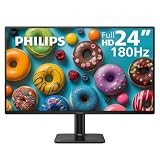


| Screen Size (Class) | Resolution | Width x Height Without Stand (inches / cm) | Height With Stand (inches / cm) | Depth With Stand (inches / cm) | Weight Without / With Stand (lbs / kg) | Typical Power Draw | Budget Price Range |
|---|---|---|---|---|---|---|---|
| 24-inch Flat (e.g., 24E2G2200 class) | 1920×1080 FHD | 21.2 x 12.7 in / 53.8 x 32.3 cm | 15.9 to 18.1 in / 40.4 to 46.0 cm | 7.2 to 8.5 in / 18.3 to 21.6 cm | 6.2 / 7.3 lbs / 2.8 / 3.3 kg | 18W – 28W | $82 – $110 |
| 24.5-inch Flat High-Refresh | 1920×1080 FHD | 21.7 x 13.0 in / 55.1 x 33.0 cm | 16.3 to 19.5 in / 41.4 to 49.5 cm | 7.5 to 9.0 in / 19.1 to 22.9 cm | 6.5 / 8.0 lbs / 2.9 / 3.6 kg | 22W – 32W | $88 – $125 |
| 27-inch Flat | 1920×1080 FHD | 24.2 x 14.3 in / 61.5 x 36.3 cm | 17.5 to 20.8 in / 44.5 to 52.8 cm | 8.0 to 9.5 in / 20.3 to 24.1 cm | 7.8 / 9.7 lbs / 3.5 / 4.4 kg | 24W – 36W | $109 – $159 |
| 32-inch Curved (e.g., C32G2ZE class) | 1920×1080 FHD | 28.0 x 16.5 in / 71.1 x 41.9 cm | 19.8 to 21.5 in / 50.3 to 54.6 cm | 9.5 to 11.2 in / 24.1 to 28.4 cm | 12.8 / 14.5 lbs / 5.8 / 6.6 kg | 35W – 48W | $169 – $199 |
All dimensions are for the panel and included stand. VESA mount is 75x75mm for most 24-inch models and 100x100mm for 24.5-inch and larger models. If you plan to use an arm, subtract stand depth and allow 3 to 4 inches / 7.6 to 10.2 cm of clearance behind the desk for the mount clamp.
How to Measure Your Space
- Measure usable desk width and depth. Use a tape measure across the back edge where the stand will sit. Record in inches and centimeters. Most budget desks are 47 to 55 inches / 119 to 140 cm wide and 19 to 24 inches / 48 to 61 cm deep.
- Check viewing distance. Sit in your normal chair position and measure from eyes to the back edge of the desk. Ideal distance is 20 to 28 inches / 51 to 71 cm for a 24-inch monitor, 26 to 32 inches / 66 to 81 cm for a 27-inch, and 30 to 36 inches / 76 to 91 cm for a 32-inch curved panel.
- Account for stand footprint. Place painter’s tape outlining the stand depth from the table above. Leave at least 4 inches / 10 cm in front for keyboard and 2 inches / 5 cm behind for cables and ventilation.
- Measure vertical clearance. Measure from desk surface to bottom of shelf, cabinet, or wall. You need the full height with stand plus 2 to 3 inches / 5 to 7.6 cm for cables. For adjustable stands, measure at both lowest and highest positions.
- Confirm power and port access. Check that your wall outlet or power strip can handle 45W to 65W total for monitor plus peripherals, and that your GPU has a matching HDMI 2.0/2.1 or DisplayPort 1.4 port within cable reach of 3 to 6 feet / 0.9 to 1.8 m.
- Test the sight line. The top third of the screen should be at or slightly below eye level. If your desk is shallow, a 32-inch screen will dominate your field of view and force head turning at 1080p.
By Room or Use Case
Small Bedroom or Dorm Desk: 24-inch 1080p 180Hz to 240Hz
This is the most space-efficient and VRAM-friendly setup for budget builds. A 24-inch FHD panel at 180Hz or 240Hz pairs perfectly with an 8GB card such as an RTX 4060 or RX 7600. At 1080p, you can run most AAA games at high settings without exceeding the VRAM buffer, while esports titles like Valorant, Fortnite, and Rocket League will easily hit the panel’s refresh rate. Physical footprint is minimal at about 21 to 22 inches wide, leaving room for speakers or a laptop. Power draw stays low, and the lighter 7 to 8 lb weight makes it easy to move.
Shared Living Room or Multi-Use Space: 27-inch 1080p 165Hz to 240Hz
A 27-inch FHD monitor is the upper limit for 1080p before pixel density becomes noticeably soft at close range. It works well if your viewing distance is 27 inches or more. From a VRAM perspective, 1080p on a 27-inch uses the same GPU memory as on a 24-inch, so 8GB remains sufficient for high settings, with texture packs being the main exception. Choose a height-adjustable stand or plan for a VESA arm, since the panel is about 24 inches wide and needs a desk at least 22 inches deep to feel comfortable.
Dedicated Gaming Corner or Home Office: 32-inch Curved 1080p 240Hz
A 32-inch curved VA panel is immersive for racing, sports, and story-driven games, but at 1920×1080 the pixels are larger. It is best when viewed from 32 to 36 inches away. VRAM demand does not change with physical size, only resolution and texture settings, so an 8GB card still covers 1080p. However, if you intend to drive this large screen at its full 240Hz in AAA games, consider whether your GPU can sustain the frame rate; many budget 8GB cards will max out the monitor in competitive games but not in demanding titles. Allow a full 28 inches of desk width and a sturdy desk that supports about 14.5 lbs plus the leverage of a curved panel.
Budget 1440p Upgrade Path: 27-inch 1440p 144Hz to 180Hz
If you want crisper text and more desktop space for work and gaming, a 27-inch 1440p monitor is the logical next step, but it changes the VRAM equation. At 2560×1440, frame buffers, shadow maps, and high-resolution textures require substantially more memory. For comfortable ultra settings without lowering texture quality, budget for a 12GB GPU at minimum, with 16GB providing the most headroom for upcoming titles. Expect to spend $40 to $90 more for the monitor itself compared to FHD, and ensure your desk can accommodate a stand that is often deeper and taller than 24-inch models. A GPU upgrade should precede the monitor upgrade if you currently own an 8GB card.
Common Sizing Mistakes
Buying a 32-inch screen for a shallow desk. At less than 24 inches of depth, a 32-inch 1080p panel fills too much of your vision and reveals pixelation. A 24-inch or 24.5-inch model will look sharper at the same resolution and leave keyboard space.
Ignoring stand height adjustment. Budget 24-inch monitors often have tilt-only stands with a fixed height of about 16 inches. If you are tall or use a high chair, you will crane your neck. Check the height range in the table or budget $25 to $45 for a VESA arm.
Matching an 8GB GPU to a 1440p monitor to save money. This is the most common VRAM mismatch. You will either need to drop textures to medium, run below native resolution, or tolerate stutter when the 8GB buffer overflows at 1440p. It is more cost-effective to stay at 1080p with 8GB or move to 12GB+ before moving to 1440p.
Forgetting cable and ventilation clearance. VA and IPS budget panels still need 2 to 3 inches behind the monitor for HDMI and DisplayPort cables that bend outward. Pushing the monitor flush against a wall stresses the ports and blocks airflow, which can increase panel temperatures.
Assuming all refresh rates are equal. A 300Hz FHD monitor only benefits you if your GPU and CPU can deliver close to 300 frames per second. At 1080p high settings, many budget 8GB GPUs will deliver 120 to 180 fps in AAA games, so a 240Hz panel already provides headroom without paying extra for 300Hz unless you mainly play esports titles.
FAQ
How much VRAM do I need for 1080p gaming on a budget monitor?
8GB is the recommended baseline for 1080p in modern games. It handles high textures at 1920×1080, supports high-refresh 165Hz to 240Hz gaming, and avoids the hitching that occurs when a 6GB buffer is exceeded. 6GB cards can still work if you are willing to lower texture quality to medium in the most demanding games, but 8GB offers far better longevity without a large price increase.
Is 8GB enough for 1440p, or should I get 12GB?
8GB can run 1440p, but you will frequently need to compromise. At 2560×1440, many AAA titles already use 9GB to 11GB at ultra textures, and the gap will widen with newer releases. A 12GB card lets you run high to ultra textures natively at 1440p and keeps 1% lows smoother. If you plan to keep the monitor for three or more years, 12GB to 16GB is the safer budget choice for 1440p.
What desk size do I need for a 24-inch vs. 32-inch gaming monitor?
For a 24-inch or 24.5-inch monitor, a desk at least 42 inches / 107 cm wide and 20 inches / 51 cm deep is sufficient. For a 32-inch curved monitor, aim for at least 55 inches / 140 cm wide and 24 inches / 61 cm deep to maintain a comfortable 30 to 36 inch viewing distance and to support the wider 28-inch panel plus stand depth of about 10 to 11 inches.
Will a 1080p monitor look blurry at 27 inches or 32 inches?
At normal desktop viewing distance of 24 to 28 inches, a 24-inch FHD panel at about 92 pixels per inch looks crisp. A 27-inch FHD panel at about 82 pixels per inch is softer but acceptable if you sit slightly farther back. A 32-inch FHD panel at about 69 pixels per inch is noticeably less sharp for text and should be viewed from 32 inches or more, or considered as a secondary gaming display rather than a primary work monitor. If sharpness is a priority, choose 1440p for sizes above 27 inches.


