
Our Top Picks
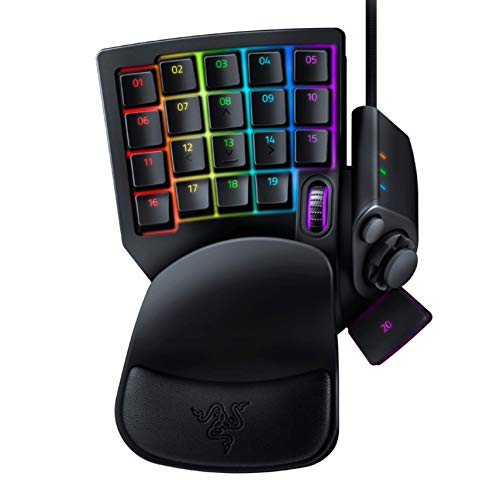 Razer Tartarus V2 Left-Handed Gaming Keypad6.02x 2.36 x 0.8 Inch2.36 x 7.98 x 6.02 inches0.8 PoundsCheck on Amazon
 Razer Tartarus Pro Gaming Keypad: Analog-Optical Key Switches5.95L x 7.96W x 2.5H inches5.95 x 7.96 x 2.5 Inches0.8 PoundsCheck on Amazon
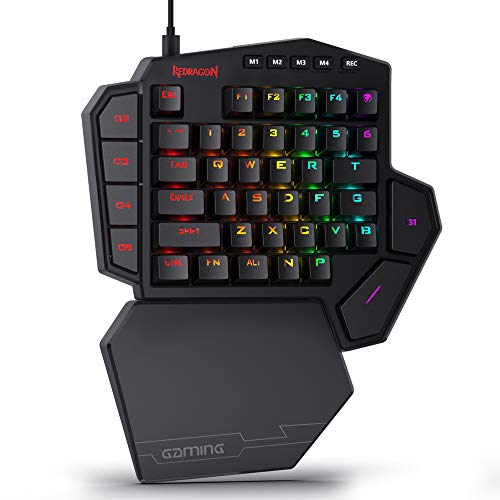 Redragon K585 Wired One-Handed RGB Gaming KeypadBlue Switch11 x 2 x 9 inches1.3 poundsCheck on Amazon

Top 3 picks at a glance
Best Gaming Keypads: Choose by Game, Controls, and Desk Space
The best gaming keypads for most players are compact, programmable devices with familiar mechanical switches and reliable onboard or desktop software—but the right pick depends on whether you need extra thumb controls, analog movement, or simply a smaller substitute for a full keyboard. Match the keypad’s control layout to your games before comparing key counts: an MMO player benefits from reachable macros, while a movement-focused FPS player may care more about a comfortable thumb stick and consistent WASD positioning.
Start with the control layout your games need
A gaming keypad is a one-handed input device, usually with a cluster of keys for movement and actions. Some models add a thumb-operated directional control, a scroll wheel, or a small joystick. That can free desk space and put more commands within reach, but it also means learning a new layout and possibly assigning controls differently for each game.
As an Amazon Associate we earn from qualifying purchases at no extra cost to you.



- FPS and action games: Prioritize a natural movement cluster, a comfortable thumb control, and enough nearby keys for common actions. A joystick can make movement feel more continuous than four separate directional keys, but it does not replace aiming with a mouse.
- MMOs and complex RPGs: Look for more programmable keys, clear key spacing, and software that can manage profiles and macros. Extra keys help only if you can reach them without shifting your hand awkwardly.
- Mobility and general gaming: A compact keypad with a simple layout can work well for a travel setup or a small desk. Check whether it can operate without its configuration software if you plan to switch computers.
- Driving, flight, and simulation games: A keypad can supplement a mouse or controller with shortcuts, but a small thumb stick is not a substitute for a dedicated steering wheel or flight stick when precise continuous input matters.
Head-to-head: three established options
These devices take different approaches to one-handed gaming. The numbers below describe key counts and approximate maximum dimensions; layouts and versions can vary. Confirm the exact model and connection before buying.
| Keypad | Key layout and switches | Thumb control | Approx. footprint | Best fit |
|---|---|---|---|---|
| Razer Tartarus V2 | 32 keys; mecha-membrane switches | Eight-direction thumb pad and thumb button | About 20 × 15 cm | Players who want many inputs and a broad range of remapping options |
| Razer Tartarus Pro | 32 keys; analog optical switches with adjustable actuation | Eight-direction thumb pad and thumb button | About 20 × 15 cm | Players who want adjustable key response and analog-style input options |
| Logitech G13 | 25 keys; rubber-dome switches | Four-direction thumb stick | About 25 × 15 cm | Players who prefer a dedicated thumb stick and an older, established layout |
The Tartarus V2 and Tartarus Pro are still useful reference points for comparing current listings, but availability can vary by region and seller. The Logitech G13 is a discontinued model, so it is mainly relevant if you are considering a used unit. For used hardware, check key function, cable condition, wrist-rest wear, and whether the configuration software still works on your operating system.
Mechanical, membrane, or analog: what changes in play?
Switch type affects feel and response, but it does not automatically determine whether a keypad is good for your game. Mechanical switches generally provide a distinct tactile or audible event and are often replaceable only if the design supports it. Membrane and mecha-membrane designs tend to feel softer; they can still be responsive, but the sensation differs from a conventional mechanical keyboard.
Analog-capable switches can detect how far a key is pressed, rather than treating it only as on or off. That can support adjustable actuation or variable movement in compatible software and games. Do not assume every game will interpret a keypad key as a controller axis: check the device’s software and the game’s input support. For many MMO commands and FPS actions, ordinary digital key presses are perfectly adequate.
Before choosing based on switch marketing, ask whether you want a specific feel, adjustable actuation, or analog movement. If the answer is simply “more buttons,” prioritize layout and software instead.
Software support can make or break a keypad
Programmable keys are only as useful as the way you can assign and manage them. Check that the manufacturer’s software supports your operating system, that profiles can be saved or switched reliably, and whether the device stores settings onboard. Onboard profiles are particularly useful if you move between computers or do not want a background app running during play.
For games with built-in keybind menus, assigning keypad buttons to ordinary keyboard keys is often the simplest approach. Use macros only where the game permits them: some competitive games restrict automation or repeated actions. A safe configuration is usually one physical press mapped to one in-game command, unless the game’s rules explicitly allow more.
Also check how the software handles thumb controls. A directional pad may send keyboard directions, controller input, or configurable bindings, and those modes are not interchangeable in every game. If you need a controller-style axis for movement, verify that the exact device and game combination supports it.
A decision matrix for choosing the right style
| Your situation | Prioritize | Trade-off to accept |
|---|---|---|
| You play FPS games and want to keep your mouse hand free | Comfortable movement keys, reachable thumb control, stable wrist position | A thumb pad takes practice and may not provide true analog movement |
| You play an MMO with many actions | More keys, clear spacing, per-game profiles, dependable remapping | A larger keypad uses more desk space and can make far keys harder to reach |
| You move between PCs | Onboard profiles or easy profile export, straightforward key assignments | Some advanced lighting or macro features may require desktop software |
| You have a narrow desk | Compact footprint, a wrist rest that does not force an awkward angle | Fewer keys or a less elaborate thumb-control area |
| You want variable movement or adjustable key response | Analog-capable hardware and confirmed support in your games | Higher cost and setup complexity; support is not universal |
Check whether the footprint actually saves space
A keypad may be small compared with a full keyboard, but it still needs room beside the mouse and enough space for your wrist. Measure the area where your left hand will rest, then include the cable’s exit direction and any wrist-rest overhang. A device around 20 × 15 cm occupies roughly 300 cm² before allowing for cable clearance—small enough for many desks, but not negligible beside a mouse pad.
Consider your mouse position, too. If the keypad pushes the mouse farther right, the setup may feel cramped even though the keypad itself is compact. A narrow layout can be more comfortable than one with extra keys you rarely use.
Set up a profile before judging the layout
- Map movement first. Put movement on the most natural key cluster or thumb control. Keep movement consistent across games where possible.
- Place frequent actions close to your fingers. Assign reload, interact, dodge, or core abilities to positions you can reach without lifting or twisting your hand.
- Keep rare commands farther away. Inventory, menus, and infrequent abilities can use less convenient keys; this avoids crowding the actions you press constantly.
- Test for a short session, then adjust one thing at a time. If you miss a key, move that command or change the binding—not the whole layout at once. This makes it easier to identify whether the issue is reach, spacing, or unfamiliarity.
- Save a separate profile for each game. Different genres need different priorities, and separate profiles prevent one game’s bindings from disrupting another’s.
Frequently asked questions
Can I use a gaming keypad without its configuration software?
Sometimes, but it depends on the device and how you need to use it. Check whether settings can be stored in onboard profiles if you move between computers or prefer not to run a background app. The article recommends confirming operating-system support and profile behavior before buying.
Will a keypad thumb control work like a controller joystick in every game?
No. A thumb control may send keyboard directions, controller input, or configurable bindings, and those modes are not interchangeable in every game. If you need controller-style movement or a true axis, verify that the exact keypad and game support it; a joystick does not replace mouse aiming.
Is a used Logitech G13 worth considering?
It may suit someone who prefers its dedicated thumb stick and established layout, but the Logitech G13 is discontinued. Before buying a used unit, check that its keys work, inspect the cable and wrist-rest condition, and confirm that its configuration software works with your operating system.
How should I map keypad controls for a new game?
Map movement first, using the most natural key cluster or thumb control, then place frequent actions where you can reach them without twisting your hand. Put rare commands farther away, test the layout for a short session, and adjust one binding at a time. Save a separate profile for each game.
Can keypad macros cause problems in competitive games?
They can, because some competitive games restrict automation or repeated actions. The article suggests using one physical press for one in-game command unless the game’s rules explicitly allow more. For games with built-in keybind menus, assigning keypad buttons to ordinary keyboard keys is often the simplest approach.
Bottom line
For a programmable keypad with many controls and a thumb pad, the Razer Tartarus V2 is a recognizable mecha-membrane option; the Tartarus Pro is the more specialized choice if adjustable analog-capable switches matter to you. The Logitech G13 may appeal to someone seeking its thumb-stick layout, but its discontinued status makes condition and software compatibility important. Whichever you choose, compare reach, software behavior, and the space it takes up—not just the number of keys. The best gaming keypads are the ones whose controls suit your games and remain comfortable after hours of use.


