A gaming mouse is only half hardware. The sensor, switches and shell decide how the mouse feels in your hand, but the companion software decides what the mouse actually does: which DPI stage is active, what each button triggers, whether a macro fires once or loops, and whether your settings follow you to another PC. Two mice with near-identical sensors can feel completely different to live with purely because one brand’s software is quick and predictable while the other’s is slow, account-bound or eager to run extra background services.

This guide compares the major gaming mouse software platforms on the things that matter day to day — macro editing, DPI and profile storage, per-game profiles, cloud sync and resource use — and then looks at four gaming mice whose companion software is a genuine headline strength rather than an afterthought.
As an Amazon Associate we earn from qualifying purchases.
Our Top Picks
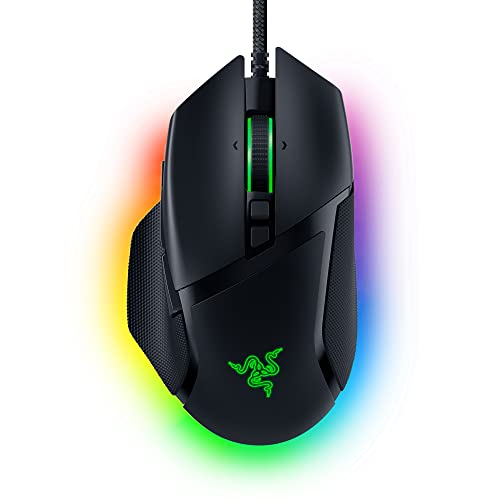
- Razer Basilisk V3 Customizable RGB Wired Ergonomic GamingMouse2.96 x 5.12 x 1.67 inches0.2 poundsCheck on Amazon

Top 3 picks at a glance
What Gaming Mouse Software Actually Controls
Every major suite covers the same core jobs, but the details differ enough to matter:
- DPI stages and polling rate. You set a ladder of sensitivity steps, choose a default and (on some mice) a temporary “shift” value, and pick how often the mouse reports its position. Finer control, such as separate X and Y axis sensitivity, is a differentiator on newer Logitech hardware.
- Button assignments. Any programmable button can be remapped to a keystroke, a system command, a media control or a macro. Modifier layers — Logitech’s G-Shift and Razer’s Hypershift — give every button a second function while a chosen button is held.
- Macros. Recorded sequences of keystrokes, clicks and delays, with playback modes such as play once, repeat while held, toggle and sequence. The important question is which macro types still work when the software is closed or when settings are stored on the mouse itself.
- Profiles and storage. Settings live in profiles. Profiles can sit in the app, sync to a cloud account, or be written to the mouse’s on-board memory so they work on a PC where the software is not installed. On-board slots are limited; cloud libraries usually are not.
- Per-game switching. Most suites can link a profile to a game or application and activate it automatically when that program runs, falling back to a desktop default profile everywhere else.
- Lighting and extras. RGB control is standard. Some suites bundle much more: system-wide lighting sync, fan control, audio processing, clip capture and game-event integrations, all of which add background weight.
With that framework in mind, here is how the main platforms compare.
Logitech G Hub
G Hub is Logitech’s configuration software for its G-series mice, keyboards, headsets and wheels on Windows and macOS, and it replaced the older Logitech Gaming Software for all new devices. Its structure is profile-first: each game or application in the profile list can carry its own profile with its own DPI steps, assignments and lighting, and profiles switch automatically when the linked game runs. A Desktop Default profile covers everything else, and a Persistent Profile option can lock one profile in place across all programs if you prefer consistency over automation.
The macro editor offers four playback types — No Repeat, Repeat While Holding, Toggle and Sequence — and macros can mix keystrokes, text and actions such as launching an application. G-Shift is the standout assignment feature: hold a designated button and every other button swaps to a second layer of assignments, which effectively doubles the controls on button-rich mice.
Storage is where G Hub needs care. With On-Board Memory mode enabled, G Hub writes customizations to the mouse itself — supported mice expose several profile slots — so settings travel to PCs without G Hub installed. The trade-off is that on-board macros are restricted: only No Repeat macros built from text and modifier keys work in that mode, while Repeat While Holding, Toggle and Sequence macros need G Hub running. An account is optional; it is only needed for cloud backup of profiles and for downloading community presets and profiles, and all local functions work without one. On the sensitivity side, G Hub allows up to five DPI stages per profile plus a dedicated DPI Shift value, and newer HERO 2 mice add separate X and Y axis DPI and adjustable lift-off distance.
Razer Synapse
Synapse is built around the cloud. Changes made in the app save automatically to your system and to cloud storage, so a Razer ID effectively carries an unlimited library of profiles between machines. On top of that sits hybrid storage: up to four profiles can also be saved to a supported mouse’s on-board memory, so your most important setups still work on a PC without Synapse.
The macro system is deep. Macros record strings of keystrokes and button presses with precise timing, and the Macro module adds playback options when installed. Hypershift mirrors Logitech’s G-Shift idea: while the Hypershift key is held, every button and key uses a secondary assignment set, doubling the available functions. Profiles can be linked to specific games or apps so they activate automatically, and button functions range from keyboard and mouse functions to text functions, Windows shortcuts and program launching.
The catch is dependence on the app. Hypershift layers, advanced macros and Chroma lighting integrations require Synapse to be running in the background; close it and those software-stored functions stop, leaving only what was pushed to on-board memory. Synapse has also moved through major versions — Synapse 3 remains widely used, and Synapse 4 is the newer release with backward compatibility for Synapse 3 devices — so the exact interface depends on your hardware generation.
Corsair iCUE
iCUE is the broadest suite in this comparison because it is not just peripheral software. One application manages Corsair mice, keyboards and headsets alongside cooling, memory, lighting components and full systems, which makes it the natural center of an all-Corsair build and heavier than a mouse-only user strictly needs.
For mice specifically, iCUE’s strengths are precision and macro depth. Supported sensors can be tuned in 1 DPI steps, buttons take macros or remaps through the key assignment system, and there is a surface calibration utility to match tracking to your mousepad. Lighting synchronizes across every iCUE-compatible device in the system, and game-specific profiles are supported. Crucially, Corsair distinguishes between software profiles, which work while iCUE is active, and on-board profile storage with hardware macro playback and lighting control — Device Memory Mode in current versions — which stores selected settings on the mouse for use when iCUE is closed. If you play on more than one machine, that hardware playback support makes iCUE one of the more forgiving suites, because a stored macro does not silently die when the app is absent.
SteelSeries GG and Engine
SteelSeries GG is an umbrella app: the mouse and keyboard configuration lives in the Engine module, while Sonar handles audio and Moments handles gameplay clip capture. For mouse settings, only Engine matters — Sonar and Moments are extras you can ignore if you do not use a SteelSeries headset or want a clip recorder.
Engine covers the expected ground well: per-button macros, DPI stages, polling rate, lift-off distance and RGB, organized into profiles that can be linked to games and switch automatically when the game launches. Profiles import and export cleanly, and GG adds Cloud Sync, which stores profiles and settings in the cloud so they can follow you between machines or be restored after a reinstall. GameSense is the distinctive extra: supported games can drive lighting and OLED displays on SteelSeries gear in response to in-game events, which is a cosmetic feature but one no other suite here replicates in the same form. Because GG bundles three tools in one launcher, it asks for more disk and background presence than Engine alone would, which is worth knowing if you only own a mouse.
The Smaller Suites: NGENUITY, Glorious Core and Armoury Crate
HyperX NGENUITY handles DPI presets, button assignments, polling rate, lighting, macros and profiles for compatible HyperX gear, with model-aware settings and firmware updates in the same panels. It is a competent, focused tool whose scope is deliberately narrower than iCUE or GG.
Glorious Core takes the minimalist route for Glorious mice: DPI stages, button mappings, debounce settings and profiles, with an integrated firmware updater and immediate sync between the app and the mouse’s on-board behavior. Its macro editing is shallower than the big suites, which suits its competitive, set-it-and-forget-it audience.
ASUS Armoury Crate configures ROG and ASUS mice with DPI and polling adjustments, button remapping, a macro editor, profiles, firmware updates and Aura Sync lighting, all inside the same utility that manages the rest of an ASUS system. Like iCUE, its value rises when the mouse is one of several same-brand devices.
Platform Comparison at a Glance
| Platform | Macro editing | Profile storage | Per-game profiles | Cloud sync | Notes on footprint |
|---|---|---|---|---|---|
| Logitech G Hub | Four playback types; G-Shift layer | On-board slots on supported mice; local profiles | Yes, automatic | Optional, for backup and community profiles | Account not required for local use; on-board macros are limited to simple No Repeat types |
| Razer Synapse | Deep editor with timing control; Hypershift layer | Cloud library plus up to 4 on-board profiles | Yes, automatic | Yes, central to the design | Hypershift, advanced macros and Chroma need Synapse running |
| Corsair iCUE | Full macro programming with hardware playback on stored profiles | Software profiles plus on-board storage / Device Memory Mode | Yes | Profile handling is local-first | Also manages cooling, memory and system lighting, so it is the heaviest install here |
| SteelSeries GG (Engine) | Per-button macros in Engine | Local profiles with import/export | Yes, automatic | Yes, Cloud Sync | GG also bundles Sonar audio and Moments capture |
| HyperX NGENUITY | Macro editor with multi-step bindings | Device profiles | Supported | Limited | Focused, narrower scope |
| Glorious Core | Basic macro support | On-board focused, synced from app | Supported | Minimal | Lightweight; firmware updates built in |
| ASUS Armoury Crate | Macro editor with recording and playback | Device profiles | Supported | Limited | Shared with wider ASUS system management |
Four Mice Where the Software Is the Point
Software quality only matters if the hardware gives it something to work with. These four mice pair strong companion apps with enough buttons, memory and sensor control for the software to earn its keep.
Logitech G502 HERO — G Hub with five on-board profiles
The G502 HERO is the classic showcase for G Hub. Its HERO 25K sensor adjusts from 100 to 25,600 DPI, and its 11 programmable buttons give the Assignments tab real material: commands, keys, macros and G-Shift layers can be layered across the thumb cluster, the DPI buttons and the dual-mode hyper-fast scroll wheel. The listing highlights on-board memory, and the mouse saves up to five ready-to-play profiles directly to the device, so a per-game setup built in G Hub can travel to another PC. A tunable weight system with five 3.6 g weights and LIGHTSYNC RGB lighting round out the package, both also managed from the same app. For anyone who wants deep per-game profiles without an account standing in the way, this is the reference combination.
- https://www.amazon.com/dp/B07GBZ4Q68
Razer Basilisk V3 — Synapse, Hypershift and Chroma
The Basilisk V3 is built around Synapse. Its 11 programmable buttons accept macros and secondary functions, and Hypershift doubles that layout while a chosen button is held — useful for push-to-talk, pings and other occasional actions that do not deserve a permanent button. The Focus+ 26K DPI optical sensor is tuned in stages inside Synapse, the HyperScroll tilt wheel switches between free-spin and tactile modes, and 11 Chroma RGB lighting zones react dynamically with over 150 Chroma-integrated games. Optical switches rated for up to 70 million clicks handle the hardware side. This is the pick for players who like the idea of a cloud-backed profile library that rebuilds itself on a new PC the moment they sign in.
- https://www.amazon.com/dp/B09C13PZX7
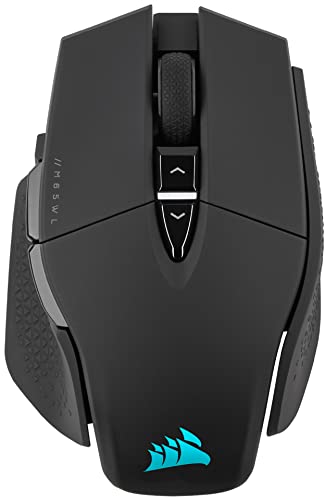
Corsair M65 RGB Ultra Wireless — iCUE precision and hardware playback
The M65 RGB Ultra Wireless shows off iCUE’s precision side. Its Corsair Marksman optical sensor reaches a native 26,000 DPI with 650 IPS tracking, and iCUE adjusts sensitivity in 1 DPI steps — granularity that matters if you fine-tune per game rather than per genre. Eight programmable buttons take macros and remaps, on-board profile storage with hardware playback keeps those macros working away from the app, and the mouse adds tilt gestures via its six-axis gyro and accelerometer, which can be mapped to in-game abilities. Connectivity is sub-1ms Slipstream wireless with up to 2,000 Hz hyper-polling, plus Bluetooth and wired modes, and the listing rates battery life at up to 120 hours. A tunable weight system and an anodized aluminum frame complete a mouse designed for people who genuinely enjoy configuring things.
- https://www.amazon.com/dp/B09CX6WD5Q
SteelSeries Rival 3 — Engine essentials with on-board memory
The Rival 3 is the budget-friendly end of the SteelSeries GG ecosystem, and its software story is about carrying the essentials without the app. Its TrueMove Core optical sensor covers 100 to 8,500 CPI in 100 CPI increments with 300 IPS tracking, and the manufacturer notes that on-board memory saves your custom polling rate, keybinds and five CPI steps directly on the mouse — configure it once in Engine, then plug it into any machine. Six programmable buttons, three-zone Prism RGB and mechanical switches rated for 60 million clicks cover the rest, in a 77 g shell aimed at claw and fingertip grips. If your priority is a lightweight mouse whose keybinds survive without background software, the Rival 3 makes that case cheaply and simply.
- https://www.amazon.com/dp/B08176SM7C
How to Choose the Right Mouse Software
Start with the ecosystem you already own, because every suite here only configures its own brand’s hardware. Beyond that, four questions separate the platforms:
- Do your settings need to travel? If you switch PCs often, prioritize on-board memory slots and hardware macro playback (Corsair and Logitech handle this well) or a cloud library that rebuilds your setup on sign-in (Razer’s model).
- How deep do your macros go? Simple text and keystroke macros survive on-board storage almost everywhere. Looping, toggle and sequence macros usually need the app running, and on Logitech hardware they do not work in on-board memory mode at all.
- Do you want per-game automation? All four major suites link profiles to games and switch automatically, so this is rarely the deciding factor — but check whether a persistent or locked profile option exists if you prefer one setup everywhere.
- How much background software will you tolerate? A mouse-only owner gets the leanest experience from Glorious Core or a configure-then-store workflow in Engine or G Hub. iCUE and GG justify their size when the same app also runs your cooling, lighting, audio or capture tools.
Frequently Asked Questions
Can I use a gaming mouse without installing its software? Yes. Every mouse here works as a standard mouse out of the box, and mice with on-board memory keep their stored DPI steps, keybinds and simple macros with no app installed. You only need the software to change settings or to use app-dependent features such as Hypershift, advanced macros and reactive lighting.
Does mouse software work on macOS or Linux? G Hub and GG support macOS as well as Windows; Synapse and iCUE support varies by version and device, and Linux support is limited across all of these suites. On-board memory is the practical workaround: configure on a supported system, store the profile on the mouse, then use it anywhere.
Do I need an account? Not for core configuration on most platforms. Logitech treats an account as optional and ties it to cloud backup and community content, while Razer’s cloud profile system is designed around signing in. Check what you actually use before creating yet another account.
Why did my macro stop working? The usual cause is storage location. Macros that depend on the app — looping and toggle types, Hypershift layers, Chroma-linked actions — stop when the suite is closed or absent. If a macro must work everywhere, rebuild it as a simple play-once macro and store it in an on-board profile where the platform supports hardware playback.
Verdict
There is no single winner, because the best gaming mouse software is the one matched to how you play and how many machines you play on. G Hub offers the most complete profile and assignment system without demanding an account, Synapse has the deepest cloud-first model and a strong macro editor, iCUE pairs 1 DPI-step precision with hardware macro playback inside the widest ecosystem, and SteelSeries GG keeps configuration clean in Engine while adding cloud sync and optional audio and capture tools. Pick the mouse whose software model fits your habits — the hardware shortlist above is a sensible place to start.
Related guides
More from Amazon
Programs that pair well with the guide above. Offers and eligibility are set by Amazon and may change.
Free shipping on eligible items, Prime Video and more. Eligible new members can start with a free trial.
Start a Prime free trialAd-free music streaming. Eligible new subscribers can start with a free trial.
Try Music Unlimited freeA Prime membership for ages 18-24 with a trial period. Eligibility is set by Amazon.
See Prime for Young AdultsAudiobooks and podcasts to listen to on the go. Eligible new members can start with a free trial.
Try Audible freeAs an Amazon Associate we earn from qualifying purchases.