
Choosing a motherboard for a budget build is easy. Choosing one that won’t box you in when you upgrade your graphics card in a year or two is harder. Most buyers focus on the CPU socket and the price tag, then discover their new GPU doesn’t fit, doesn’t get enough power, or is choked by an old PCIe slot. Others save $20 on a board with only one M.2 slot or weak power delivery and end up replacing the entire platform sooner than they planned.
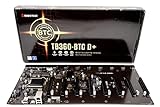
The goal isn’t to buy the most expensive board now to be “future proof” – that rarely pays off on a budget. The goal is to buy a board that gives you a clear, affordable path to a faster GPU without forcing a new case, power supply, or CPU at the same time. That means paying attention to physical size, slot layout, power design, and connectivity that actually affect GPU upgrades. A mining-focused board with eight PCIe x1 slots, for example, is built for a completely different job and won’t help a gaming upgrade path, and the cheapest board with the oldest chipset will cost you more when you need to replace it.
As an Amazon Associate we earn from qualifying purchases at no extra cost to you. Product prices and availability are accurate as of the date shown and are subject to change.

This guide breaks down what really matters when you’re shopping on a budget and want to leave the door open for a much more powerful graphics card later.
Top 3 picks at a glance
Decide These 3 Things First
Before you compare specific models, lock in these three decisions. They will filter 80% of boards instantly.
1. Your target GPU class in the next 2-3 years. Are you planning to go from an entry-level card like an RTX 4060 or RX 7600 to a mid-range 70-class card, or are you aiming for a high-end 80-class card that is 320mm+ long, 2.5 to 3.5 slots thick, and draws 250-350W? A compact microATX case that fits a 240mm dual-fan GPU today may not fit a 330mm triple-fan upgrade. Decide on a realistic ceiling: 220-250W vs. 300W+ makes a big difference in power supply and clearance planning.
2. Your CPU platform and how long you want to keep it. A budget board should support not just your current CPU, but at least one more generation or a significant step-up within the same socket. For AMD, that currently means AM4 or AM5; for Intel, LGA1700 or LGA1851. If you buy into a dead-end socket with no upgrade CPUs available new, your next GPU upgrade could be bottlenecked by an old CPU you can’t affordably replace.
3. Your case and power supply limits. Measure your case’s maximum GPU length and thickness. Most ATX mid-towers support 320-400mm GPUs, but compact microATX and mini-ITX cases often cap at 280-330mm and 2-slot thickness. Check your PSU wattage and whether it has native 12VHPWR/12V-2×6 or enough 8-pin PCIe connectors (two to three 8-pins for many mid-range to high-end cards). If your PSU is 550W and group-regulated, you will likely need to budget a PSU upgrade with your GPU, no matter how good the motherboard is.
Form Factor and Physical Fit
Form factor determines how many expansion slots you get, how much GPU clearance you have, and what cases you can use later without starting over.
ATX (12 x 9.6 inches / 305 x 244mm) gives you the most room: typically 4 RAM slots, 2-4 M.2 slots, and 3-7 PCIe slots. You get the best chance of a secondary PCIe x16 physical slot for future flexibility and better airflow around a large GPU. Downside is case size and cost.
MicroATX (9.6 x 9.6 inches / 244 x 244mm) is the budget sweet spot. You usually get 4 RAM slots and 2 M.2 slots, and enough width to handle a 2.5-slot GPU. Most microATX boards still give you at least one reinforced PCIe x16 slot and one extra x1 or x4 slot. They fit in both ATX and microATX cases, keeping your case options open.
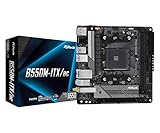
Mini-ITX (6.7 x 6.7 inches / 170 x 170mm) looks clean but limits you: 2 RAM slots, 1 PCIe x16 slot, and 1-2 M.2 slots. In 2026, many high-end GPUs at 304-340mm long and 60-70mm thick will overhang or block other connectors on small boards. If you want maximum GPU flexibility on a budget, mini-ITX is the riskiest pick unless you already own a case that supports it and you are certain you won’t need extra slots.
Check two numbers on every board spec sheet: maximum GPU thickness it can handle without blocking SATA or front-panel headers, and distance from the PCIe x16 slot to the nearest M.2 heatsink or chipset cooler. A poorly placed heatsink can interfere with a wide 3-slot card.
Chipset and Socket: Protect Your Upgrade Path
Chipset is where budget builders accidentally trap themselves. A cheap chipset may lack PCIe 4.0 or even PCIe 5.0 on the primary x16 slot, limit M.2 speeds, or drop support for CPU overclocking and memory overclocking.
For AMD on a budget, B550 and B650 are the workhorses. B550 supports PCIe 4.0 on the GPU slot and one M.2 slot, with AM4 and DDR4 keeping total cost low ($75 – $115 for decent B550M models). B650 moves you to AM5 and DDR5, with PCIe 4.0 or 5.0 and a longer official support window, but boards start around $110 – $140 and require DDR5 RAM ($35 – $60 for 16GB kits on sale vs. $25 – $45 for DDR4).
For Intel on a budget, B760 and B660 (LGA1700, DDR4 or DDR5 versions) and B760/B860 for newer sockets are common. They offer PCIe 4.0/5.0 on the main slot but typically lock CPU multiplier overclocking. Avoid H610 or older B360/H310 class boards for a future GPU plan: they often have weaker VRMs, only PCIe 3.0, and fewer M.2 slots, which limits both GPU bandwidth and storage upgrades. As a rule, if the chipset was designed for 8th/9th Gen Intel CPUs, it has no relevance to modern GPU bandwidth needs.
Also confirm BIOS support. A budget board that needs a BIOS flash for your CPU but lacks BIOS Flashback (USB flash without CPU) can leave you stuck. Look for boards that explicitly list support for current and next-gen CPUs within the socket and have a BIOS Flashback button.
PCIe Slots, Lanes, and Bandwidth
Your GPU lives or dies by its PCIe slot. For future upgrades, you need one full-length PCIe x16 slot wired with at least 16 lanes from the CPU, ideally PCIe 4.0 or newer.
Here is what matters in practice: PCIe 4.0 x16 provides about 31.5 GB/s bandwidth, PCIe 3.0 x16 about 15.75 GB/s. Most current mid-range GPUs show little difference between PCIe 4.0 x16 and x8, but budget boards that run the main slot at x8 electrically or share lanes with an M.2 slot can cut bandwidth when you add a second SSD. Check the manual’s lane sharing table. A board that drops the GPU slot to x8 when the second M.2 is populated is a hidden penalty.
Avoid boards where the only x16 physical slots are actually x1 or x4 electrical – common on mining-oriented boards. They will physically fit a GPU riser but will cripple gaming performance. You want at least one slot listed as “PCIe x16 (x16 mode, from CPU)”.
PCIe 5.0 is nice to have but not essential for budget GPU upgrades right now. A PCIe 4.0 x16 slot will not bottleneck any mainstream GPU expected in the next 2-3 years. What is essential is a reinforced metal slot latch and enough clearance to the RAM clips and M.2 heatsinks, plus at least one extra PCIe x1 slot that won’t be completely covered by a 2.5-3.5 slot GPU.
Power Delivery, VRMs, and PSU Headroom
A budget board doesn’t need a 16-phase flagship VRM, but it does need stable power delivery to handle a more power-hungry CPU that might pair with your next GPU.
Look for a VRM with at least 6+2 or 8+2 phases with discrete heatsinks on the MOSFETs. Bare, heatsink-less VRMs on the cheapest $60 – $75 boards can throttle under sustained loads, especially with 65W+ CPUs. Boards in the $85 – $125 range usually include larger heatsinks and 8-phase designs that handle 65W to 125W CPUs without issue.
Power delivery is a system issue. The motherboard’s 8-pin EPS connector (sometimes 8+4 pin on higher-end boards) feeds the CPU, while the GPU is fed directly by the PSU via 6+2 pin or 12VHPWR cables. Your board doesn’t power the GPU, but a weak VRM that forces you to stay with a low-end CPU will create a bottleneck for a faster GPU.
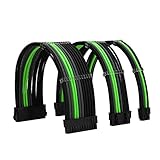
Plan PSU headroom now. For a future upgrade to a 250W GPU, budget at least a quality 650-750W 80+ Bronze or better PSU with two dedicated PCIe 8-pin cables. For 300-350W GPUs, 750-850W is the safe range, preferably ATX 3.0/3.1 with native 12V-2×6 support. Sleeved extension kits look nice but add resistance if they are thin 18AWG without proper terminals – use the cables that come with a reputable PSU rather than cheap adapters.
Memory, Storage, and Connectivity That Actually Matters
RAM capacity affects GPU performance indirectly: running out of system RAM causes stuttering that feels like a GPU problem. On a budget, prioritize a board with 4 DIMM slots supporting at least 64GB total (32GB x2 is common, 48GB kits are emerging on DDR5). DDR4 boards should support 3200-3600 MT/s; DDR5 boards should support 5200-6000 MT/s with EXPO/XMP. Two slots is workable, but four lets you add RAM later without discarding sticks.
Storage: Aim for at least two M.2 NVMe slots, one PCIe 4.0 x4 (7,000 MB/s capable) from the CPU and one from the chipset. Single M.2 boards force you to choose between fast storage and lane sharing. Also confirm the board has at least 4 SATA ports if you reuse old drives.
Connectivity to check: rear I/O with USB 3.2 Gen 1 or Gen 2 (5-10 Gbps), BIOS Flashback, and either 2.5Gb Ethernet or Wi-Fi 5/6 if you need wireless. For GPUs, display outputs on the motherboard matter only if you use integrated graphics as a backup – HDMI 2.0/2.1 or DisplayPort 1.4 is standard on most B550/B650/B760 boards. Front panel USB-C header support is useful if your case has a USB-C port, but not critical for GPU performance.
Price Tiers: What Your Budget Actually Buys
Budget motherboards cluster into clear tiers. Knowing them helps you avoid paying for features you don’t need or saving money where it hurts later.
$70 – $95 Entry Budget: MicroATX, B550/B760 or A620, PCIe 4.0 x16 on the main slot, 2 RAM slots on the cheapest models (4 on better ones), 1-2 M.2 slots, basic VRM heatsinks, 1Gb Ethernet. Works for an entry-level GPU now and a modest step up later, but weak VRMs and limited I/O may force a platform replacement if you aim for high-end GPUs.
$95 – $130 Sweet Spot for Future GPUs: This is where future-proofing on a budget makes sense. MicroATX or ATX, B550/B650/B760 with full PCIe 4.0, often PCIe 5.0 ready on B650, 4 RAM slots, 2-3 M.2 slots with heatsinks, 6-layer PCB, better audio and 2.5Gb Ethernet, BIOS Flashback. This tier gives you the best balance of VRM quality, slot layout, and connectivity without DDR5 or chipset premiums.
$130 – $180 Extended Budget: ATX B650 or B760/B860, PCIe 5.0 GPU and M.2 support, 8+2 phase VRMs with large heatsinks, Wi-Fi 6/6E, USB 3.2 Gen 2×2 (20 Gbps), better memory overclocking. Worth it if you are definitely moving to DDR5 and want to keep the board through two GPU generations. Above $180, you are paying for overclocking features and aesthetics that rarely help a budget GPU upgrade plan.
Factor total platform cost: a $99 AM4 board with $40 DDR4 RAM can be $60 cheaper overall than a $119 AM5 board that needs $55 DDR5, even if the boards seem close in price.
Warranty, BIOS Updates, and Resale
Longevity is not just hardware. A board with a 3-year manufacturer warranty and regular BIOS updates is worth more than a slightly cheaper board abandoned after launch. Check the support page before you buy: look for BIOS updates within the last 6 months and clear notes on CPU compatibility. Brands that provide AGESA or microcode updates for new CPUs extend the life of AM4/AM5 and LGA1700 platforms.
Weight and build quality are proxies: budget boards typically weigh 0.7-1.0 kg without packaging, mid-range ATX boards 1.0-1.3 kg. Heavier isn’t always better, but very light boards often use thinner PCBs (4-layer vs. 6-layer) and smaller heatsinks.
Delivery and assembly considerations: boards ship in 12 x 11 x 3 inch boxes with anti-static bags, I/O shields, and 2 SATA cables. Keep the original box for warranty returns and resale. Installation is straightforward with a standard ATX case needing 6-9 standoffs, but confirm your case includes them – some budget cases ship with only 6.
Spec Checklist
| Spec | Budget ($70-$95) | Mid / Sweet Spot ($95-$130) | Premium Budget ($130-$180) |
|---|---|---|---|
| Form Factor | MicroATX, 2 RAM slots on cheapest | MicroATX/ATX, 4 RAM slots | ATX, 4 RAM slots, extra heatsinks |
| Socket / Lifespan | AM4 / LGA1700 (end of generation) | AM4 / AM5 / LGA1700 (1-2 CPU steps) | AM5 / LGA1851 (longer support) |
| Chipset Example | A620 / B550 / H610 | B550 / B650 / B760 | B650 / B860 / X670 |
| GPU Slot | PCIe 4.0 x16 (x16 mode) | PCIe 4.0 x16 reinforced, no lane sharing penalty | PCIe 5.0 x16 reinforced |
| VRM / Heatsinks | 6+1 phase, small heatsinks | 8+2 phase, full heatsinks | 10+2 phase or better, large VRM + M.2 heatsinks |
| Memory Support | DDR4 3200-3600 or DDR5 4800-5200, 32-64GB max | DDR4 3600 / DDR5 5600-6000, 64-128GB max | DDR5 6000-7200+, 128GB max, EXPO/XMP |
| M.2 NVMe Slots | 1-2 slots (1x PCIe 4.0 x4) | 2-3 slots (1-2x PCIe 4.0 x4) | 3-4 slots (1x PCIe 5.0 x4 + 4.0) |
| PSU Need for Future GPU | 550-650W, 1-2x 8-pin PCIe | 650-750W, 2-3x 8-pin PCIe | 750-850W, native 12V-2×6 |
| Networking / I/O | 1Gb LAN, 4-6x USB-A | 2.5Gb LAN, 6-8x USB inc. USB-C | 2.5Gb LAN + Wi-Fi 6E, USB 20Gbps |
| Warranty | 2-3 years, limited BIOS updates | 3 years, BIOS Flashback | 3 years, frequent BIOS updates |
Red Flags
Skip any board that shows these warning signs, no matter how low the price.
1. PCIe x1 mining layout with 6-8 small slots and no reinforced x16. Built for mining risers, not gaming GPUs, and often requires server power and integrated graphics to even boot.
2. No M.2 heatsink and only one M.2 slot. A future GPU plus a fast NVMe drive will create heat and lane compromises. Two slots with at least one heatsink should be the minimum.
3. PCIe 3.0 only on the primary GPU slot in a new board. At budget prices in this generation, PCIe 4.0 x16 should be standard. PCIe 3.0 saves pennies now and limits bandwidth for next-gen cards.
4. Unheatsinked VRM and 4-layer PCB with no BIOS Flashback. This signals a cost-cut board that will struggle with CPU upgrades and may not support newer CPUs without an older CPU to flash.
5. Vague memory QVL or missing CPU support list. If the manufacturer does not publish a qualified vendor list for RAM and a CPU support table with required BIOS versions, support will be poor.
6. Proprietary power connectors or non-standard mounting. Boards requiring server PSUs or SODIMM RAM in a desktop tower create hidden costs and limit case and cooling choices.
FAQ
Will a PCIe 3.0 motherboard bottleneck a new GPU?
For entry-level GPUs, the difference between PCIe 3.0 x16 and 4.0 x16 is usually 2-6% at 1080p and less at 1440p. For mid-range and high-end cards with 8GB VRAM or less, or cards that use only 8 lanes, the gap can widen when VRAM spills over. On a budget board you plan to keep, prioritize PCIe 4.0 x16 to avoid paying the penalty later. You don’t need to chase PCIe 5.0 for gaming yet.
Do I need ATX to future-proof for a large GPU?
Not necessarily, but ATX makes it easier. A quality microATX board in a mid-tower case that supports 340-360mm GPUs is perfectly fine for most upgrades up to 320mm triple-fan cards. What matters more is case clearance (length, thickness, and power connector clearance), airflow (at least 2x 120mm intake and 1x 120mm exhaust for 250W+ GPUs), and that the board doesn’t place SATA ports or USB headers where a thick GPU will crush them.
Is DDR4 vs. DDR5 important for GPU upgrades?
Directly, no. Indirectly, yes. DDR5 is standard on AM5 and newer Intel platforms, which have longer upgrade paths. DDR4 on AM4 or LGA1700 keeps initial cost $40-$80 lower and performs within 5-10% in most games at 1440p when paired with a discrete GPU. If you need the lowest total build cost now and only plan one GPU step, DDR4 is defensible. If you want to keep the platform for 3-4 years and two GPU upgrades, DDR5 on B650/B760 or newer is the smarter budget investment.
How much power supply do I need to leave room for a GPU upgrade?
Add the GPU’s total board power to your CPU’s peak power, then add 150-200W headroom for transients and efficiency. For example, a 65W CPU + 250W GPU = 315W, so a 650W quality PSU gives comfortable headroom. For a 125W CPU + 320W GPU = 445W, aim for 750-850W. Also count connectors: budget PSUs with a single daisy-chained PCIe cable should not power a 250W+ GPU; use two separate 8-pin cables or a native 12V-2×6 cable for newer cards. Always check the PSU’s 12V rail rating, not just the total wattage.


