As an Amazon Associate we earn from qualifying purchases.
Best Gaming Mouse for Xbox: One Designed-for-Xbox Pick
Buying a gaming mouse for Xbox is not like buying one for a PC, and treating it the same way is how most people waste money. On a PC, almost any gaming mouse works in almost any game, and the software that comes with it unlocks everything it can do. On Xbox, the console and the individual game decide what works. A mouse can be excellent hardware and still do nothing in the game you actually want to play, because that game never enabled mouse input. So the best gaming mouse for Xbox is not simply the fastest or most expensive mouse you can find. It is the mouse whose connection the console accepts, in the games that accept a mouse at all, with the features that still function once PC software is taken out of the picture.
This guide puts compatibility first, before sensors, buttons, or lighting. It explains honestly how mouse support works on Xbox Series X|S and Xbox One, where the limits are, and why the shortlist here is deliberately short. Rather than padding the page with PC-only mice that were never made or marketed for a console, it focuses on the one mouse that was designed specifically for Xbox, and then gives you a clear checklist for judging any other mouse you are considering. If a maker does not state Xbox compatibility, this guide does not pretend otherwise.
How Mouse Support Actually Works on Xbox
Microsoft added mouse and keyboard support to Xbox as a platform feature, but it was designed from the start to be optional for developers. Each game studio chooses whether its game accepts mouse and keyboard input, and if so, how completely. That single decision explains nearly every confusing experience Xbox mouse users describe.
In practice, that means the following. Xbox supports wired USB mice and keyboards for navigation in selected games and apps, and for moving around parts of the system interface. Plugging a mouse in does not convert the whole console into a PC. The dashboard is still built around a controller, mouse navigation is limited to the places Microsoft and app makers enabled it, and a game that was built only for a controller will simply ignore your mouse, no matter how good that mouse is.
Support also varies inside a single game. Some titles accept a mouse throughout gameplay. Others accept it in menus but not in matches, or in some modes but not others. Some require you to start with a controller, change an input setting, or keep a controller connected alongside the mouse. None of that is a fault in your hardware. It is the developer’s implementation, and it can change when a game is patched.
The most reliable way to check a specific game is its store listing. Games with native console mouse support carry a “Console Keyboard & Mouse” capability in the Microsoft Store, and the store’s filter for that capability is the most direct official check before you buy hardware for one particular title. Cloud gaming is a separate category again: a game that accepts a mouse while streamed does not automatically accept one when installed on your console, and the reverse is also true. Always check the version you will actually play.
Games that commonly support mouse play include shooters, strategy games, and simulations, because those genres gain most from a pointer. Titles frequently listed with support include Fortnite, Gears 5, Halo Infinite, Minecraft, Sea of Thieves, War Thunder, and Microsoft Flight Simulator. Treat any list as a starting point, and confirm the capability on the current store page for your edition.
Why the Shortlist Is Short
Search for a gaming mouse and you will find hundreds of models. Search for one whose manufacturer actually states that it works on Xbox, and the field collapses. Most well-known gaming mice are specified for Windows, and sometimes macOS or ChromeOS, and their makers say nothing about Xbox at all. That silence matters. A standard wired USB mouse will often be recognised by an Xbox as a basic pointing device in supported games, because the console accepts wired USB mice as a class of hardware. But “often recognised as a basic pointer” is a long way from a manufacturer confirming that a specific gaming mouse, its extra buttons, its wireless receiver, and its features work on the console.
That gap is where buyers get caught. Extra buttons may not register. A wireless dongle may not be recognised. Settings stored through PC software may not carry across. Lighting controls and macros may behave differently, or not at all, on the console.
So this guide applies a strict rule: a mouse is only recommended here if its manufacturer states Xbox compatibility. That leaves one clear, fully documented pick, covered below. Everything after it is guidance for evaluating other mice honestly, rather than a list of PC mice dressed up as console recommendations.
Our Pick: The Mouse in the Razer Turret for Xbox One
Designed for Xbox, not adapted to it
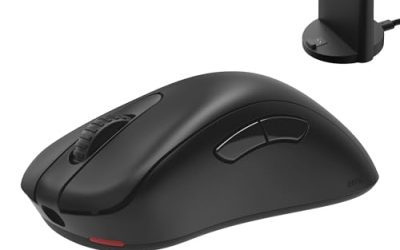
The Razer Turret for Xbox One is a wireless keyboard and mouse combination that Razer introduced with Microsoft as, in Razer’s words, the first wireless keyboard and mouse designed for Xbox One. That origin is exactly what makes its mouse the safest recommendation in this category. It was not a PC product that happened to be tried on a console afterwards. It was built for the console, launched alongside Xbox mouse and keyboard support, and its mouse and keyboard are both listed by Razer as compatible with Xbox One and with PC.
For a buyer in the Series X|S generation, that Xbox One heritage is still the relevant point: Xbox mouse support carried forward from the Xbox One platform to Series X|S, and the Turret connects the same way, through a USB wireless dongle plugged into the console. If you are buying it today, confirm the current listing describes the Xbox One Turret set, because Razer has used the Turret name for other living-room products that are not the Xbox model.
Connection: one dongle for mouse and keyboard
The Turret mouse and keyboard share a single 2.4 GHz wireless connection through one dongle. For couch play, that design solves two problems at once. You use one USB port instead of two, and you avoid the Bluetooth pairing route entirely, which is important because Bluetooth-only peripherals are the least reliable route on Xbox and should never be assumed to work. Plug the dongle into the console, switch the mouse on, and the connection is the kind the console was designed to accept.
The mouse is modelled on Razer’s Mamba wireless gaming mouse, so it is a full gaming mouse rather than a small travel mouse bundled as an afterthought. The keyboard includes a slide-out mouse surface, which matters more than it sounds: a mouse needs a consistent surface, and a sofa cushion is not one. The built-in surface gives the sensor something flat and predictable to track on.
Sensor and switches
Razer specifies the Turret mouse with its 5G Advanced Optical Sensor, with true sensitivity up to 16,000 DPI, tracking at up to 450 inches per second, and 50 G acceleration. Those figures, taken from Razer’s own product information, put it firmly in gaming territory rather than office-mouse territory. On Xbox, you will not use the top of that DPI range in any practical sense — very high sensitivity settings make small hand movements jump large distances on screen — but having a proper gaming sensor underneath means tracking stays accurate and predictable at the moderate settings console players actually use, including fast turns in shooters.
The mouse uses Razer Mechanical Mouse Switches, rated by Razer for up to 50 million clicks, and offers seven independently programmable Hyperesponse buttons. One honest caveat applies to the programmability: on the keyboard side of the set, Razer notes that full programming and on-the-fly macro recording are PC-only features, and you should expect the same general principle with the mouse. Set expectations accordingly. Configure what you can on a PC if you have one, rely on the in-game control settings on the console itself, and value the extra buttons for what the game lets you assign, rather than for elaborate software profiles.
Lighting and battery life
The Turret supports Xbox Dynamic Lighting alongside Razer Chroma, which Razer describes as giving console players lighting effects and up to 16.8 million colour options across the keyboard and mouse, including integration developers could build into games. It is the rare case of a mouse whose lighting was designed to respond on the console itself.
Battery figures from Razer underline how much lighting costs. The mouse is rated for up to 30 hours with default lighting enabled, and up to 50 hours with lighting disabled. The practical advice is simple: if you charge infrequently, turn the lighting down or off and take the longer battery life. The mouse surface also retracts into the keyboard for charging and storage.
Who the Turret mouse suits, and who it does not
The Turret mouse suits the player this whole category exists for: someone who plays supported Xbox games from a couch or an armchair, wants a wireless setup with no cable across the room, and wants hardware whose Xbox compatibility is stated by its maker rather than hoped for. It also suits households that split time between Xbox and a Windows PC, since Razer lists the set as fully compatible with PC as well.
It does not suit everyone. It is sold as a keyboard and mouse set, so if you already own a keyboard you love, or you play at a desk and only want a mouse, you are paying for a bundle you only half need. Desk players who play one supported shooter may be better served by the wired route described below. And no mouse, including this one, fixes a game that does not support mouse input — the Turret works in the games that enable it, exactly like everything else.
The Wired USB Route: What to Check Before You Buy Anything Else
Because Xbox accepts wired USB mice for navigation and in supported games, a wired gaming mouse is the other legitimate route — provided you go in with the right expectations. A basic wired mouse is the simplest connection of all: no dongle to recognise, no battery to charge, no pairing step. For a desk-based Xbox setup, or a console on a monitor, wired is often the sensible default.
Use this checklist before spending anything:
- Confirm the connection is truly wired USB. The mouse should plug directly into the console with a USB cable. Avoid models whose only connection is Bluetooth, and be cautious with wireless models whose receivers were designed purely for PC use, because receiver support on Xbox is not something to assume.
- Check the maker’s own compatibility list. If the manufacturer lists Xbox One or Xbox Series X|S, you have something solid to rely on. If it lists only Windows, treat the mouse as unconfirmed for Xbox, however many general articles group it into console roundups.
- Plan around basic input. Expect the left and right buttons, the wheel, and pointer movement to be the core of what a supported game uses. Extra side buttons, DPI shift buttons, and tilt wheels may work, may partially work, or may be ignored, depending on the mouse and the game.
- Do your configuration on the console. DPI steps and profiles set in PC software may not transfer. Prefer a mouse with a physical DPI button on its body, so you can change sensitivity without any software at all.
- Check the game before the mouse. Look for the “Console Keyboard & Mouse” capability on the game’s store page. If your main game does not list it, no wired mouse will give you mouse aim in that game.
- Keep a controller connected. You will still need it for the dashboard, for menus a game reserves for controller input, and for the many games that never accept a mouse.
Followed honestly, that checklist will steer you to a modest, well-made wired mouse that does the basics reliably, instead of an expensive flagship whose headline features depend on PC software your console cannot run.
Features That Matter on Xbox, and Features That Do Not
Sensor accuracy matters; headline DPI mostly does not. What you feel in a supported shooter is consistent tracking at the sensitivity you actually use. A proven optical sensor at moderate settings beats a huge maximum DPI figure you will never select. Use the in-game sensitivity options and any on-mouse DPI button to find a setting where you can turn quickly without overshooting.
Connection type matters more than almost anything. On Xbox, the order of confidence is wired USB first, then a purpose-made USB wireless dongle of the kind supplied with the Turret, then everything else a distant last. This is the opposite of PC buying, where wireless is now a routine upgrade.
Weight and shape still matter. Console sessions in strategy games and simulators can be long, and a mouse that cramps your hand at a desk will do the same on a tray beside a TV. A shape that supports your grip, and a weight you can move for hours, are worth more than extra buttons you cannot assign.
On-device controls beat software features. A physical DPI button, a solid wheel, and clearly placed side buttons are usable anywhere. Macro engines, cloud profiles, and deep lighting suites are PC features. Razer is explicit that some Turret programming features are PC only: assume software features stop at the PC unless the maker says they work on Xbox.
Battery claims need the lighting footnote. As the Turret’s figures show, rated battery life drops sharply with lighting enabled. Decide in advance whether you value the glow or the hours.
Setting Up a Mouse on Xbox
Setup is deliberately simple. For a wired mouse, plug it into a USB port on the console. For the Turret, plug in the single dongle and switch the mouse on. Then launch a game that supports mouse input and check its settings for sensitivity and button assignments, since each game handles those itself. Keep your controller nearby for system navigation and unsupported games. If a mouse does not respond, try a different USB port, confirm the game lists the “Console Keyboard & Mouse” capability, check whether the game requires mouse input to be enabled in its settings, and, for wireless, confirm the dongle — not a Bluetooth mode — is the active connection.
Frequently Asked Questions
Can I use any gaming mouse on Xbox?
Not with any guarantee. Xbox accepts wired USB mice as a class of device for navigation and in games that support mouse input, so many basic wired mice will work as a pointer in those games. But manufacturer-confirmed Xbox compatibility is rare, extra features are not assured, and Bluetooth-only mice are a poor bet. The Turret mouse is recommended here precisely because Razer states its Xbox compatibility outright.
Will a mouse work in every Xbox game?
No. Mouse support is enabled game by game, at each developer’s choice. Some games support it fully, some partially, and many do not support it at all. Check the “Console Keyboard & Mouse” capability on the game’s Microsoft Store page before relying on it.
Can I navigate the Xbox dashboard with a mouse?
Only in limited places. Xbox supports wired USB mice and keyboards for navigation in selected games and apps, but the system interface remains controller-first. Expect to keep a controller in reach even in a full mouse and keyboard setup.
Is wireless or wired better for Xbox?
Wired USB is the most universally accepted connection. A purpose-built wireless set such as the Turret, which connects through a single USB dongle designed for Xbox, is the proven wireless route. Generic wireless receivers and Bluetooth connections should not be assumed to work.
Do I still need a keyboard to use a mouse on Xbox?
No. A mouse can be used on its own in a supported game. A keyboard simply completes the setup for games designed around both, which is why the Turret pairs the two in one set with one dongle.
Verdict
The best gaming mouse for Xbox is the one whose compatibility you do not have to guess at. That is why the mouse in the Razer Turret for Xbox One stands alone in this guide: designed with Microsoft for the console, connected through a single USB dongle, specified with a proper gaming sensor and mechanical switches, and listed by its maker as compatible with Xbox One and PC. Around it, the rules are simple. Check that your game supports a mouse before you buy anything, prefer wired USB or a purpose-made dongle over every other connection, value on-device controls over PC software features, and treat any mouse whose maker never mentions Xbox as unconfirmed — however good it may be on a desk with a PC attached.
Related guides
More from Amazon
Programs that pair well with the guide above. Offers and eligibility are set by Amazon and may change.
Free shipping on eligible items, Prime Video and more. Eligible new members can start with a free trial.
Start a Prime free trialAd-free music streaming. Eligible new subscribers can start with a free trial.
Try Music Unlimited freeA Prime membership for ages 18-24 with a trial period. Eligibility is set by Amazon.
See Prime for Young AdultsAudiobooks and podcasts to listen to on the go. Eligible new members can start with a free trial.
Try Audible freeAs an Amazon Associate we earn from qualifying purchases.