A Chromebook can be a surprisingly capable gaming machine. Between cloud streaming services, browser games, Android titles from the Play Store, and Linux apps, there is plenty to play without a traditional gaming PC. The weak link is usually the trackpad. Trackpads are fine for documents and web browsing, but they struggle with fast camera movement, precise aiming, and the repeated clicking that many games demand. A proper gaming mouse fixes that in seconds, and the good news is that ChromeOS handles standard mice very well.
The trick is choosing the right one. Not every feature that matters on a Windows gaming PC carries over to a Chromebook. Companion software is the biggest example: the apps used to remap buttons, build macros, and fine-tune lighting on Windows and macOS are generally not available on ChromeOS. That means the best gaming mouse for Chromebook is one that works well the moment it is plugged in or paired, stores its key settings on the mouse itself, and offers hardware controls such as a physical DPI button. This guide explains how mouse compatibility works on ChromeOS, what to look for, and highlights four gaming mice that fit the platform well.
As an Amazon Associate we earn from qualifying purchases.
Our Top Picks
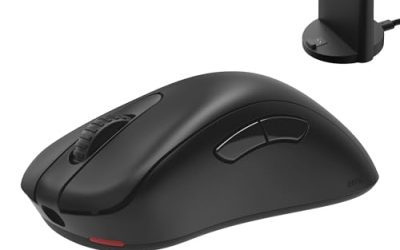
 Razer DeathAdder Essential Ergonomic Wired Gaming Mouse5.01 x 2.86 x 1.69 inches0.3 poundsCheck on Amazon


Top 3 picks at a glance

How Gaming Mice Work on ChromeOS
ChromeOS treats most mice as standard USB or Bluetooth input devices. A wired mouse plugged into a USB port is recognized immediately, with no drivers to install. The same applies to wireless mice that use a USB receiver, and to Bluetooth mice paired through the ChromeOS Bluetooth menu. Left and right clicks, the scroll wheel, and basic back and forward side buttons work in the browser, in Android apps, and in streamed games without extra setup.
Where things differ from Windows is customization. Software suites from mouse makers are built for Windows and macOS, so detailed remapping, macro recording, per-game profiles, and lighting effects usually cannot be adjusted from the Chromebook itself. There are three practical ways around this. First, choose a mouse with onboard memory: settings saved to the mouse on another computer travel with it. Second, favor mice with a dedicated DPI button, because sensitivity can then be changed on the fly with no software at all. Third, keep expectations focused on core performance — sensor accuracy, click feel, shape, and connection reliability — since those work identically on every platform.
ChromeOS does provide a few built-in mouse settings worth knowing. In the settings menu, pointer speed can be adjusted, scroll direction can be reversed, and pointer acceleration can be toggled. Those options cover the everyday adjustments most players need, and they apply to any connected mouse.
One more hardware detail matters: ports. Many recent Chromebooks ship with USB-C ports only, while most wired mice and wireless receivers still use USB-A connectors. A small USB-C to USB-A adapter solves this, and it is worth checking which ports a Chromebook has before choosing between a wired, receiver-based, or Bluetooth model. Bluetooth mice sidestep the port question entirely, although the mice in this guide connect by cable or USB receiver, which tend to offer the lowest latency for gaming.
What to Look for in a Chromebook Gaming Mouse
Connection type. Wired USB mice are the simplest option: no batteries, no pairing, and a consistently responsive link. Wireless mice with a USB receiver free up desk space and travel better, and modern gaming-grade wireless is fast enough that the cable is no longer required for responsive play. Bluetooth is convenient where it is offered, though gaming-focused models usually prioritize a receiver connection for speed.
Sensor and DPI range. DPI describes how far the pointer moves relative to hand movement. A wide, adjustable range lets a player run low sensitivity for careful aiming or high sensitivity for quick turns. Every mouse in this guide offers a range that comfortably covers both styles, and each can be adjusted in steps rather than being fixed at one speed.
Onboard memory and hardware controls. Because companion software is not an option on ChromeOS, onboard memory is unusually valuable here. A mouse that stores DPI settings and button assignments internally keeps those preferences when it is moved between computers. A physical DPI switch is the minimum requirement, and all four picks below include one.
Buttons. Extra programmable buttons help in games with many commands, but on a Chromebook the standard buttons and side buttons are what will be usable out of the box. Players who also have access to a Windows or Mac computer can configure a mouse there first, then use it on the Chromebook with the saved settings.
Shape, size, and weight. A mouse should match hand size and grip style. Lighter mice suit fast, sweeping movements, while heavier, sculpted mice can feel steadier for palm grips and long sessions. The picks below span a range of shapes and weights so different hands are covered.
Battery approach. Wireless freedom comes with power management. A mouse that runs for hundreds of hours on a replaceable battery is easy to live with on a Chromebook, because there is no charging cable to remember and a spare battery restores full power instantly.
The Best Gaming Mice for Chromebook
1. Logitech G305 LIGHTSPEED Wireless Gaming Mouse
The Logitech G305 LIGHTSPEED is the strongest all-round fit for Chromebook gaming because it combines a fast wireless connection, very long battery life, and onboard memory in a compact, travel-friendly body. It connects through a small USB receiver, so a Chromebook with a USB-A port — or an adapter on USB-C-only models — recognizes it right away.
According to the Amazon listing, the G305 uses the HERO sensor with sensitivity from 200 to 12,000 DPI, and its LIGHTSPEED wireless connection delivers a 1 millisecond report rate. It weighs 99 grams, has six programmable buttons, and runs for up to 250 hours of continuous gameplay on a single AA battery. The receiver stores inside the mouse body, which is a thoughtful detail for a device that may be carried in a school or work bag alongside a Chromebook.
For ChromeOS use, the onboard memory is the standout feature. DPI levels and button settings configured in Logitech software on a Windows or Mac computer are saved to the mouse and remain active when it is connected to a Chromebook. Even without any prior setup, the DPI button behind the scroll wheel cycles through sensitivity levels, so the mouse is fully usable from the first connection. The symmetrical shape suits claw and fingertip grips and works for either hand in basic use, although the side buttons sit on the left side.
- Connection: LIGHTSPEED wireless via USB receiver
- Sensor: HERO optical, 200 to 12,000 DPI
- Buttons: 6 programmable
- Weight: 99 grams
- Battery: 1 AA, up to 250 hours
- View on Amazon: https://www.amazon.com/dp/B07CMS5Q6P
Best for: Chromebook players who want one wireless mouse for gaming, classes, and travel, with minimal upkeep.
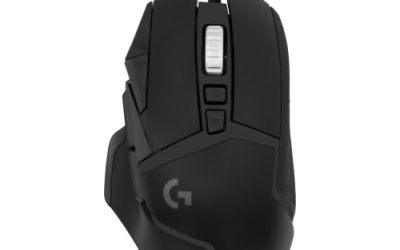
2. Logitech G502 HERO Wired Gaming Mouse
The Logitech G502 HERO takes the opposite approach to the G305: it is wired, larger, and built around control and customization. For a Chromebook that mostly stays at a desk, the cable is no hardship, and in return there is no battery to think about at all.
The Amazon listing describes the G502 HERO with the HERO 25K sensor offering up to 25,600 DPI, 11 programmable buttons, onboard memory, and an adjustable weight system using five 3.6 gram weights that can be arranged inside the mouse. It also features a dual-mode scroll wheel that can switch between a notched, step-by-step roll and a faster free-spinning mode, which is handy for scrolling long pages between games as well as for in-game weapon switching.
On a Chromebook, the G502 HERO works as a plug-and-play USB mouse with its full sensor range and a DPI shift function accessible from the mouse itself. Its onboard memory profiles are again the key to deeper customization: profiles created on another computer carry over, so button layouts prepared elsewhere stay available on ChromeOS. The sculpted right-handed shape with a thumb rest favors palm and relaxed claw grips, and the added heft — adjustable with the included weights — suits players who prefer a planted, deliberate feel over a feather-light one.
- Connection: Wired USB
- Sensor: HERO 25K optical, up to 25,600 DPI
- Buttons: 11 programmable
- Weight: Adjustable with five 3.6 gram weights
- Extras: Onboard memory, dual-mode scroll wheel
- View on Amazon: https://www.amazon.com/dp/B07GBZ4Q68
Best for: Desk-based Chromebook gaming, players who like plenty of buttons, and anyone who prefers a heavier, sculpted mouse.
3. Razer DeathAdder Essential Wired Gaming Mouse
The Razer DeathAdder Essential keeps things deliberately simple, which is exactly why it suits ChromeOS so well. It is a wired mouse with a classic ergonomic shape, a capable optical sensor, and no dependence on software for its core functions.
Per the Amazon listing, the DeathAdder Essential offers a true 6,400 DPI optical sensor, five programmable buttons, mechanical switches, and rubber side grips, in a right-handed ergonomic form. The sensor specification includes tracking up to 220 inches per second, which is more than enough headroom for the fast flicks used in shooters and action games played through cloud streaming or the browser.
Plugged into a Chromebook, it behaves as a straightforward USB gaming mouse: precise tracking, a comfortable shape for palm and claw grips, and a DPI button for changing sensitivity without software. Razer’s configuration tools are not part of the ChromeOS picture, so this mouse is best viewed as a set-and-play device — and on those terms it performs its job cleanly. Its restrained design also makes it a sensible shared mouse for a family or school Chromebook that doubles as a gaming machine after hours.
- Connection: Wired USB
- Sensor: Optical, 6,400 DPI
- Buttons: 5 programmable
- Switches: Mechanical
- Shape: Right-handed ergonomic with rubber side grips
- View on Amazon: https://www.amazon.com/dp/B094PS5RZQ
Best for: Players who want a comfortable, no-fuss wired mouse with a proven ergonomic shape.
4. Logitech G203 LIGHTSYNC Wired Gaming Mouse
The Logitech G203 LIGHTSYNC is a compact wired option for smaller hands, tighter desks, and lighter bags. It is one of the simplest paths into gaming-grade tracking for a Chromebook, with a small symmetrical body that is easy to control with a fingertip or claw grip.
The Amazon listing for the black version describes a gaming-grade sensor with 8,000 DPI, six programmable buttons, onboard memory, and LIGHTSYNC RGB lighting that can react to screen content or audio on supported systems. On a Chromebook, the lighting should be treated as a cosmetic extra rather than a configurable feature, since the software used to direct those effects is not available on ChromeOS. The important parts — the sensor, the buttons, and the saved settings in onboard memory — all function as expected over a standard USB connection.
The G203 includes a DPI button for stepping through sensitivity levels on the mouse itself, and its onboard memory means a preferred DPI sequence set up on another computer will persist. For students moving between a classroom Chromebook and gaming sessions at home, that consistency is genuinely useful: the mouse feels the same on both machines without any setup on the Chromebook side.
- Connection: Wired USB
- Sensor: Gaming-grade optical, 8,000 DPI
- Buttons: 6 programmable
- Extras: Onboard memory, LIGHTSYNC RGB lighting
- Shape: Compact, symmetrical
- View on Amazon: https://www.amazon.com/dp/B07YN82X3B
Best for: Smaller hands, compact setups, and players who want gaming-grade tracking in a simple wired design.
Quick Comparison
| Mouse | Connection | Max DPI | Buttons | Standout trait |
|---|---|---|---|---|
| Logitech G305 LIGHTSPEED | Wireless USB receiver | 12,000 | 6 | 250-hour AA battery, onboard memory |
| Logitech G502 HERO | Wired USB | 25,600 | 11 | Adjustable weights, dual-mode wheel |
| Razer DeathAdder Essential | Wired USB | 6,400 | 5 | Classic ergonomic shape |
| Logitech G203 LIGHTSYNC | Wired USB | 8,000 | 6 | Compact body, onboard memory |
Setting Up a Gaming Mouse on a Chromebook
Setup takes less than a minute. For a wired mouse, plug the cable into a USB port, using a USB-C to USB-A adapter if the Chromebook has only USB-C ports. For a receiver-based wireless mouse such as the G305, plug in the receiver the same way and switch the mouse on; the connection is automatic. ChromeOS shows the pointer immediately, and the mouse is ready for games, Android apps, and everyday work.
After connecting, open the ChromeOS settings and find the mouse options under the device section. Adjust pointer speed until small movements feel controlled and large movements still cross the screen comfortably. Many players prefer to turn pointer acceleration off for gaming, because a consistent relationship between hand movement and pointer movement is easier to build muscle memory around. In-game sensitivity menus — available in most streamed and browser games — provide a second layer of adjustment, so the combination of a DPI button, the system pointer speed, and in-game settings covers nearly every preference.
A few practical tips round out the setup. A smooth, consistent surface improves tracking for any optical sensor, so a basic mouse pad or an even desk surface helps. Wireless receivers work best with a clear, short path to the mouse, so keeping the receiver on the same side as the mouse, or using a short USB extension, can help on larger desks. Finally, if a mouse offers onboard memory and there is access to a Windows or Mac computer, spending a few minutes configuring DPI levels and buttons there pays off every time the mouse is later used with the Chromebook.
Frequently Asked Questions
Do gaming mice work on Chromebooks?
Yes. Standard wired USB mice, USB receiver wireless mice, and Bluetooth mice are recognized by ChromeOS as pointing devices with no drivers required. Core functions — movement, clicks, scrolling, and basic side buttons — work across the browser, Android apps, and cloud gaming services.
Can mouse software be used on ChromeOS?
The companion apps from major gaming brands are made for Windows and macOS, so they cannot be used to configure a mouse directly on a Chromebook. Choosing a mouse with onboard memory and a physical DPI button is the practical workaround, since saved settings and sensitivity changes then happen on the mouse itself.
Is a wired or wireless mouse better for Chromebook gaming?
Both work well. Wired mice are simple and never need batteries. Modern gaming wireless, such as the LIGHTSPEED connection in the G305, is fast enough for responsive play and keeps a small Chromebook desk tidy. The choice comes down to portability and personal preference rather than capability.
What DPI should be used on a Chromebook?
There is no single correct setting. Lower DPI values favor control and precision, while higher values suit fast turns and large displays. A sensible approach is to start in the middle of a mouse’s range, adjust the ChromeOS pointer speed, and fine-tune inside each game’s sensitivity menu.
What if a Chromebook only has USB-C ports?
A USB-C to USB-A adapter allows wired mice and USB receivers to connect normally. This is a common situation with newer Chromebooks and is worth checking before buying, so the adapter can be ready when the mouse arrives.
Conclusion
Gaming on a Chromebook rewards a mouse that is strong on fundamentals: an accurate sensor, a comfortable shape, a reliable connection, and settings that live on the mouse rather than in software that ChromeOS cannot run. The Logitech G305 LIGHTSPEED is the most versatile pick here, pairing fast wireless with long battery life and onboard memory. The Logitech G502 HERO serves desk-bound players who want maximum buttons and adjustable weight. The Razer DeathAdder Essential offers a classic ergonomic shape with zero fuss, and the Logitech G203 LIGHTSYNC covers smaller hands and compact setups. Any of the four turns a Chromebook trackpad setup into a proper gaming station in about a minute.
Related guides
More from Amazon
Programs that pair well with the guide above. Offers and eligibility are set by Amazon and may change.
Free shipping on eligible items, Prime Video and more. Eligible new members can start with a free trial.
Start a Prime free trialAd-free music streaming. Eligible new subscribers can start with a free trial.
Try Music Unlimited freeA Prime membership for ages 18-24 with a trial period. Eligibility is set by Amazon.
See Prime for Young AdultsAudiobooks and podcasts to listen to on the go. Eligible new members can start with a free trial.
Try Audible freeAs an Amazon Associate we earn from qualifying purchases.