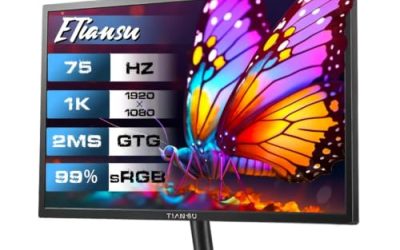
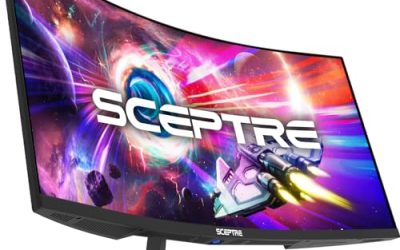
The ASUS ProArt PA278QV is the best choice here if color accuracy is your priority: it is a 27 inch 1440p IPS panel that ASUS describes as factory calibrated, Calman Verified and covering 100 percent of sRGB, though its 75 Hz refresh rate makes it more of a creator monitor than a fast gaming one. For players who want accuracy with higher refresh, the ASUS TUF VG27AQ3A and Acer Nitro KG271U add 180 Hz on IPS panels. “Color accuracy” means how closely on-screen colors match the intended values, usually expressed as Delta E, where a lower number is better.
Our Top Picks
 Acer 27in FHD 1920x1080 IPS 120Hz Gaming Monitor27-inch8.27 x 24.07 x 17.44 inches11 poundsCheck on Amazon
 ASUS TUF Gaming VG27AQ3A 27 Inch 1440p 180Hz14.4" x 24.2" x 2.1"24.2 x 8.4 x 17.9 inches10.1 poundsCheck on Amazon
 ASUS ProArt PA278QV 27 Inch 1440p QHD Professional27 inches15.04 x 24.21 x 8.9 inches17 poundsCheck on Amazon
 Acer Nitro 27in QHD 2560x1440 IPS 180Hz Gaming27-inch8.28 x 24.2 x 18.14 inches12.1 poundsCheck on Amazon


Top 3 picks at a glance
Quick List
- Acer KB272 G0bi 27 Inch – best for a simple 1080p IPS panel with 99 percent sRGB at 120 Hz
- MSI PRO MP243L E14 24 Inch – best for a compact 24 inch IPS screen at 144 Hz
- Sceptre E225W 22 Inch – runner-up for a small 144 Hz desk monitor (panel type not stated in the listing)
- ASUS TUF Gaming VG27AQ3A – best for 1440p Fast IPS at 180 Hz with wide sRGB coverage
- ASUS ProArt PA278QV – best overall for color-critical work and calibrated sRGB accuracy
- Acer Nitro KG271U – best for 1440p IPS at 180 Hz with wide DCI-P3 coverage
Which One Is Right for You?
| If you… | Choose |
|---|---|
| edit photos or video and need a factory-calibrated sRGB screen | ASUS ProArt PA278QV |
| want fast 1440p gaming with wide color | Acer Nitro KG271U or ASUS TUF VG27AQ3A |
| need a budget-friendly 27 inch 1080p IPS for general use | Acer KB272 G0bi |
| have limited desk space and want a 24 inch IPS | MSI PRO MP243L E14 |
| want a small secondary monitor and do not need verified IPS color | Sceptre E225W 22 Inch |
| care most about DCI-P3 coverage for HDR-style video | Acer Nitro KG271U |
| prioritize sRGB mode and a height-adjustable stand | ASUS ProArt PA278QV |
The simplest rule: if you create content, choose the ProArt; if you mostly play and want colors that look rich, choose one of the two 180 Hz 1440p panels; if you want a basic IPS display at a small size, choose one of the 1080p models. Always check whether your preferred monitor offers a true sRGB mode and what the stand adjusts, since those details decide how usable the accuracy is.
All 6 Picks in Detail
1. Acer KB272 G0bi 27 Inch – Best Simple 27 Inch IPS
As an Amazon Associate we earn from qualifying purchases at no extra cost to you.

The KB272 G0bi is a 27 inch Full HD IPS monitor that runs at 120 Hz with a 1 ms response time, AdaptiveSync, 99 percent sRGB coverage, HDMI and VGA inputs, VESA mounting and a bluelight filter, according to its listing name. It suits home offices, students and casual players who want a larger screen with decent color and no frills. Because Full HD is stretched across 27 inches, text is a little less sharp than on a 1440p model, but color coverage is respectable for everyday work and entertainment.
A practical way to use this monitor is as a general-purpose workhorse: browsing, spreadsheets, streaming video and light photo viewing all benefit from the wide viewing angles of an IPS panel. The VESA mount is a useful detail because mounting it on an arm frees desk space and lets you set the height properly. Just remember the bluelight filter mode shifts colors toward warm tones, so switch it off when you judge photos or video.
It is not a calibrated creator tool, and the listing does not state a Delta E figure, so treat the 99 percent sRGB figure as a coverage claim rather than an accuracy guarantee. Coverage tells you how much of the sRGB range the panel can show; accuracy tells you whether the colors land where they should.
- 27 inch IPS, 1920 x 1080
- 120 Hz refresh, 1 ms response (as named in the listing)
- sRGB 99 percent coverage per the listing
- HDMI and VGA inputs, VESA mountable
- Delta E, brightness and stand adjustment: confirm on listing
Pros:
- Large screen with solid sRGB coverage
- VESA mount allows monitor arms
Cons:
- 1080p on 27 inches is less sharp
- No DisplayPort input listed
Compared with the MSI 24 inch, it offers more screen area but a lower refresh rate.
2. MSI PRO MP243L E14 24 Inch – Best Compact IPS
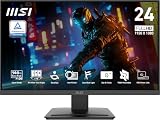
The MSI PRO MP243L E14 is a 24 inch Full HD IPS monitor at 144 Hz with Free-Sync, HDR Ready labelling, HDMI, VGA and VESA mounting, and tilt adjustment per the listing. It suits tight desks, dorm rooms and second-screen setups where a 24 inch size keeps the view manageable. At 24 inches and 1080p, pixel density is around 92 PPI, which looks cleaner than 27 inches at the same resolution, so it is the sharper of the two 1080p monitors here.
Because the screen is only 24 inches, it sits well at a normal desk depth of about 24 to 30 inches from your eyes, with no need to scan across the panel. That also makes it a good partner for a second monitor in a dual setup, where matching panel types keeps colors consistent between screens. If you plan to pair it with another display, compare the two side by side with the same image before settling on brightness and color settings.
HDR Ready on a monitor in this class usually means it accepts an HDR signal rather than delivering high peak brightness, so do not expect cinematic HDR. The listing does not state a color gamut, so verify sRGB coverage on the product page if accurate color matters to you.
- 24 inch IPS, 1920 x 1080
- 144 Hz, Free-Sync support
- HDMI and VGA inputs, VESA mountable
- Tilt adjustment; height and swivel: confirm on listing
- sRGB coverage and Delta E: confirm on listing
Pros:
- Smooth 144 Hz on an IPS panel
- Compact size and sharp pixel density
Cons:
- Gamut and accuracy figures are not in the listing name
- Tilt-only stand
Next to the Acer KB272, it is smaller and faster, though the Acer states its sRGB coverage outright.
3. Sceptre E225W 22 Inch – Runner-up for Small Desks

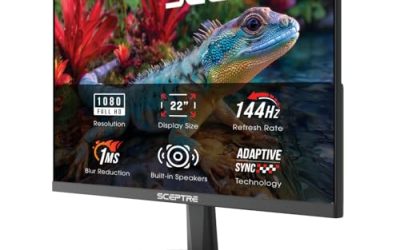
This Sceptre is a 22 inch Full HD gaming monitor with up to 144 Hz, HDMI, DisplayPort and built-in speakers, in a 2026 version. Its listing name does not state an IPS panel or any color gamut, so it does not clearly meet the focus of this guide. It is included as a runner-up for readers who want a small, fast secondary display, and you should check the product page for the panel type before counting on strong viewing angles or color accuracy.
If you choose it anyway, treat the first hour as a setup exercise: check the panel for backlight uniformity with a dark image, look at the screen from an angle and compare a familiar photo against a better monitor. These simple checks reveal viewing-angle shift and uneven tint without any equipment, and they help you decide whether it should be your main display or just a sidekick for chat windows and reference pages.
Many 22 inch budget gaming monitors use VA or TN-style panels, which can show shifting color at an angle. If accuracy matters, treat this as a secondary screen and use one of the IPS models above as your main display.
- 22 inch, 1920 x 1080
- Up to 144 Hz refresh per the listing
- HDMI and DisplayPort inputs
- Built-in speakers
- Panel type, sRGB coverage and Delta E: confirm on listing
Pros:
- Compact with both HDMI and DisplayPort
- Speakers built in
Cons:
- Panel type not stated in the listing name
- Smallest screen of the group
Compared with the MSI, it offers DisplayPort but does not state IPS, so the MSI is the safer pick for color.
4. ASUS TUF Gaming VG27AQ3A – Best Fast IPS for Gaming

The TUF Gaming VG27AQ3A is a 27 inch 1440p Fast IPS monitor at 180 Hz with 1 ms (GTG), ELMB Sync, FreeSync Premium and G-Sync compatibility, according to ASUS. The manufacturer lists coverage as 130 percent sRGB, which describes how much color volume the panel can show relative to the sRGB standard rather than how accurately it renders sRGB content. It suits gamers who want sharp 1440p at high refresh and saturated colors, and it has two HDMI 2.0 ports and a DisplayPort 1.4 input per ASUS.
This is the monitor to look at if you want one screen to do both jobs reasonably well. The 1440p resolution gives enough room for editing timelines and multiple windows, while 180 Hz suits fast games when connected over DisplayPort. ELMB Sync is ASUS’s motion-blur reduction feature, and the manufacturer notes it can work alongside adaptive sync, but motion-blur modes usually lower brightness, so confirm how they behave on the product page.
A wide-gamut panel can make sRGB content look oversaturated unless the monitor has an sRGB mode, so check the on-screen menu details if you also edit photos. The specified typical brightness is 250 nits, which is adequate for indoor use.
- 27 inch Fast IPS, 2560 x 1440
- 180 Hz, 1 ms (GTG), ELMB Sync
- 130 percent sRGB per ASUS
- 2x HDMI 2.0, 1x DisplayPort 1.4, built-in speakers
- Factory calibration and Delta E: confirm on listing
Pros:
- Sharp 1440p with high refresh
- Variety of adaptive-sync support
Cons:
- Accuracy not specified as calibrated
- HDMI refresh rate is limited compared with DisplayPort
Compared with the Acer Nitro, it states the wider sRGB figure while the Acer states DCI-P3 coverage.
5. ASUS ProArt PA278QV – Best Overall for Color Accuracy

The ProArt PA278QV is a 27 inch 1440p IPS professional monitor that ASUS lists as Calman Verified with Delta E below 2, 100 percent sRGB and 100 percent Rec. 709 coverage, true 8-bit color, a height-adjustable stand and a 75 Hz refresh rate. It suits photographers, video editors, designers and anyone who wants accurate color more than raw speed. It also offers DisplayPort 1.2, mini DisplayPort, HDMI 1.4 and DVI-D inputs plus a USB 3.0 hub per the manufacturer.
What sets this model apart is the way ASUS positions it: as a professional display with a calibration report and a specified accuracy target, rather than as a gaming product with a color claim added. Eight-bit color without dithering is a quiet but important feature for gradients, and the height-adjustable, pivoting stand makes portrait layouts for documents or code practical. Gamers should know it is a 75 Hz screen, which feels smooth for general use but not like a 180 Hz display.
The 75 Hz refresh rate is fine for office work and casual games but not competitive shooters. The stand tilts, swivels, pivots and adjusts in height, which makes it practical for vertical layouts.
- 27 inch IPS, 2560 x 1440
- Calman Verified, Delta E under 2 per ASUS
- 100 percent sRGB and 100 percent Rec. 709
- 75 Hz refresh, Adaptive-Sync range 48 to 75 Hz
- Height, tilt, swivel and pivot adjustment; VESA 100 x 100
Pros:
- Factory-calibrated, verified accuracy
- Flexible ergonomic stand
Cons:
- 75 Hz is slower than the gaming models
- Older input set with HDMI 1.4
It is the accuracy choice against the TUF and Nitro, which win on refresh rate instead.
6. Acer Nitro KG271U – Best Wide-Gamut 1440p
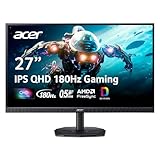
The Nitro KG271U is a 27 inch QHD IPS monitor at 180 Hz with a 0.5 ms response time, AMD FreeSync, DCI-P3 95 percent coverage, two HDMI ports, DisplayPort, a speaker and VESA mounting, per its listing name. DCI-P3 is the wider gamut used in cinema and many HDR workflows, so 95 percent coverage suggests rich colors for video and games. It suits players who want high refresh with a wider gamut than sRGB.
The wide gamut makes this an attractive pick for people who watch a lot of video or play visually rich games. A 0.5 ms figure usually refers to a best-case response mode, and real transitions vary between modes, so look at the on-screen menu for overdrive settings and avoid the most aggressive one if you see trailing or inverse ghosting. Two HDMI ports and a DisplayPort input mean it handles a PC and a console without cable swapping.
As with other wide-gamut screens, sRGB content can look more vivid than intended unless there is an sRGB mode. The listing does not state a Delta E figure or factory calibration.
- 27 inch IPS, 2560 x 1440
- 180 Hz, 0.5 ms response as named in the listing
- DCI-P3 95 percent coverage per the listing
- 2x HDMI and 1x DisplayPort, speaker, VESA
- Delta E and stand adjustment: confirm on listing
Pros:
- Wide DCI-P3 coverage
- High refresh with 1440p sharpness
Cons:
- No stated factory calibration
- Stand adjustment details are not in the name
Versus the TUF, it reports DCI-P3 rather than sRGB percentage, which is more relevant to video and HDR-style content.
Specs Compared
| Monitor | Size | Resolution | Refresh | Panel | Gamut stated | Inputs |
|---|---|---|---|---|---|---|
| Acer KB272 G0bi | 27 in | 1920 x 1080 | 120 Hz | IPS | sRGB 99% | HDMI, VGA |
| MSI PRO MP243L E14 | 24 in | 1920 x 1080 | 144 Hz | IPS | Confirm on listing | HDMI, VGA |
| Sceptre E225W | 22 in | 1920 x 1080 | Up to 144 Hz | Confirm on listing | Confirm on listing | HDMI, DisplayPort |
| ASUS TUF VG27AQ3A | 27 in | 2560 x 1440 | 180 Hz | Fast IPS | 130% sRGB | 2x HDMI, DisplayPort |
| ASUS ProArt PA278QV | 27 in | 2560 x 1440 | 75 Hz | IPS | 100% sRGB, Delta E under 2 | DisplayPort, mini DP, HDMI, DVI-D |
| Acer Nitro KG271U | 27 in | 2560 x 1440 | 180 Hz | IPS | DCI-P3 95% | 2x HDMI, DisplayPort |
How We Chose These
We compiled this guide by reading each monitor’s listing name and, where available, the manufacturer’s specification page, concentrating on the details that bear on color: panel type, stated sRGB or DCI-P3 coverage, factory calibration claims and the inputs that carry a full-quality signal. We separated coverage claims from accuracy claims and called out where a listing does not state a Delta E figure. One listed monitor does not state its panel type, so we placed it as a runner-up. We did not measure or calibrate any display ourselves, and we recommend checking the product page and, ideally, a colorimeter for critical work.
What to Look For
Panel type and viewing angles
IPS panels hold color and contrast better at angles than TN or many VA panels, which is why they dominate color-focused lists. Fast IPS is a gaming-oriented variant with quicker pixel response. Contrast on IPS is typically around 1000:1, so dark scenes look greyer than on OLED or VA screens; that is a trade-off for color consistency.
Coverage versus accuracy
Coverage numbers such as 99 percent sRGB or 95 percent DCI-P3 tell you how much of a standard color space the panel can display. They do not say whether a given red is the right red. Accuracy is measured as Delta E, where a value under 2 is generally considered hard to see with the naked eye in normal viewing, and under 1 is excellent. Factory-calibrated monitors ship with a report; others need a colorimeter and software to reach the same result.
sRGB, DCI-P3 and wide gamut
sRGB is the web and standard-content space; DCI-P3 is wider and used for cinema and many HDR videos. A figure like 130 percent sRGB refers to color volume, not accuracy, and content made for sRGB can appear oversaturated on a wide-gamut screen without an sRGB clamp mode. If you edit photos for the web, an sRGB-accurate screen is more useful than a wide one.
Resolution, size and pixel density
Pixel density affects sharpness: 24 inches at 1080p is about 92 PPI, 27 inches at 1080p is about 82 PPI and 27 inches at 1440p is about 109 PPI. For detailed color work, 1440p at 27 inches is a comfortable baseline. Bit depth matters too: true 8-bit panels avoid the banding that 6-bit panels with dithering can show in gradients.
Inputs and worked example
DisplayPort generally gives the highest refresh at a given resolution, while HDMI versions vary. For example, a 1440p 180 Hz monitor may only reach 144 Hz over HDMI. Suppose you have a mid-range GPU with a DisplayPort output and edit photos on weekends and play on weeknights: a 27 inch 1440p IPS at 180 Hz with an sRGB mode would suit you, while a strict print workflow would favor the ProArt. Whichever you choose, set the monitor to a sensible brightness of around 100 to 120 nits for editing in a dim room.
Brightness, contrast and room lighting. Color judgments depend on the room. A bright sunlit desk makes any screen look washed out, so match the monitor’s brightness to the room: roughly 100 to 120 nits for editing in a dim space and 200 to 250 nits for a bright office. Many of these monitors list typical brightness around 250 nits, which is enough for indoor use. Glare matters as well; an anti-glare coating, a matte finish and a light hood all help more than a few extra nits.
Uniformity and quality control. Even good IPS panels can show backlight bleed around the edges or slight tint variations across the screen, and units vary from sample to sample. Check a dark full-screen image and a mid-gray image soon after unboxing, and use the return window if the result bothers you. These checks cost nothing and are more telling than any single specification on a listing.
Questions
What Delta E is good enough?
A Delta E under 2 is considered very accurate for most work, and under 1 is excellent. Most gaming monitors do not publish a figure, so look for a factory calibration report.
Is a 144 Hz or 180 Hz monitor bad for color work?
No, refresh rate and accuracy are independent. Some high-refresh IPS panels are well calibrated, but gaming monitors often prioritize saturation, so check for an sRGB mode.
Should I choose sRGB or DCI-P3 coverage?
Choose sRGB accuracy if you work with web or print-proof content, and DCI-P3 if you work with video or HDR delivery. For games, either works.
Do I need to calibrate a new monitor?
Not always, but calibration with a colorimeter improves consistency, especially for monitors without a factory report. Even a basic hardware calibration is better than eyeballing.
Is IPS better than VA for color?
IPS usually offers more consistent color at angles, while VA offers deeper blacks. For accuracy, IPS is the safer choice.
Update History
- October 20, 2026 – Initial publication; product set drawn from current catalog listings.
- Check the product page for current specifications and availability before buying.
Sources
- Manufacturer product and specification pages for ASUS ProArt and ASUS TUF Gaming monitors
- Retailer listing titles and specification fields for the Acer, MSI and Sceptre monitors
- General display-industry conventions for sRGB, DCI-P3 and Delta E
Related guides
More from Amazon
Programs that pair well with the guide above. Offers and eligibility are set by Amazon and may change.
Free shipping on eligible items, Prime Video and more. Eligible new members can start with a free trial.
Start a Prime free trialAd-free music streaming. Eligible new subscribers can start with a free trial.
Try Music Unlimited freeA Prime membership for ages 18-24 with a trial period. Eligibility is set by Amazon.
See Prime for Young AdultsAudiobooks and podcasts to listen to on the go. Eligible new members can start with a free trial.
Try Audible freeAs an Amazon Associate we earn from qualifying purchases.