A student monitor has a different job from a gaming or design display. It sits on a dorm desk or a kitchen table for hours of reading, essay drafting, lecture streaming, and the occasional group video call, and it usually shares space with a laptop. That means the useful questions are about eye comfort, size versus desk space, and whether the screen connects to the laptop you already own, not about chasing the highest numbers on a spec sheet.
This guide is written for high school, college, and graduate students, and for the parents shopping for them. The eight monitors below range from a compact 19-inch panel to a 27-inch screen, with budget and mid-range choices only. Every comment is drawn from the product titles, so verify the ports and stand details against your laptop and desk before you order for the 2026 school year.
Our Top Picks
 Philips 22 Inch Computer Monitor FHD 100Hz VA22 inch 100Hz8.7 x 19.4 x 14.5 inches9.3 poundsCheck on Amazon
 Philips 24 Inch Computer Monitor FHD 100Hz VA24 inch 100Hz8.7 x 21.3 x 16.4 inches6.4 poundsCheck on Amazon
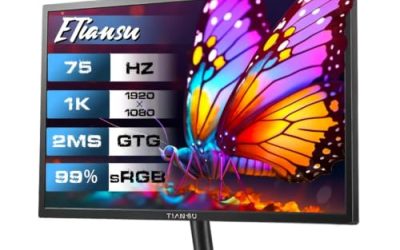
 YOTETION 19-inch Full HD 75Hz Small Thin Monitor19IN-NoAudio-1PACK2.4 x 17.1 x 11.2 inchesCheck on Amazon


Top 3 picks at a glance
Quick Picks
As an Amazon Associate we earn from qualifying purchases at no extra cost to you.



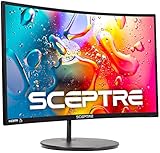

| Product | Best for | Key spec from the listing |
|---|---|---|
| Philips 221V8LB 22-inch | Small dorm desks | FHD, 100Hz, VA, flicker-free |
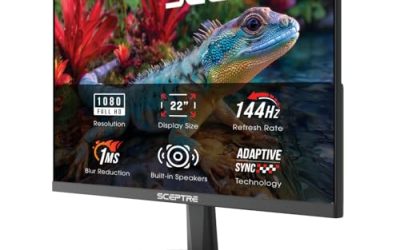
| Sceptre E225W 22-inch | Study plus casual gaming | FHD, up to 144Hz, speakers |
| Philips 241V8LB 24-inch | Standard desk setup | FHD, 100Hz, VA, Adaptive Sync |
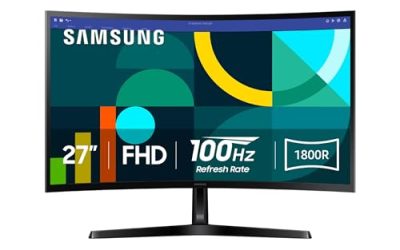
| Samsung 27-inch S3 (S32GF) | Larger, eye-friendly workspace | FHD, 120Hz, IPS, Eye Saver Mode |
| Dell SE2426H 24-inch | Smooth, wide-angle IPS | 23.8 in IPS, 144Hz, 1ms, 2x HDMI |
| YOTETION 19-inch | Tiny desks, older computers | 1440 x 900, 75Hz, VGA and HDMI |
| Sceptre C248W 24-inch curved | Immersive study and streaming | 1080p, R1500 curve, 98% sRGB |
| Acer KB272 27-inch | Sharp, bright general use | IPS, 120Hz, 99% sRGB, bluelight filter |
How to Choose
Pick a size that fits the desk and your eyes
Dorm desks are often only 20 to 24 inches deep, so a 22-inch or 24-inch screen is the sweet spot for most students. A 27-inch monitor offers more room for splitting a document and a browser window, but at 1920 x 1080 the pixels get larger, so text looks softer if you sit close. If you sit within an arm’s length, stay at 24 inches or below at Full HD. The 19-inch model in this group is best treated as a secondary screen.
A practical test is to count windows. If your typical session is a single textbook PDF or a lecture video, 22 inches is plenty. If you routinely keep a document, a browser, and a notes app visible together, 24 inches or larger saves constant switching, and the laptop screen can serve as a third surface for chat or music.
Look for eye-comfort features that are actually on the spec sheet
Phrases like “flicker-free” and “low blue light” describe real settings: flicker-free backlights avoid the rapid dimming some cheap panels use, and low blue light modes shift the screen toward warmer tones in the evening. They help during late-night study, but they do not replace breaks. Anti-glare coatings matter in a bright room, and a tilt stand matters more than people expect, since a screen too low or too high strains your neck.
Panel type plays a role too. IPS screens, such as the Samsung, Dell, and Acer models here, keep colors consistent when two people lean in to watch the same screen. VA screens, such as both Philips monitors, usually offer deeper blacks for movies but look a bit different from off-angle. For group projects and shared viewing, IPS is the safer choice.
Refresh rate: useful, not essential
A 60Hz monitor is enough for schoolwork. A 75Hz or 100Hz panel smooths scrolling, and a 120Hz or 144Hz panel is helpful if you also play games between classes. Do not pay extra for a high refresh rate if you will never use it, and note that a laptop’s output port must support it. Adaptive Sync or FreeSync, listed on several models, reduces tearing in games and is harmless otherwise.
Connections and mounting
Check whether your laptop has HDMI, since most listings include it. VGA is only needed for older computers, and a monitor with HDMI 1.4, like the Philips pair, handles Full HD at its listed refresh rate but is not meant for 4K. USB-C laptops often need an adapter to reach HDMI. If you want to raise the screen on a stand or arm, look for VESA mount support. Budget panels often skip height adjustment, so a stack of books or a riser may be necessary.
Warranty and return windows are also worth reading before you buy, because a monitor that arrives with a stuck pixel in September is much easier to swap than one discovered in December. Keep the packaging until you have used the screen for a full week of normal study.
In budget terms, the 19-inch and 22-inch models sit at the budget end, the 24-inch models at budget to mid-range, and the 27-inch panels at mid-range.
The 8 Best Options
Philips 221V8LB 22-inch
A 22-inch Full HD monitor with a VA panel, 100Hz refresh, 4ms GtG, Adaptive Sync, HDMI 1.4, tilt adjustment, and flicker-free and low blue light modes. It suits students who want a modest, comfortable second screen for a laptop.
- Strength: flicker-free and low blue light features are listed for long study sessions.
- Strength: 100Hz makes scrolling through documents feel smoother than 60Hz.
- Trade-off: VA panels can show weaker color from the side than IPS.
Skip it if you need a screen larger than 22 inches or want height adjustment.
Sceptre E225W 22-inch Gaming Monitor
This 22-inch Full HD monitor lists up to 144Hz, HDMI, DisplayPort, and built-in speakers. It fits a student who wants one screen for assignments in the afternoon and games at night.
- Strength: up to 144Hz gives plenty of headroom for gaming.
- Strength: built-in speakers save buying external ones for a dorm room.
- Trade-off: the title does not mention eye-comfort modes or the panel type.
Skip it if low blue light and flicker-free features are a priority.
Philips 241V8LB 24-inch
The larger sibling of the 22-inch Philips, this 24-inch Full HD VA monitor lists the same 100Hz, 4ms GtG, Adaptive Sync, HDMI 1.4, tilt stand, and flicker-free and low blue light features.
- Strength: 24 inches is a comfortable size for two windows side by side.
- Strength: it keeps the eye-comfort features of the smaller model.
- Trade-off: HDMI 1.4 and a tilt-only stand mean fewer connection and ergonomic options.
Skip it if you plan to use a laptop with only USB-C and do not want an adapter.
Samsung 27-inch S3 (S32GF)
A 27-inch Full HD IPS monitor with 120Hz, flicker-free operation, and Eye Saver Mode. It gives more working area than the smaller models for reading, notes, and video lectures.
- Strength: IPS panel and 120Hz combine wide viewing angles with smooth motion.
- Strength: Eye Saver Mode and flicker-free design are listed for comfort.
- Trade-off: Full HD stretched over 27 inches is less sharp than a 24-inch panel.
Skip it if you sit very close to the screen or have limited desk depth.
Dell SE2426H 24-inch
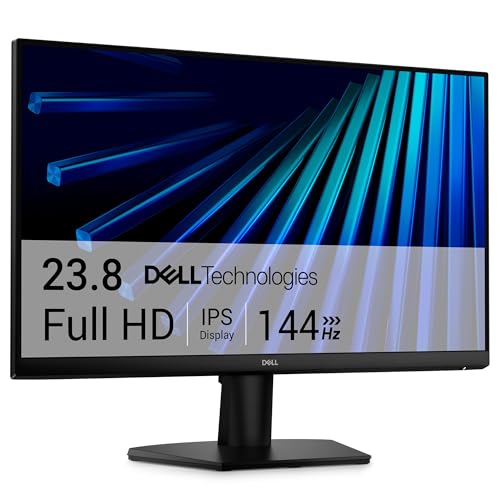
The Dell lists a 23.8-inch Full HD IPS panel with 144Hz, a 1ms response, AMD FreeSync, a TUV certification, two HDMI ports, and tilt adjustment.
- Strength: two HDMI ports let you connect a laptop and a console or second computer.
- Strength: IPS and 144Hz give good viewing angles and smooth motion.
- Trade-off: the stand lists tilt only, which limits ergonomic positioning.
Skip it if you want a built-in speaker or a curved screen.
YOTETION 19-inch
A small, thin 19-inch screen at 1440 x 900 and 75Hz with an anti-glare finish and VGA and HDMI inputs. The title calls it Full HD, but the listed resolution is HD+, so expect lower sharpness than a true 1920 x 1080 panel.
- Strength: compact footprint suits tiny desks and shared spaces.
- Strength: VGA input supports older computers and projectors.
- Trade-off: 1440 x 900 offers less working area than Full HD.
Skip it if you need to see two documents at once or want sharp text.
Sceptre C248W 24-inch Curved
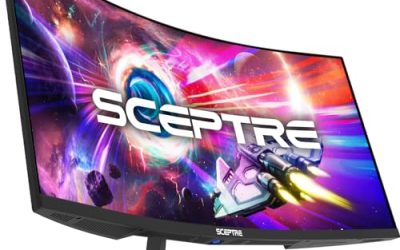
A curved 24-inch 1080p monitor with an R1500 curve, 98% sRGB, two HDMI ports, VGA, built-in speakers, and VESA wall-mount support.
- Strength: two HDMI ports and a VGA input cover many source devices.
- Strength: 98% sRGB and the curve make video and streaming more immersive.
- Trade-off: the curve can distort straight lines in design work.
Skip it if you do layout or drawing assignments that need a flat screen.
Acer KB272 27-inch
A 27-inch Full HD IPS monitor with 120Hz, a 1ms response, AdaptiveSync, 99% sRGB, HDMI, VGA, VESA mounting, and a bluelight filter.
- Strength: 99% sRGB suits photo, video, and presentation work.
- Strength: HDMI, VGA, and VESA support give flexible connection and mounting.
- Trade-off: like other 27-inch Full HD screens, text sharpness is lower than on 24-inch panels.
Skip it if your desk is small or you sit close to the display.
Which One Fits Your Situation
You live in a dorm with a small desk
The Philips 221V8LB is compact, lists eye-comfort features, and avoids the bulk of a 27-inch panel. If you have slightly more room, the 24-inch Philips 241V8LB offers the same feature list with an extra two inches of working area, which makes side-by-side windows easier.
You study and game on the same screen
The Dell SE2426H lists IPS, 144Hz, 1ms, and two HDMI ports, which suits a laptop plus a console. The Sceptre E225W is a lower-key alternative with speakers.
You need room for research, writing, and video
The Acer KB272 or Samsung S3 27-inch gives the most screen area. The Acer adds 99% sRGB and VESA mounting, which helps if you later want to lift the screen onto an arm and free up desk space for notebooks. Both options reward a deeper desk, so measure first.
You are connecting an older computer
The YOTETION 19-inch and Sceptre C248W both list VGA, so either one works with older hardware or a projector setup.
Common Mistakes
- Buying a 27-inch Full HD screen for a desk where you sit very close, then finding the text soft.
- Paying for 144Hz when the laptop outputs only 60Hz anyway.
- Forgetting to check that the laptop has HDMI or the right adapter.
- Choosing a curved monitor for design coursework that requires accurate straight lines.
- Skipping tilt and height considerations, which leads to neck strain during long sessions.
Related guides
- Gaming Chair Cushions And Lumbar Supports
- Warranty Considerations When Buying On Sale
- How To Use Camelcamelcamel For Amazon Deals
Frequently Asked Questions
What size monitor is best for studying?
For most desks, 22 to 24 inches at Full HD is a good balance of sharpness and space. Go to 27 inches only if the desk is deep enough to sit an arm’s length away.
Do students need a gaming monitor?
No. A standard monitor is enough for schoolwork. High refresh rate models are optional extras if you also play games.
Is a curved monitor good for studying?
It can feel immersive for video and reading, but a flat panel is the safer pick for design, diagrams, and anything needing straight lines.
Will these work with a laptop?
Most list HDMI, which works with many laptops. If your laptop only has USB-C, you may need an adapter or cable to convert to HDMI. Before ordering, also check the cable that comes in the box, because some monitors ship with only a power cord and leave the video cable to you.
Related guides
More from Amazon
Programs that pair well with the guide above. Offers and eligibility are set by Amazon and may change.
Free shipping on eligible items, Prime Video and more. Eligible new members can start with a free trial.
Start a Prime free trialAd-free music streaming. Eligible new subscribers can start with a free trial.
Try Music Unlimited freeA Prime membership for ages 18-24 with a trial period. Eligibility is set by Amazon.
See Prime for Young AdultsAudiobooks and podcasts to listen to on the go. Eligible new members can start with a free trial.
Try Audible freeAs an Amazon Associate we earn from qualifying purchases.