A 144Hz monitor under 300 dollars is the sweet spot where smooth motion stops being a luxury. That cap leaves room for plenty of choices, but it also forces a trade you should decide on before you start comparing models: do you spend the budget on a larger or sharper screen, or on a more refined panel at a modest size? A 22-inch 1080p screen and a 27-inch 1440p screen can both carry a 144Hz badge, yet they feel very different on a desk.
This guide is for gamers upgrading from a 60Hz office display, parents buying a first gaming screen, and anyone building a budget PC who would rather put money into the graphics card than the monitor. Looking at the market in 2026, the six models below cover small and large sizes, 1080p and 1440p, and a few extras such as built-in speakers and legacy VGA input. Everything here is judged from the specs shown in each listing title, so double-check the full sheet before buying.
Our Top Picks
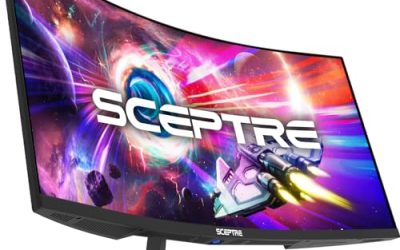
 Sceptre 27-inch Gaming Monitor 165Hz 144Hz 1ms AMD24.13 x 17.78 x 7.4 inches14.1 poundsCheck on Amazon


Top 3 picks at a glance
Quick Picks
As an Amazon Associate we earn from qualifying purchases at no extra cost to you.




| Product | Best for | Key spec from the title |
|---|---|---|
| Sceptre E225W-FW144 | Small desks and first gaming screens | 22-inch FHD, up to 144Hz, built-in speakers |
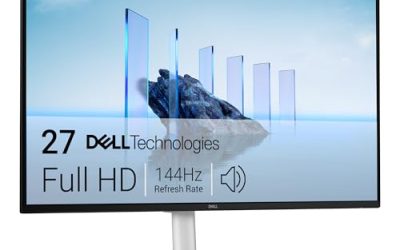
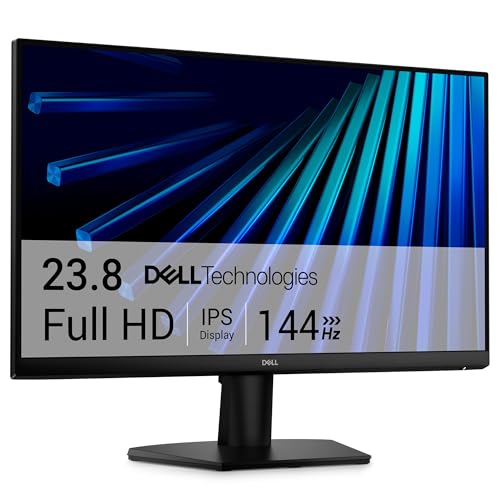
| Dell SE2426H | Study and play on one panel | 23.8-inch IPS, FHD, 144Hz, 1ms, 2x HDMI |
| KTC H27T27S | Sharper image at 144Hz | 27-inch QHD 1440p, 144Hz, FreeSync and G-Sync |
| MSI PRO MP243L E14 | Mixed office and gaming use | 24-inch IPS FHD, 144Hz, HDMI plus VGA |
| Sceptre E275B-FWD168 | Big screen with extra refresh headroom | 27-inch, 165Hz, 1ms, FreeSync Premium, 99% sRGB |
| SANSUI 24.5-inch QHD | Future-proofing for a stronger GPU later | QHD 1440p, up to 300Hz, Fast IPS, HDMI 2.1 |
How to Choose
Resolution against screen size
Stick to 1080p on screens up to about 24 inches, where pixel density stays near 92 pixels per inch or better. At 27 inches, 1080p drops to roughly 82 pixels per inch and starts to look soft on text, so a 27-inch panel really deserves 1440p. The catch is the graphics card: 1440p at 144 frames per second needs noticeably more GPU power than 1080p at 144, so match the resolution to the card you already own rather than the one you hope to buy.
Ports that actually carry 144Hz
DisplayPort and HDMI 2.0 or newer can carry 1080p at 144Hz without trouble, but older HDMI 1.4 ports and VGA cannot. If a listing includes a VGA port, treat it as a legacy extra for an old office PC, not as the way to reach 144Hz. VGA is an analog signal capped well below what gaming needs, and it tends to soften text compared with a digital connection. When you set the monitor up, plug in with DisplayPort where possible, and then enable 144Hz manually in Windows display settings, since the default is often 60Hz.
Panel type and response time
IPS panels, found on several models below, offer wider viewing angles and stronger color than the VA panels that dominate the cheapest tier. Response times such as 1ms are measured under favorable conditions, so use them as a rough tier marker rather than a promise. If your games are competitive shooters, prioritize motion clarity and adaptive sync; for story games, color accuracy and sRGB coverage near 99 percent matter more.
What to ignore, and where cheap models cut corners
Ignore HDR claims on budget monitors. A label like HDR Ready or HDR10 usually means the screen accepts the signal, not that it gets bright enough to show real highlights. Tilt-only stands, built-in speakers of modest quality, and plastic bezels are the usual savings. A VESA mount pattern is worth checking, because it lets you replace a weak stand with an arm later without replacing the monitor. Also ask whether the cable in the box is DisplayPort or only HDMI, since a missing cable is an easy way to end up stuck at 60Hz on day one.
The 6 Best Options
Sceptre E225W-FW144
A 22-inch Full HD gaming monitor that supports up to 144Hz, with HDMI, DisplayPort, and built-in speakers. It is aimed at first-time buyers who want a smooth screen for a cramped desk or a secondary room without a big spending jump over a regular office display.
- Strength: the title lists both HDMI and DisplayPort, so you can connect a PC and a console.
- Strength: built-in speakers save desk space and the cost of a separate set.
- Trade-off: 22 inches at 1080p is small, so it gives you fewer visible details in sprawling open-world games.
Skip it if you plan to sit more than three feet away or want a screen that doubles as a large workspace. Anyone who edits spreadsheets with many columns open will run out of room quickly on a panel this size.
Dell SE2426H
This 23.8-inch FHD monitor lists a 144Hz, 1ms IPS display with AMD FreeSync and two HDMI ports. It suits students and home users who need a reliable screen from a familiar brand for homework, streaming, and weekend gaming on the same desk.
- Strength: IPS technology gives wide viewing angles for shared screens and group viewing.
- Strength: two HDMI ports let a laptop and a console stay plugged in together.
- Trade-off: the title mentions no DisplayPort, so check the spec sheet if you want that connection for higher refresh rates.
Skip it if you want a high-resolution picture; this is a straightforward 1080p panel. It is also the wrong pick for anyone who needs several video input types, since the title does not list DisplayPort or VGA.
KTC H27T27S
A 27-inch QHD 1440p monitor with 144Hz, FreeSync and G-Sync support, an Eye Care mode, HDR10, HDMI and DisplayPort inputs, and VESA mounting. It stands out as the sharpest picture in this budget class, and it appeals to players with a mid-range graphics card who also work on documents or spreadsheets.
- Strength: 1440p at 27 inches delivers a clearly crisper image than 1080p panels at the same size.
- Strength: compatibility with both FreeSync and G-Sync helps regardless of GPU brand.
- Trade-off: 1440p at 144 frames per second is demanding, so older graphics cards may need lower settings.
Skip it if your computer relies on integrated graphics, since the pixel count will be a heavy load. Players who run esports titles at low settings and care more about speed than sharpness may prefer a 1080p screen.
MSI PRO MP243L E14
A 24-inch IPS Full HD monitor at 144Hz with FreeSync, HDR Ready, HDMI, a VGA port, VESA mounting, tilt adjustment, and slim bezels on four sides. It is built for people who split time between office work and games.
- Strength: the four-side slim bezel looks tidy and works well in dual-monitor layouts.
- Strength: the VGA port lets you connect an older computer while HDMI handles the gaming rig.
- Trade-off: tilt is the only listed stand adjustment, so height is fixed unless you add a mount.
Skip it if you need a DisplayPort connection, because the title lists only HDMI and VGA. It is also not ideal for shoppers who want built-in speakers or a stand with height adjustment, since neither appears in the listing.
Sceptre E275B-FWD168
A 27-inch gaming monitor that lists 165Hz and 144Hz modes, a 1ms response claim, AMD FreeSync Premium, HDMI, DisplayPort, built-in speakers, and 99% sRGB. It suits players who want a large screen for open-world and racing games and a bit of refresh headroom beyond 144Hz.
- Strength: 99% sRGB points to accurate colors for a budget panel.
- Strength: 165Hz adds a small edge over strict 144Hz screens when your frame rate allows it.
- Trade-off: the title does not state 1440p, so at 27 inches the resolution may look softer than the KTC.
Skip it if sharp text is a priority and you cannot confirm the native resolution on the full listing. Shoppers who sit close to the glass and read a lot of small text should lean toward the KTC instead.
SANSUI 24.5-inch QHD Fast IPS
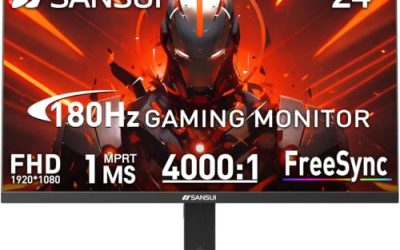
A 24.5-inch 1440p Fast IPS monitor with a listed maximum of 300Hz, 1ms response, two HDMI 2.1 ports, two DisplayPort 1.4 ports, and 130% sRGB. It is for buyers who want to buy once and grow into a stronger graphics card later.
- Strength: four video inputs support a PC, console, and a spare device without swapping cables.
- Strength: the very high refresh ceiling means the screen will not hold back a future GPU upgrade.
- Trade-off: 300Hz is far beyond 144Hz, so you are paying for headroom that a budget PC cannot use yet.
Skip it if your system only reaches around 100 frames per second and you prefer the simplest setup. Buyers who want a bigger screen than 24.5 inches will find the size limiting for relaxed, lean-back play.
Which One Fits Your Situation
Your desk is small and your budget is tight
The Sceptre E225W-FW144 is the compact choice, with speakers included and a straightforward 22-inch Full HD panel. It also leaves plenty of the budget available for a keyboard, mouse, or headset, which can matter just as much as the screen for a first setup.
You study, stream, and game on the same screen
The Dell SE2426H pairs IPS viewing angles with two HDMI inputs, which makes switching between a laptop and a console easy. The MSI PRO MP243L E14 is a good alternative if you also keep an older PC with VGA output.
You have a capable graphics card and want a sharper image
The KTC H27T27S gives you 27 inches of 1440p with 144Hz. If you also want a spare input and a higher refresh ceiling, look at the SANSUI 24.5-inch.
You prefer a large screen for racing and open-world games
The Sceptre E275B-FWD168 gives you 27 inches, 165Hz, and 99% sRGB in a package that stays within the budget cap.
Common Mistakes
- Forgetting to switch the refresh rate to 144Hz in the display settings and running the screen at 60Hz for months.
- Using a VGA or old HDMI cable that cannot carry 144Hz.
- Buying a 27-inch 1080p screen and then wondering why text looks fuzzy.
- Paying for 300Hz or HDR labels on a system that cannot reach those frame rates or brightness levels.
- Ignoring VESA mounting, which makes it harder to fix a poor stand later.
Related guides
- Gaming Chair Cushions And Lumbar Supports
- Warranty Considerations When Buying On Sale
- How To Use Camelcamelcamel For Amazon Deals
Frequently Asked Questions
Is 144Hz worth it for a casual player?
Yes, if your PC can reach about 100 frames per second or more in your games. Even desktop scrolling and mouse movement feel smoother, so the upgrade shows up outside games too.
Should I pick 1080p or 1440p under this budget?
Choose 1080p up to roughly 24 inches and 1440p for 27 inches. Make sure your graphics card can hold a decent frame rate at the higher resolution first.
Do I need G-Sync or FreeSync?
Adaptive sync reduces tearing when your frame rate fluctuates. Most modern graphics cards support it over DisplayPort, and several listings here mention FreeSync, G-Sync, or both.
Are built-in speakers good enough?
They are fine for system sounds and casual video, but weak for games with detailed audio. Plan on headphones or desktop speakers if sound matters to you, and treat the built-in drivers as a convenience for setup day.
Related guides
More from Amazon
Programs that pair well with the guide above. Offers and eligibility are set by Amazon and may change.
Free shipping on eligible items, Prime Video and more. Eligible new members can start with a free trial.
Start a Prime free trialAd-free music streaming. Eligible new subscribers can start with a free trial.
Try Music Unlimited freeA Prime membership for ages 18-24 with a trial period. Eligibility is set by Amazon.
See Prime for Young AdultsAudiobooks and podcasts to listen to on the go. Eligible new members can start with a free trial.
Try Audible freeAs an Amazon Associate we earn from qualifying purchases.