
The Short Answer
It depends on how you plan to use it, but for most people with a true budget GPU, a 4K gaming monitor is not worth buying for 4K gaming alone. The one condition where it does make sense: if you want a sharp 32-inch panel for everyday work, streaming, and content, and you are happy to play games at 1080p or 1440p upscaled until you upgrade your graphics card later.
If your GPU is in the budget class — think NVIDIA GeForce RTX 3050, RTX 3060, AMD Radeon RX 6600, RX 7600, or Intel Arc A580 / A750 — it simply does not have the horsepower to push modern AAA games at native 4K 60Hz with high settings. You will be choosing between low frame rates, heavily reduced settings, or upscaling technologies on every new title. If your main goal is high-refresh competitive gaming right now, a 1440p or 1080p monitor will give you a far better experience for the same money.
As an Amazon Associate we earn from qualifying purchases at no extra cost to you. Product prices and availability are accurate as of the date shown and are subject to change.
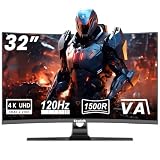

Where a budget-friendly 4K monitor does win in 2026 is value outside of gaming. A 32-inch 4K VA panel with a 1500R curve gives you four times the pixel count of 1080p for documents, photo editing, and 4K video, often for $200 to $300. That is why the decision comes down to future-proofing and productivity versus immediate gaming performance.
What You Actually Get
A modern budget 4K gaming monitor at this price point is typically a 32-inch VA panel with a 1500R curve, 3840 x 2160 resolution, and a 120Hz to 160Hz refresh rate with AMD FreeSync support. Models like the Gawfolk 32-inch 4K 120Hz and the CRUA 32-inch 4K 160Hz are representative of what you find between $208.99 and $299.99.
In real-world terms, a 32-inch 4K display packs about 138 pixels per inch, compared to about 92 PPI on a 32-inch 1440p panel. Text and fine details look noticeably sharper without scaling. Most of these monitors measure roughly 28.3 to 28.7 inches wide, 16.5 to 17.8 inches tall without the stand, and about 3.5 to 4 inches deep at the thickest point. With the included stand, total depth is about 8 to 10 inches and height rises to 19 to 21 inches. Weight is typically 13 to 16 pounds with the stand installed, and around 10 to 12 pounds for the panel alone, so most standard VESA 75×75 or 100×100 desk mounts handle them without issue.
Power draw is modest for the size, usually 35 to 55 watts during typical use and under 0.5 watts in standby, so it will not noticeably change your energy bill. Connectivity is usually two HDMI 2.1 or 2.0 ports and one or two DisplayPort 1.4 inputs, plus a headphone jack. VA technology is the trade-off that keeps the price down: you get strong native contrast around 3000:1, deep blacks, and good immersion from the curve, but narrower viewing angles and slower pixel response than IPS or OLED.
When paired with a budget GPU, here is what to expect in games. At native 4K, a card like an RX 6600 or RTX 3050 will often deliver 25 to 40 fps in demanding AAA games at medium to high settings. With upscaling enabled — FidelityFX Super Resolution, DLSS, or XeSS — and settings tuned to medium, that often climbs to 45 to 60 fps, but image quality takes a hit. For esports titles like Valorant, Overwatch 2, or League of Legends, you can hit 100+ fps at 4K more easily because those games are far less demanding.
Pros
- Exceptional sharpness for productivity: 4K at 32 inches makes text, spreadsheets, and photo editing look crisp without the visible pixel grid you get at 1080p or 1440p at the same size.
- Huge desktop real estate without multiple monitors: You can comfortably tile four 1080p windows or snap two full-size browser windows side by side without overlapping.
- Future-proofing on a budget: You buy the monitor once for $210 to $300 and let it scale with your next GPU upgrade instead of buying a 1080p panel now and replacing it in a year.
- Excellent value for mixed use: For movies, YouTube in 4K, and casual console gaming, a 1500R curved VA panel delivers immersive contrast and color that looks great in a living room or home office.
- High refresh rates still matter: Even if your budget GPU cannot hit 120Hz or 160Hz at 4K today, the panel will not cap you when you upgrade. You can also run competitive games at lower resolutions to use the full refresh rate.
- FreeSync smooths budget GPU performance: Adaptive sync helps hide frame drops between 40 and 60 fps, which is exactly where budget cards live at 4K with upscaling.
Cons
- Native 4K gaming is too demanding for budget GPUs: You will constantly lower resolution, settings, or both, which defeats the purpose of paying for a 4K panel for gaming alone.
- Input lag and motion clarity trade-offs: Low-cost VA panels often have slower response times than IPS, so fast motion can show smearing or ghosting, especially in dark scenes, even if the refresh rate says 120Hz or 160Hz.
- Scaling headaches: Running games at 1080p on a 4K monitor looks soft because it is not a perfect integer scale for every engine, and running the desktop at 100% scaling makes text and icons very small at 32 inches.
- You pay for pixels you cannot use yet: A $210 to $300 4K monitor costs $40 to $100 more than a comparable 27-inch 1440p 165Hz IPS panel, money that could go toward a better GPU.
- Budget GPUs lack the VRAM buffer for ultra textures at 4K: Cards with 6GB to 8GB of VRAM will hit texture pool limits faster at 4K with ultra settings, causing stutter that no monitor can fix.
- HDR is limited at this price: Expect basic HDR10 support with around 300 to 350 nits peak brightness, not true HDR with local dimming. Do not buy these for HDR gaming.
Who Should Buy It
You should consider a budget 4K curved monitor if you fit one of these profiles. First, you are a hybrid user: you work from home, study, or edit photos and video for several hours a day, and you game as a secondary activity. The sharpness and screen space will improve your daily experience more than extra frames in games.
Second, you are planning a GPU upgrade within 12 to 18 months. If you know a mid-range card like an RTX 4060 Ti, RX 7700 XT, or better is on your roadmap, buying a 32-inch 4K 120Hz or 160Hz panel now for under $300 lets you enjoy 4K desktop clarity today and unlock native 4K gaming later without buying another display.
Third, you primarily play less demanding or older titles and watch a lot of 4K content. If your library is esports, indie games, and pre-2020 AAA games, a budget GPU can handle 4K at 60Hz far more comfortably, and you will actually see a benefit.
For this buyer, a model like the Gawfolk at $208.99 is a practical entry point, while paying about $90 more for the CRUA at $299.99 buys extra headroom with 160Hz for future hardware and slightly smoother motion if you cap frame rates now.
Who Should Skip It
Skip a 4K monitor if pure gaming performance per dollar is your priority. If you have an RX 6600, RTX 3050, or similar and you want to play new AAA games like Alan Wake 2, Cyberpunk 2077, or similar demanding titles at 60 fps or higher on medium-high settings, a 1440p or 1080p high-refresh monitor is the smarter match. You will get 70 to 120 fps at 1440p where you would get 30 to 45 fps at 4K with the same card and settings.
Also skip if you are competitive about response time. Budget VA 4K panels prioritize contrast and price over pixel speed. If you play fast shooters and notice ghosting, a 1080p or 1440p IPS panel with a true 1ms response and better overdrive will feel more responsive.
Finally, skip if your desk is shallow. A 32-inch 1500R curve needs about 28 to 32 inches of viewing distance to feel comfortable. On a small 20-inch deep desk, a 27-inch 1440p panel will be easier on your eyes and neck.
Cheaper Alternatives
| Option | Cost | Trade-off |
|---|---|---|
| 27-inch 1440p 165Hz IPS Gaming Monitor | $160 – $220 | Much higher frame rates on a budget GPU, faster pixel response, but you lose the 4K sharpness for text and photo work |
| 27-inch 1080p 180Hz IPS Gaming Monitor | $120 – $170 | Maximum fps and lowest GPU load, very smooth for esports, but noticeably softer image at 27 inches and less desktop space |
| 32-inch 1440p 165Hz Curved VA Monitor | $180 – $250 | Same immersive size and curve as budget 4K, easier for budget GPUs to drive, but about 33% less sharp than 4K |
| Keep Current Monitor + Save Toward GPU Upgrade | $0 now, $250 – $400 later | Delays the 4K benefit but gives the single biggest gaming uplift; pair a new mid-range GPU with your eventual 4K monitor |
FAQ
Can a budget GPU run a 4K monitor at all?
Yes, running the desktop, browsing, and 4K video playback is easy for any modern budget GPU. Gaming at native 4K is where it struggles. You can still run games by lowering the render resolution to 1080p or 1440p, or by using upscaling like FSR or DLSS on balanced or performance modes, and letting the 4K monitor upscale the image.
Will games look worse if I play at 1080p on a 4K monitor?
They will look softer than native 1080p on a native 1080p monitor of the same size, but not dramatically worse for most people. The monitor scales the lower-resolution game to fill the 4K pixel grid. Text and UI elements may look slightly fuzzier, and fine details lose crispness. If you play at 1080p often, a 1440p monitor is a cleaner middle ground.
Is 120Hz or 160Hz wasted with a budget GPU?
Not entirely. You will not hit 120 fps or 160 fps at 4K in demanding games on a budget card, but you can in esports titles and lighter games. For AAA games, the higher refresh ceiling still helps because FreeSync will smooth playback at 45 to 60 fps, and the panel will not limit you after you upgrade your GPU.
Should I choose the Gawfolk 120Hz or the CRUA 160Hz if I buy 4K on a budget?
Choose based on longevity plans. If you want the lowest upfront cost and mostly need sharpness for work and casual gaming, the Gawfolk around $209 covers 4K 120Hz well. If you plan to push higher frame rates soon or want the most headroom without replacing the monitor, the CRUA around $300 with 160Hz and FreeSync offers more future-proofing for about $90 more.


