Buying RAM for a laptop is less forgiving than buying it for a desktop. The module has to be the small SODIMM form factor, the pin count has to match the memory generation your motherboard expects, and the wrong choice means a stick that will not physically seat. So the decision hiding inside this keyword is rarely “which brand is fastest” and almost always “which generation and capacity will my machine accept, and is it worth upgrading at all.”
This guide is for owners of laptops with open SODIMM slots who want to add capacity, fix a sluggish multitasking experience, or give an older machine another few years. It is built from the facts printed in each product title, including generation, capacity, speed, and pin count. Before you buy in 2026, look up your laptop’s exact model to confirm which memory type and maximum capacity it supports, because no title can substitute for the manufacturer’s spec page.
Our Top Picks
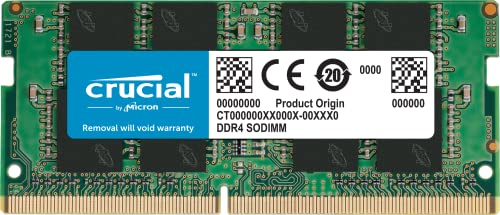
 A-Tech DDR4 RAM 16GB 3200MHz PC4-25600 SODIMM Laptop16GB2.74 x 1.18 x 0.15 inches0 poundsCheck on Amazon



Top 3 picks at a glance
Quick Picks
As an Amazon Associate we earn from qualifying purchases at no extra cost to you.



| Product | Best for | Key spec taken from the title |
|---|---|---|
| Crucial 32GB DDR5 Kit (2x16GB) | Newer DDR5 laptops, dual-channel setup | 5600MHz, 262-pin SODIMM, two 16GB modules |
| Crucial 32GB DDR5 (single module) | DDR5 laptops with one free slot | 5600MHz, 262-pin SODIMM, listed for Ryzen 6000 |
| Crucial 16GB DDR4 | Mainstream DDR4 upgrades | 3200MHz CL22, 260-pin SODIMM |
| Crucial 32GB DDR4 Kit (2x16GB) | Heavy multitasking on DDR4 | 3200MHz PC4-25600, CL22, downclockable |
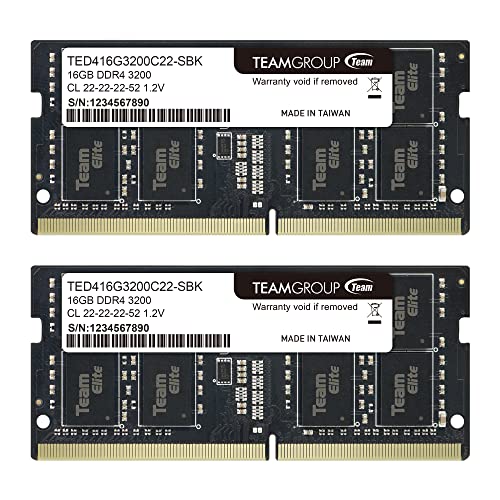
| TEAMGROUP Elite DDR4 32GB Kit | DDR4 upgrades with a different brand | 3200MHz, 1.2V, unbuffered non-ECC |
| Timetec 16GB Kit DDR3L | Older DDR3 laptops | 2x8GB, 1600MHz, 1.35V/1.5V, 204-pin |
How to Choose
Identify the generation first
DDR3L, DDR4, and DDR5 are physically different and not interchangeable. The pin count tells you at a glance: 204 pins for DDR3 SODIMM, 260 for DDR4, and 262 for DDR5. Your laptop’s service manual or the manufacturer’s spec page names the type. A stick from the wrong generation will not fit the slot, so do not guess from the age of the laptop alone.
Capacity, kits, and channels
A kit of two modules, such as 2x16GB, lets the laptop run dual-channel memory, which generally gives better bandwidth than a single stick of the same total size. Check how many slots the laptop has and whether any are already filled. Eight gigabytes still runs Windows, 16GB suits most people who multitask, and 32GB is for virtual machines, large spreadsheets, or creative work. Do not buy more than the motherboard supports; the manufacturer lists a maximum.
Speed, latency, and voltage
Speed labels such as 3200MHz or 5600MHz are ceilings, and many laptops run memory at whatever speed the platform allows. Titles that say “or 2933MHz or 2666MHz” tell you the module can drop down to slower speeds, which helps if the laptop supports only those. CL22 describes latency, and standard laptop modules use 1.2V for DDR4, with DDR3L using a lower 1.35V. Chasing small speed differences rarely matters as much as matching generation and capacity correctly.
What to ignore and where budget parts cut corners
Ignore marketing for heat spreaders on laptop memory; there is little room in a laptop for tall coolers. Ignore “gaming” labels as well, since laptops rarely let you tune memory the way a desktop does. Cheaper modules from unknown brands may skip detailed compatibility lists or offer a short warranty, so favor memory makers that clearly state generation, pin count, and unbuffered non-ECC type. Be wary of any listing that mentions “desktop” memory for a laptop slot, because desktop DIMMs are longer and cannot be installed in a SODIMM socket. When two products look similar, the one that lists exact pin count and voltage is easier to verify.
The 6 Best Options
Crucial 32GB DDR5 Kit (2x16GB)
This kit is for a recent laptop with two open DDR5 SODIMM slots. The title lists two 16GB modules for 32GB total, 5600MHz speed with fallback to 5200MHz or 4800MHz, 262-pin SODIMM format, and compatibility with Intel Core and AMD Ryzen 7000 platforms. For someone editing large projects or running several virtual machines on a current thin-and-light, a paired kit is the cleanest way to reach 32GB in one purchase.
- Strength: A matched pair supports dual-channel operation, and the fallback speeds help with platform differences.
- Strength: 32GB of total memory gives plenty of room for heavy multitasking.
- Trade-off: It only suits laptops that use DDR5 and have two accessible slots.
Skip it if your laptop has soldered memory, a single slot, or a DDR4 board. It is also overkill for a laptop that mostly runs a browser and office apps.
Crucial 32GB DDR5 (single module)
A single 32GB stick suits a DDR5 laptop that has one free slot or a layout where you replace an existing module. The title lists 5600MHz with fallback to 5200MHz or 4800MHz, a 262-pin SODIMM, compatibility with 13th Gen Intel Core and AMD Ryzen 6000, and a model number for cross-checking. This is the choice when you want to keep an existing module in place and fill the second slot later, or swap out one smaller stick without buying a pair.
- Strength: One module delivers 32GB and leaves a second slot free for future expansion.
- Strength: The listed model number helps you verify compatibility against the maker’s tool.
- Trade-off: A single module does not give a dual-channel configuration on its own.
Skip it if you want matched pairs for the best bandwidth or have a DDR4 laptop, because the notch and pin layout will not match.
Crucial 16GB DDR4 (3200MHz)
This is the straightforward upgrade for DDR4 laptops that ship with only 8GB. The title lists 16GB, 3200MHz CL22 with fallback to 2933MHz or 2666MHz, and a 260-pin SODIMM format. A single stick like this is often the easiest first step because it can be installed in minutes with a small screwdriver on many laptops.
- Strength: Fallback speed labels make it adaptable across DDR4 laptops of different ages.
- Strength: 16GB is a sweet spot for browsing, office tasks, and light creative work.
- Trade-off: A single stick means no dual-channel unless you pair it with a matching module.
Skip it if your laptop uses DDR5 or DDR3L, or if you need 32GB total. Anyone with both slots already filled by small modules will have to remove one before adding it.
Crucial 32GB DDR4 Kit (2x16GB)
This kit targets users who want to push a DDR4 laptop to its ceiling. The title lists two 16GB modules, 3200MHz (PC4-25600) at CL22, downclocking to 2933MHz or 2666MHz, and a 260-pin SODIMM format. Pairing two modules from the same kit keeps timings matched, which avoids the compatibility quirks that sometimes appear when you mix sticks.
- Strength: 32GB across two modules suits virtual machines and large projects.
- Strength: Downclockable speeds help it work in laptops with slower memory controllers.
- Trade-off: Many DDR4 laptops cap at 16GB or 32GB, so confirm the maximum first.
Skip it if your laptop only has one slot or if you only need modest gains, since a 16GB stick covers most everyday multitasking.
TEAMGROUP Elite DDR4 32GB Kit
This is an alternative DDR4 option from a different maker. The title lists a 32GB kit of two 16GB modules, 3200MHz PC4-25600, CL22 with 2933MHz and 2666MHz fallbacks, unbuffered non-ECC, 1.2V, and a 260-pin SODIMM format. Buyers who like to compare brands will find the listing detailed about electrical type, which is the sort of data that matters when a laptop is picky about memory.
- Strength: The title spells out unbuffered non-ECC and 1.2V, which helps with compatibility checks.
- Strength: A 32GB kit of two modules supports heavy multitasking.
- Trade-off: The title lists less compatibility detail than the Crucial listings, so rely on your laptop’s spec page.
Skip it if you want a maker-provided compatibility lookup or if your laptop uses another memory generation. As with any kit, make sure the combined capacity stays within what the laptop’s manual allows.
Timetec 16GB Kit DDR3L (2x8GB)
For older laptops, this kit keeps a legacy machine usable. The title lists two 8GB modules, DDR3L/DDR3 1600MHz (PC3L-12800), 1.35V/1.5V, CL11, dual rank, non-ECC unbuffered, and a 204-pin SODIMM form. Owners of laptops from the DDR3 era sometimes find this a practical way to stop constant paging to disk, and 16GB is generous for a machine of that age.
- Strength: It is one of the few options that fits DDR3 laptops that other lists leave out.
- Strength: The kit offers 16GB total and dual-voltage support for DDR3L and DDR3 machines.
- Trade-off: DDR3 platforms are old, so the performance gain may be limited by the rest of the laptop.
Skip it if your laptop uses DDR4 or DDR5, since the module will not fit, and skip it if you plan to replace the laptop soon, because the upgrade only extends an old platform’s life.
Which One Fits Your Situation
Your laptop is recent and uses DDR5
Pick the Crucial 32GB DDR5 Kit if you have two slots and want a matched dual-channel setup. If you have one open slot, the single Crucial 32GB DDR5 module is the simpler path.
You own a mid-aged DDR4 laptop with 8GB
The Crucial 16GB DDR4 is the straightforward fix. It doubles memory with a single stick and fits the 260-pin slot standard.
You run virtual machines or large datasets on DDR4
Go for the Crucial 32GB DDR4 Kit or the TEAMGROUP Elite 32GB Kit. Check your laptop’s maximum supported memory first, as some models stop at 16GB.
You are extending an old DDR3 laptop
The Timetec 16GB DDR3L kit is the only option here that matches the 204-pin slot. It keeps an old machine usable for light work.
Common Mistakes
- Buying DDR4 for a DDR5 laptop, or the reverse, because the machine “looks new enough.”
- Ordering more capacity than the laptop’s maximum, so the extra gigabytes go unused.
- Choosing a single large stick when the laptop could run two matched modules in dual-channel.
- Paying extra for a higher advertised speed that the laptop’s processor cannot use.
- Skipping a check for soldered memory, which cannot be upgraded at all, or for a service panel that makes the slots hard to reach.
Compatibility Checklist Before You Order
- Read the generation off your laptop’s spec sheet or a system information tool. DDR3L, DDR4, and DDR5 notches sit in different positions, so none of them will fit the wrong slot.
- Confirm the module is SODIMM, the short laptop format, and not the longer desktop size.
- Count the slots. Many thin laptops have one or none; some have memory soldered to the board, and nothing can be added.
- Find the maximum supported capacity in the maker’s documentation. Older machines often cap below what newer modules offer.
- Check the existing modules. Mixing different speeds works on many laptops, but the pair then runs at the slower speed.
- Look for a BIOS or firmware update note if your model is older and you plan to use a high-capacity module.
- Compare the speed rating with what the processor and board support; a faster module than the platform allows simply runs at the lower supported speed, so extra speed buys nothing.
- Keep the old modules if the new one is a replacement, so you can switch back quickly if the laptop will not start.
Installation and Setup Tips
- Shut the laptop down fully, unplug the charger, and disconnect the battery if the manual says it is removable.
- Touch bare metal on the chassis before handling a module to discharge static, and hold it by the edges.
- Insert the module at a shallow angle with the notch aligned, then press down until the side clips snap over it.
- After boot, open the system information screen to confirm the new capacity registered.
- If the machine fails to start, reseat the module before assuming it is faulty; a half-seated stick is the most common cause.
Which One Should You Buy?
| If you… | Choose… |
|---|---|
| Have a recent laptop that uses DDR5 and want two matched modules | Crucial 32GB DDR5 Kit (2x16GB) |
| Have a DDR5 laptop and want to fill one slot now | Crucial 32GB DDR5 (single module) |
| Need a simple capacity bump on a DDR4 laptop with one slot | Crucial 16GB DDR4 (3200MHz) |
| Run heavy workloads on a DDR4 laptop with two slots | Crucial 32GB DDR4 Kit (2x16GB) |
| Want another DDR4 kit option to compare | TEAMGROUP Elite DDR4 32GB Kit |
| Own an older DDR3L laptop | Timetec 16GB Kit DDR3L (2x8GB) |
Who Should Skip a RAM Upgrade
If the memory is soldered, or your laptop already sits at its maximum capacity, a new module changes nothing. The same goes for a slow storage drive: if the machine stutters because it uses an old hard disk, a faster drive usually helps more than extra memory. Check whether the system is actually running out of memory in its task monitor before buying anything.
Related guides
- Gaming Chair Cushions And Lumbar Supports
- Business Laptops With Long Battery Life
- Business Laptops For Graphic Designers
Frequently Asked Questions
How do I know which RAM my laptop uses?
Look up the exact model number on the manufacturer’s page or in the service manual. It lists the memory type, number of slots, and maximum capacity.
Is a kit better than a single module?
A matched kit allows dual-channel operation, which usually helps with integrated graphics and demanding tasks. A single module is fine if you only have one free slot.
Can I mix different brands of RAM?
It often works, but mixing speeds or sizes can force the memory to run at the slowest setting. A matched kit avoids that risk.
Will more RAM make my laptop faster?
Only if you were running out of memory. Open the task manager during normal work: if memory use sits near the ceiling, more RAM will help. If applications constantly slow down when many tabs or programs are open, extra RAM helps; otherwise the processor or storage is the limiting factor.
Related guides
More from Amazon
Programs that pair well with the guide above. Offers and eligibility are set by Amazon and may change.
Free shipping on eligible items, Prime Video and more. Eligible new members can start with a free trial.
Start a Prime free trialAd-free music streaming. Eligible new subscribers can start with a free trial.
Try Music Unlimited freeA Prime membership for ages 18-24 with a trial period. Eligibility is set by Amazon.
See Prime for Young AdultsAudiobooks and podcasts to listen to on the go. Eligible new members can start with a free trial.
Try Audible freeAs an Amazon Associate we earn from qualifying purchases.